Applies to: Nearity 360 Alien.
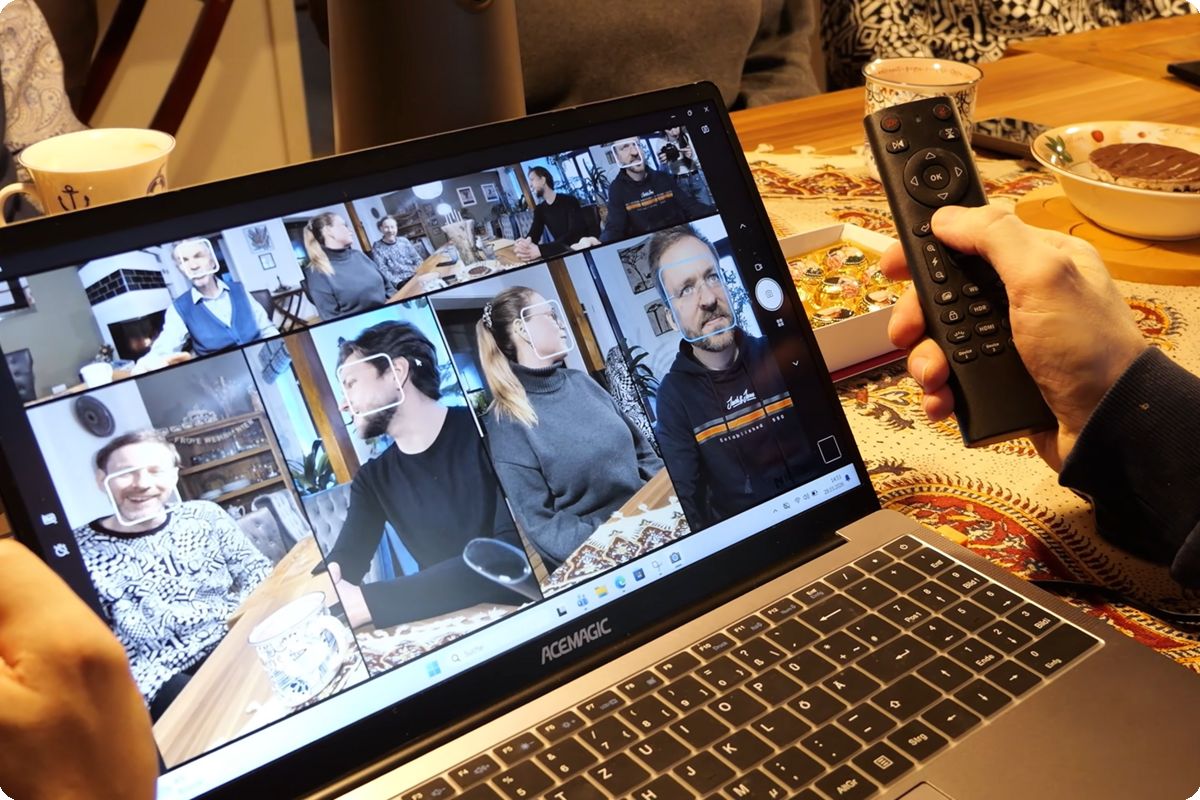
Choose a camera mode based on what remote participants need to follow: a group conversation, the person speaking, or a fixed area. Compare the modes below, then switch and check the view for your meeting.
In this article
- 1. Choose a suitable camera mode
- 2. Switch camera modes
- 3. Check the view before your meeting
- Frequently asked questions
1. Choose a suitable camera mode
Meeting activity | Recommended mode | What remote participants see |
Brainstorming, roundtable discussions, or project reviews with several contributors | Dynamic split-screen views of up to four participants, with an optional panorama above them | |
Presentations, training, or demos led mainly by one person | Presentation Mode | A view that uses speaker tracking to follow the person speaking |
Sessions where a consistent composition matters more than automatic tracking | A fixed view that stays steady as different people speak |
Discussion Mode: group conversations
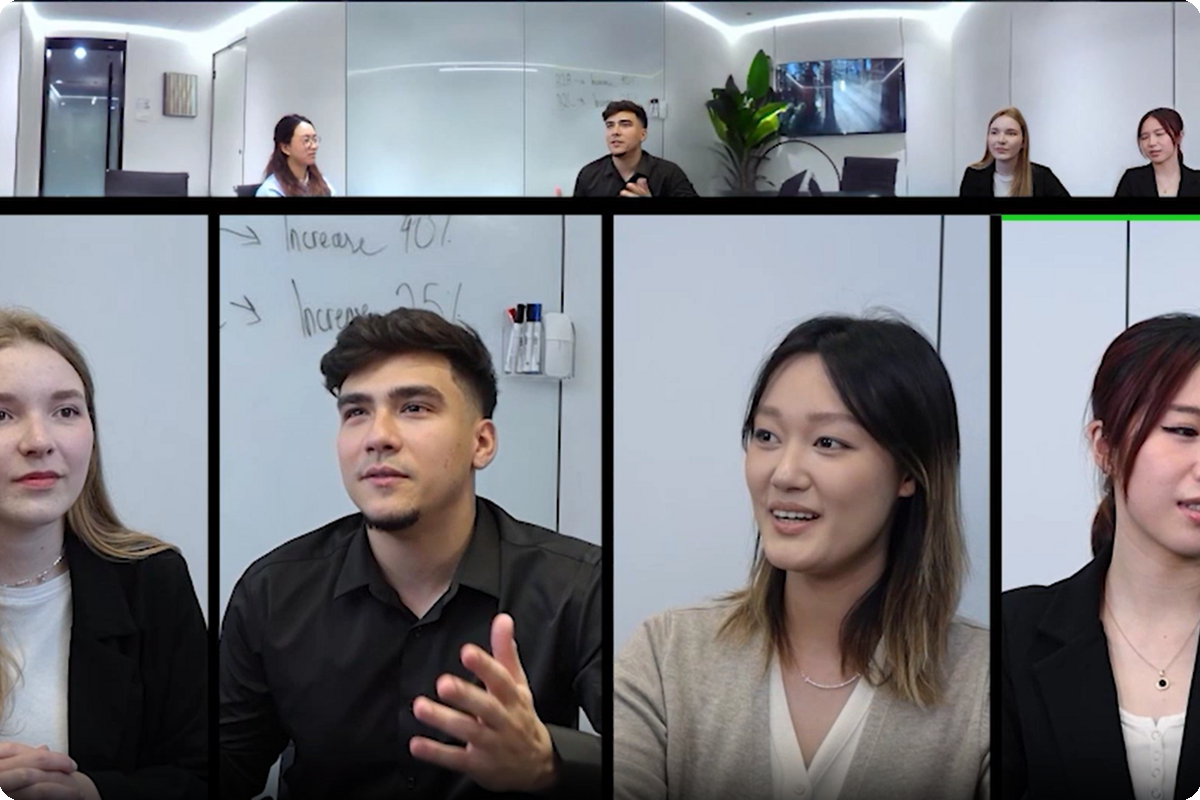
Use Discussion Mode when several people contribute. It dynamically displays up to four participant views, with two layout options:
- With the panorama: a panoramic room view appears above the dynamic participant views.
- Without the panorama: only the dynamic participant views are shown.
Presentation Mode: the person speaking
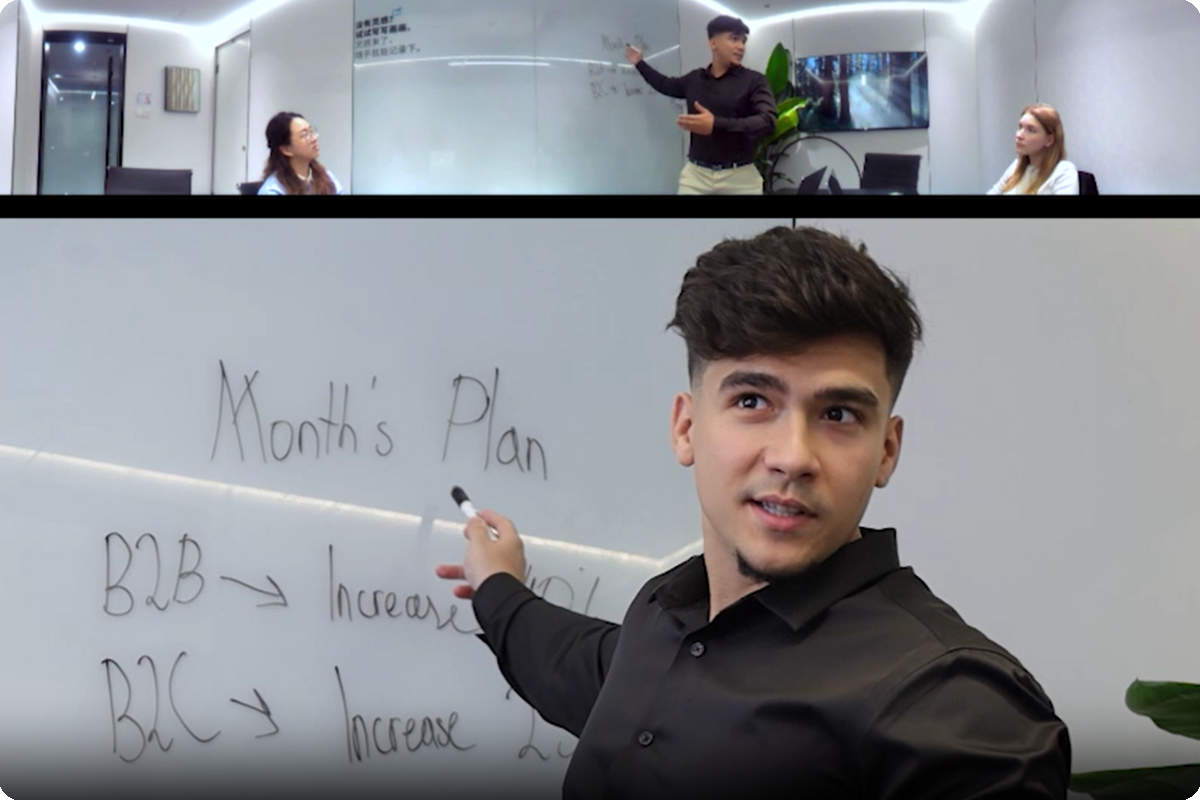
Use Presentation Mode when one person leads a presentation, training session, or guided demo. It uses speaker tracking to follow the person speaking.
Global Mode: a fixed view
Use Global Mode when you want a steady composition as different people speak, such as a demonstration in a fixed area. Someone who moves outside that view will not be followed automatically.
2. Switch camera modes
Choose one of the following methods.
Use the remote control
Press the Mode button. Watch the camera preview and press again as needed until the desired mode is selected.
Use the button on the camera
Press the mode button on top of Nearity 360 Alien, then check the preview.
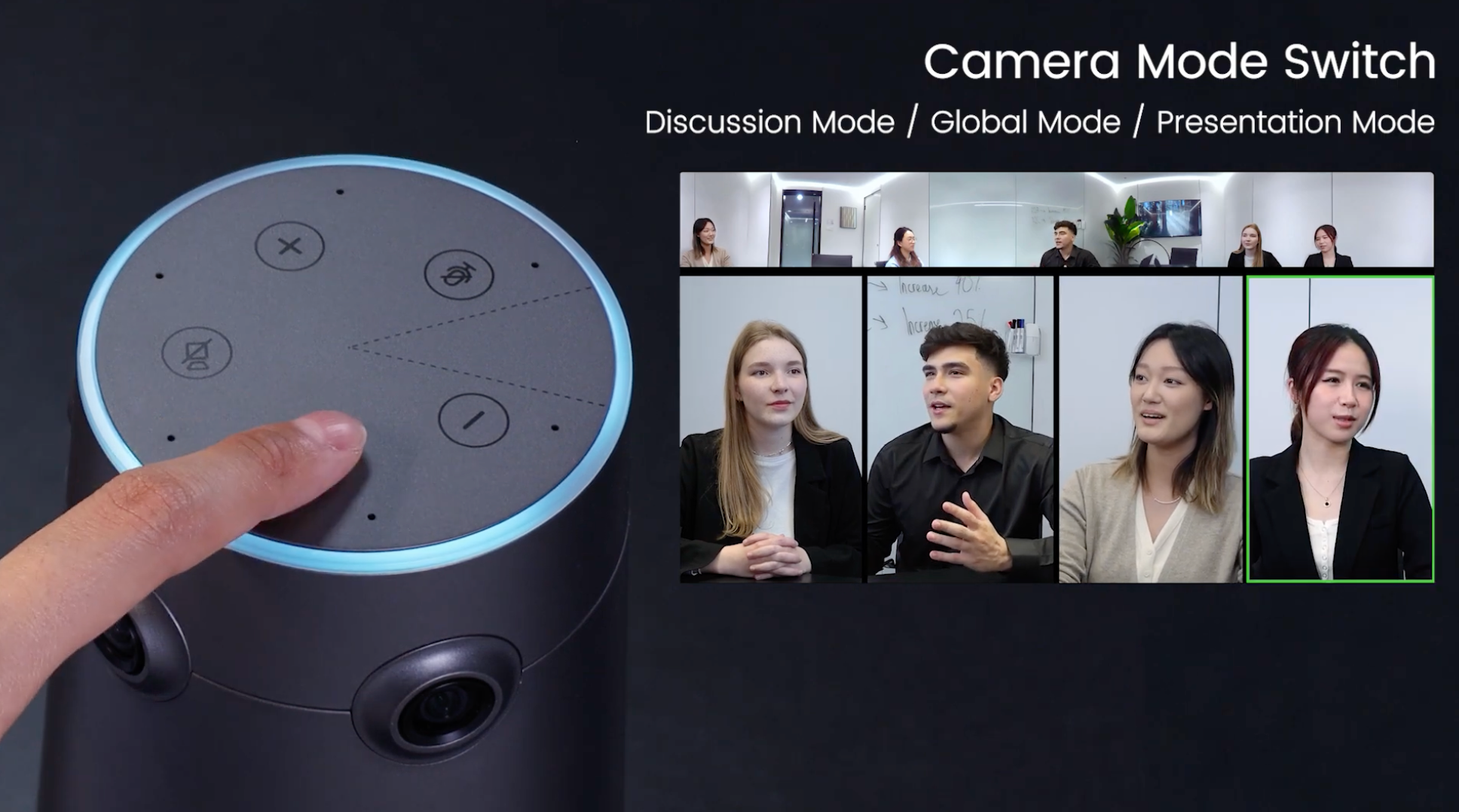
For help identifying it, see the quick access buttons guide.
Use NearSync and set the default mode
- Connect the camera to power and directly to your computer with a USB cable, then open NearSync.
- Select the camera in the device list.
- Open Device Setting and find Cam Mode.
- Choose Discussion, Presentation, or Global, then select Save.
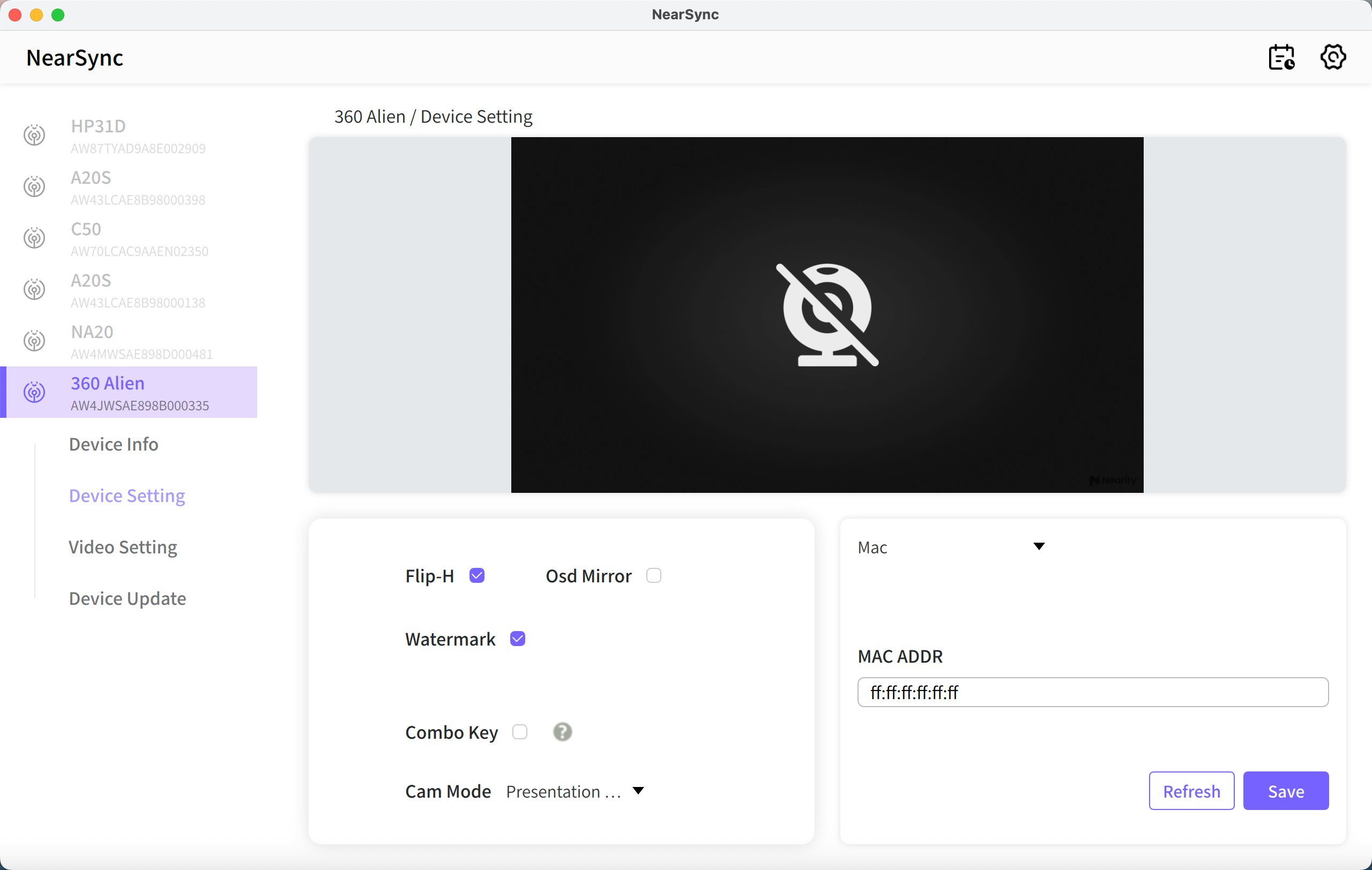
Check the preview after applying the setting. For more about Cam Mode, see the NearSync settings guide.
3. Check the view before your meeting
Select Nearity 360 Alien as the camera in your meeting app, then run a short test:
- Discussion: Have people contribute from different seats. Check the participant views and choose whether to show the panorama.
- Presentation: Have the presenter speak and move as planned. Check that the person remains visible.
- Global: Check that the fixed view includes the people or demonstration area you need.
Ask a remote participant to check the received video as well as reviewing your local preview. For picture adjustments, see How to Improve Image Quality on Nearity 360 Alien.
Frequently asked questions
Will Discussion Mode give everyone a separate window?
Discussion Mode dynamically displays up to four participant views. In a larger group, not everyone will have a separate window at the same time. Choose the layout with the panorama when remote participants also need an overview of the room.
Does hiding the panorama stop the participant views from changing?
No. In Discussion Mode, showing or hiding the panorama changes the layout, while the participant views remain dynamic. Choose Global Mode when you need a fixed composition.
Can Presentation Mode follow a product or whiteboard?
Presentation Mode tracks people, rather than a product, document, or whiteboard. If a physical demonstration needs to stay in a fixed area, use Global Mode and check the view beforehand. For slides or a software demonstration, share your screen through the meeting app.
What should I check if NearSync does not detect the camera?
Make sure the camera is connected to power and directly to your computer with a USB cable, then reopen NearSync. If it still does not appear in the device list, follow How to Connect Your Device to NearSync.
If You Still Need Help
If you need further assistance, please contact NearHub Support at support@nearhub.us.