How to Use the 5 Quick Access Buttons on Nearity Conference Camera
Learn how to use the five quick access buttons on Nearity conference camera to control the camera, adjust speaker volume, mute microphones, and switch camera modes.
The Nearity Conference Camera features five quick access buttons on the top of the device, allowing you to easily control essential meeting functions without navigating through software settings.
These buttons let you turn the camera on or off, adjust the speaker volume, mute or unmute the microphones, and switch between camera modes.
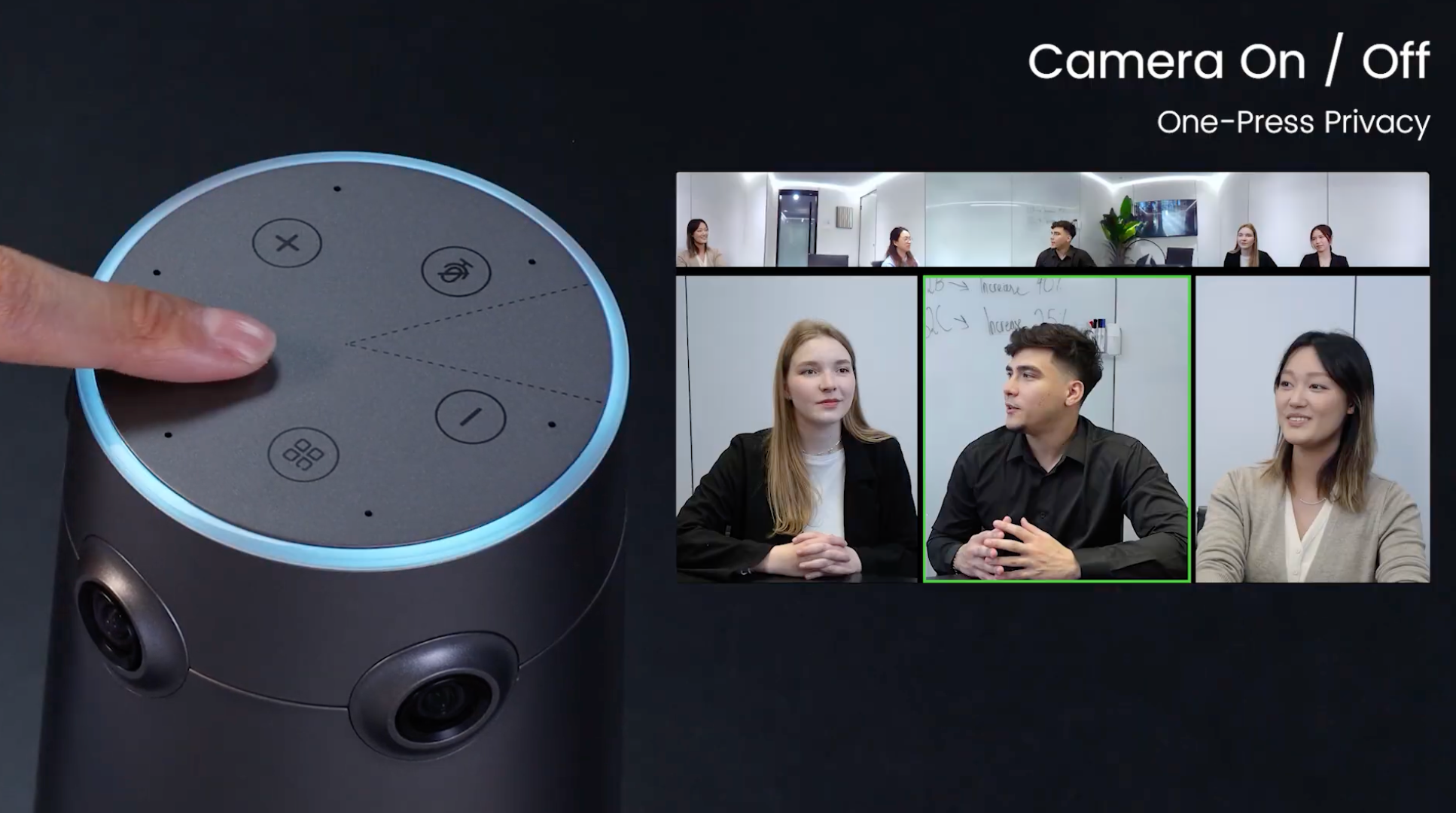
Button 1: Turn the Camera On or Off
Press the Camera On/Off button to quickly enable or disable the camera during a meeting.
This allows you to control your video feed and maintain privacy whenever needed.
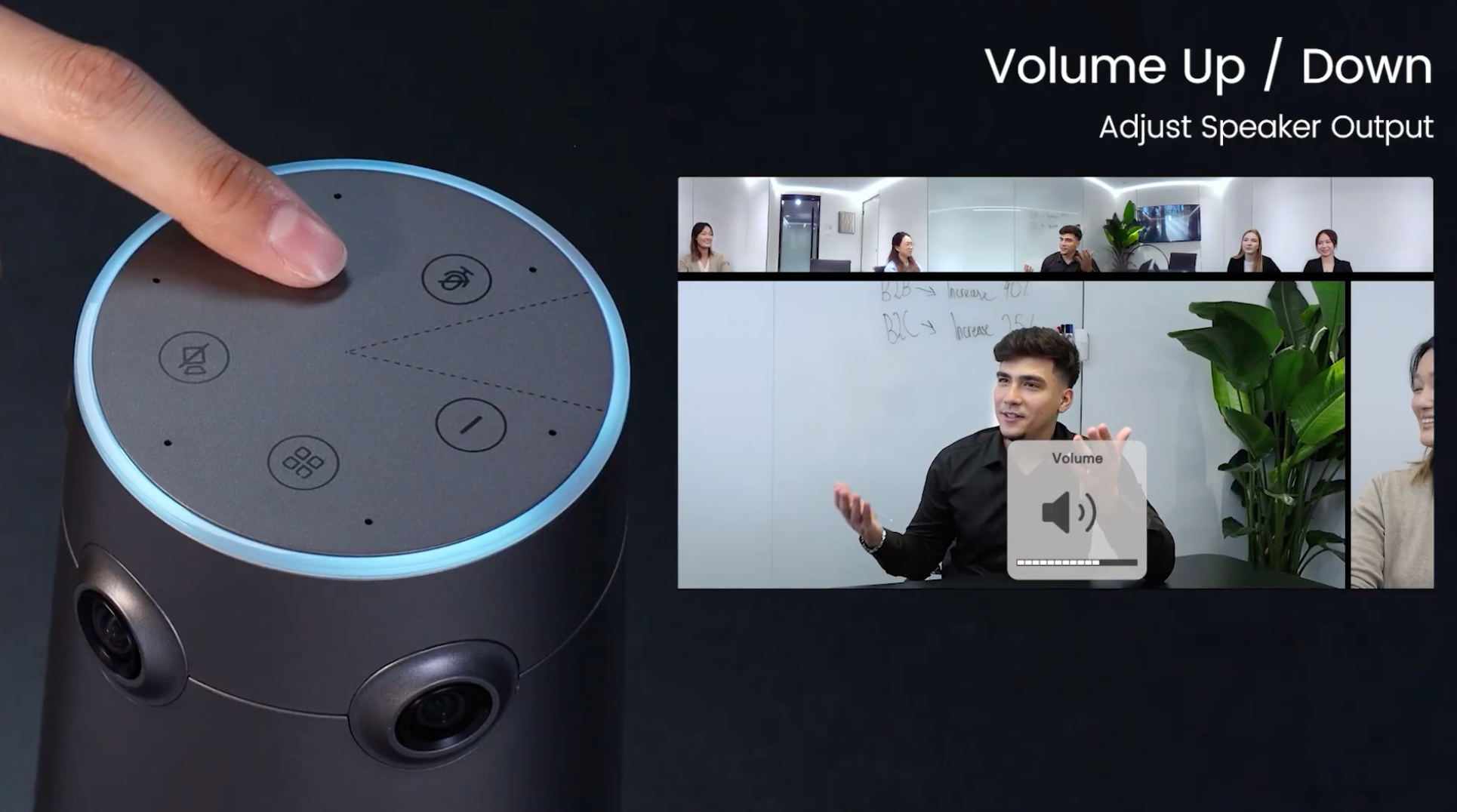
Button 2: Increase the Speaker Volume
Press the Volume + button to increase the speaker volume, ensuring everyone in the room can hear clearly.
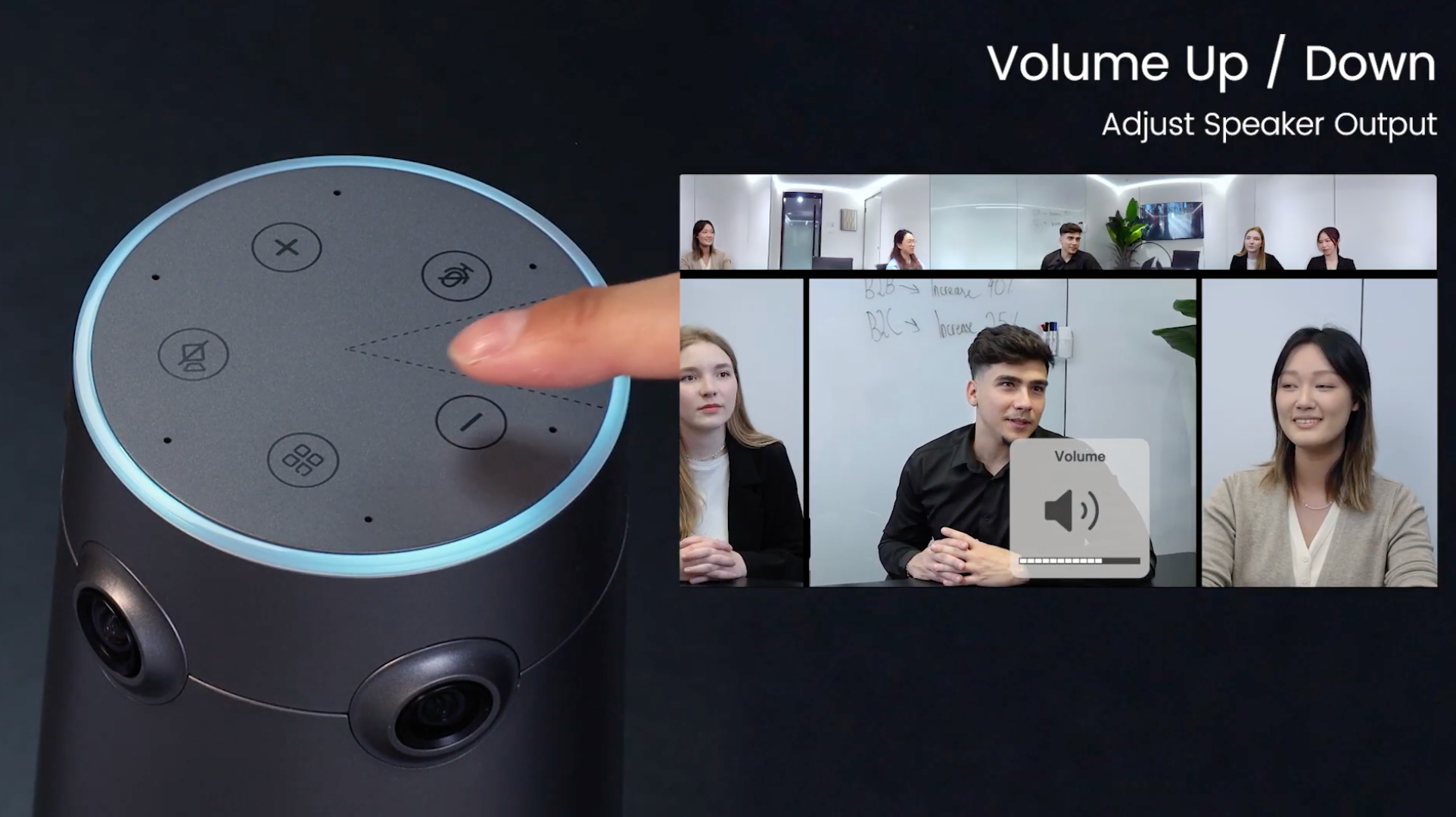
Button 3: Decrease the Speaker Volume
Press the Volume − button to decrease the speaker volume to a comfortable level.
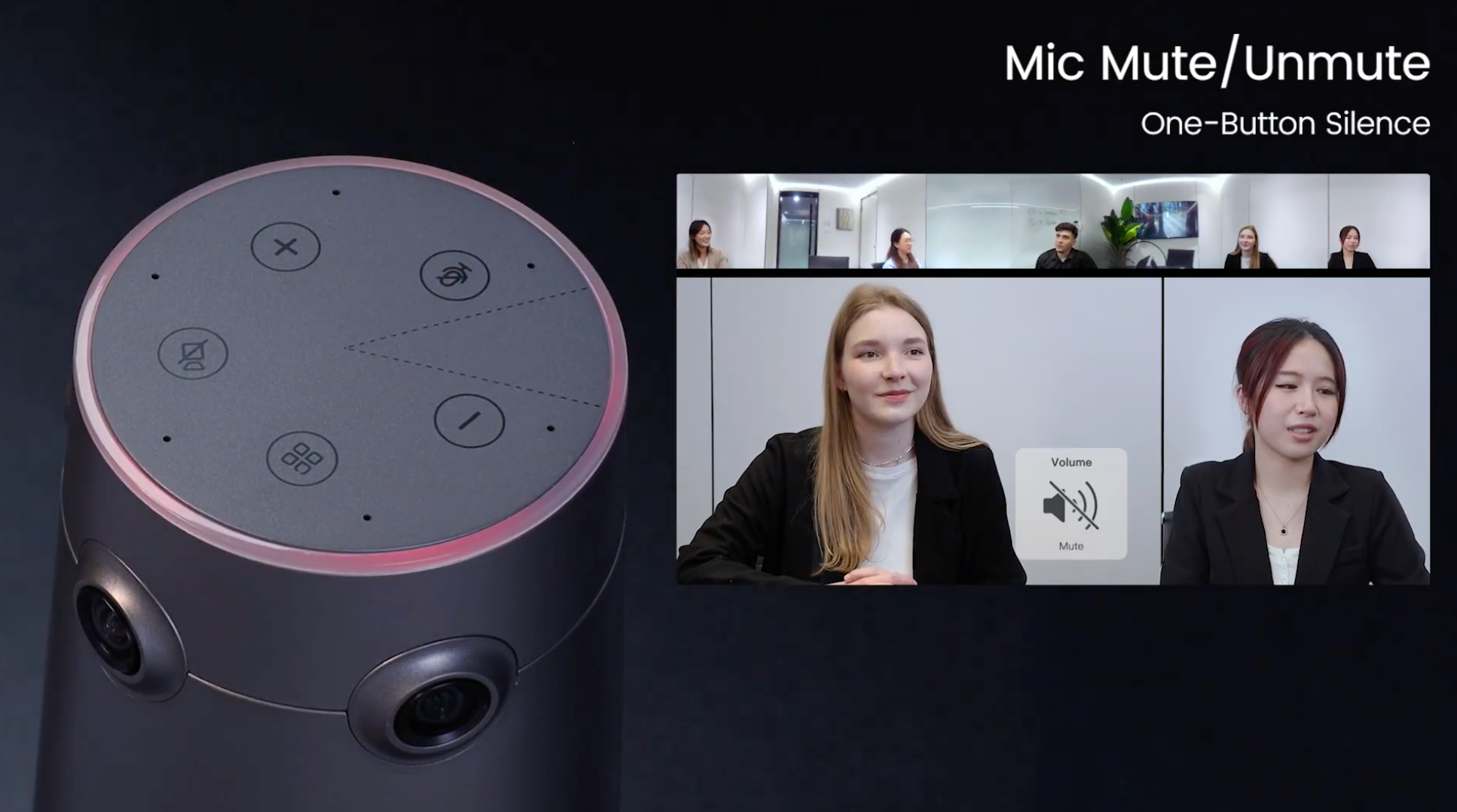
Button 4: Mute or Unmute the Microphones
Press the Microphone Mute button to mute or unmute all microphones.
This is especially useful for private conversations or temporarily preventing background noise from being heard by remote participants.
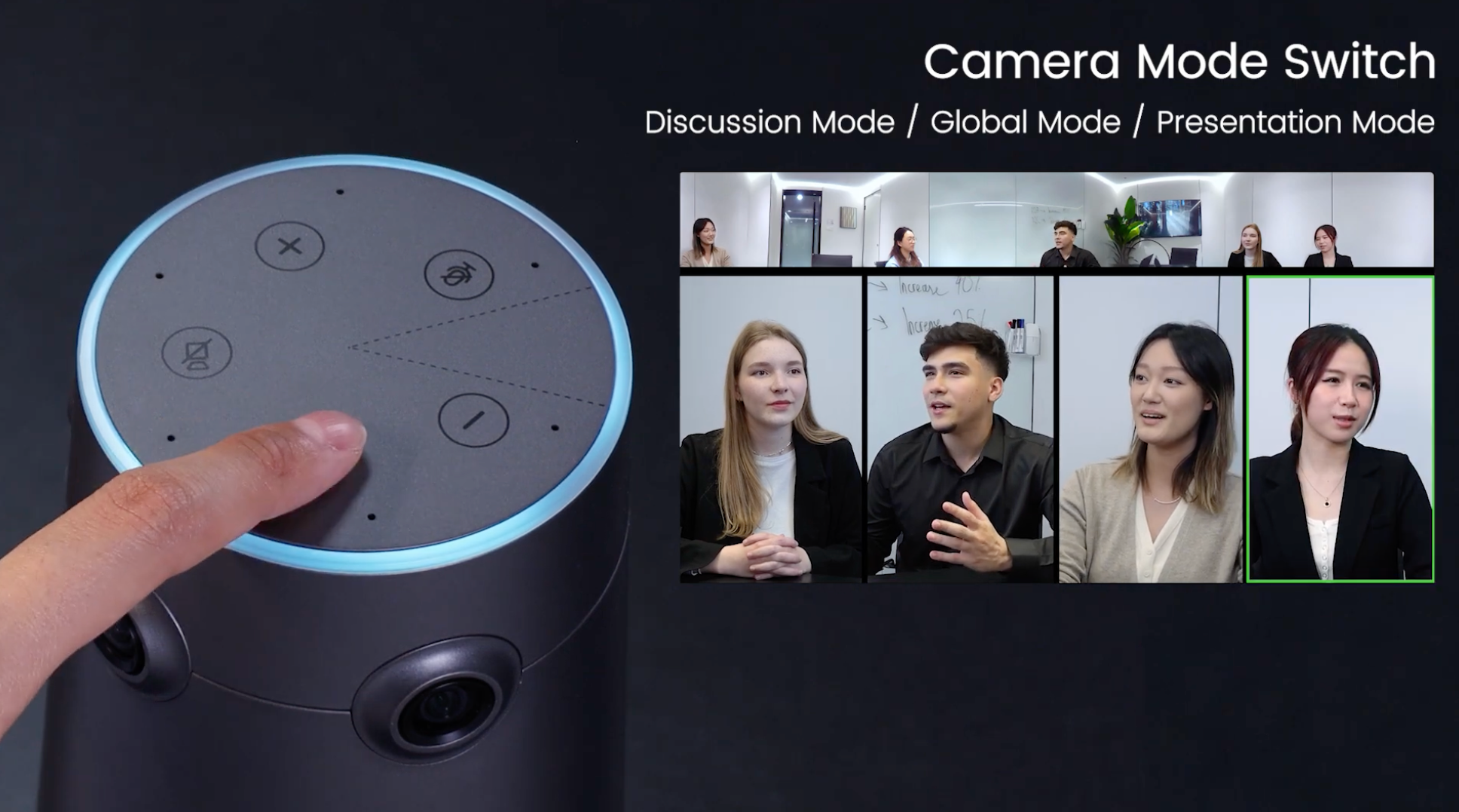
Button 5: Switch Camera Modes
Press the Camera Mode button to switch between different camera modes.
This allows you to select the camera view that best suits your meeting style and collaboration needs.
Quick Reference
Button | Function |
Camera On/Off | Turn the camera on or off |
Volume + | Increase speaker volume |
Volume − | Decrease speaker volume |
Microphone Mute | Mute or unmute all microphones |
Camera Mode | Switch between camera modes |
With these five quick access buttons, you can conveniently manage essential meeting functions directly from your Nearity Conference Camera.
If You Still Need Help
If the steps above do not resolve the issue, please contact NearHub Support at support@nearhub.us.
How did we do?
How to Connect a Nearity Conference Camera to Zoom, Teams, Google Meet, and Other Meeting Platforms
How to Set Up USB-C&A Connection on Nearity Conference Camera.

