How to Connect a Nearity Conference Camera to Zoom, Teams, Google Meet, and Other Meeting Platforms
Learn how to connect a Nearity conference camera to Zoom, Microsoft Teams, Google Meet, Webex, and other meeting platforms via USB or NA20.
Connect your Nearity conference camera to a computer, then select the Nearity device as the camera, microphone, and speaker in your meeting platform. The Zoom example uses Nearity 360 Alien, but the same setup principle applies to Microsoft Teams, Google Meet, Webex, and most other meeting applications.
Before You Begin
Make sure that:
- Your Nearity conference camera is connected to power.
- You have a USB cable or a paired NA20 Wireless Dongle.
- Your computer has an available USB port.
- Your meeting application or supported web browser is ready to use.
Step 1: Position and Power On the Camera
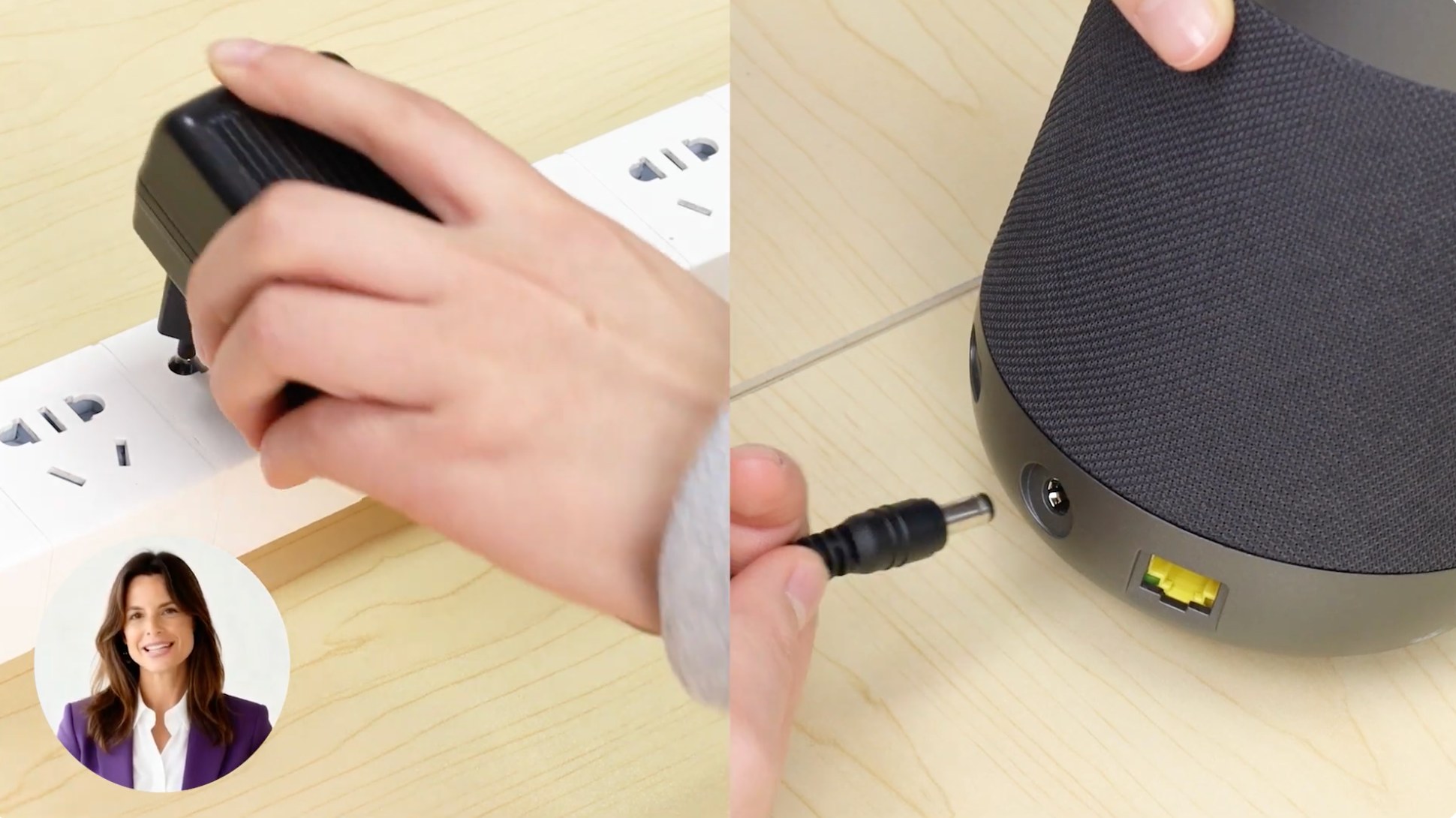
Position the camera so that everyone is within its coverage area. For Nearity 360 Alien, place the device near the center of the meeting table.
Connect the power adapter and wait for the device to finish starting. On Nearity 360 Alien, the ring light turns on when the device is ready.
Step 2: Connect the Camera to Your Computer
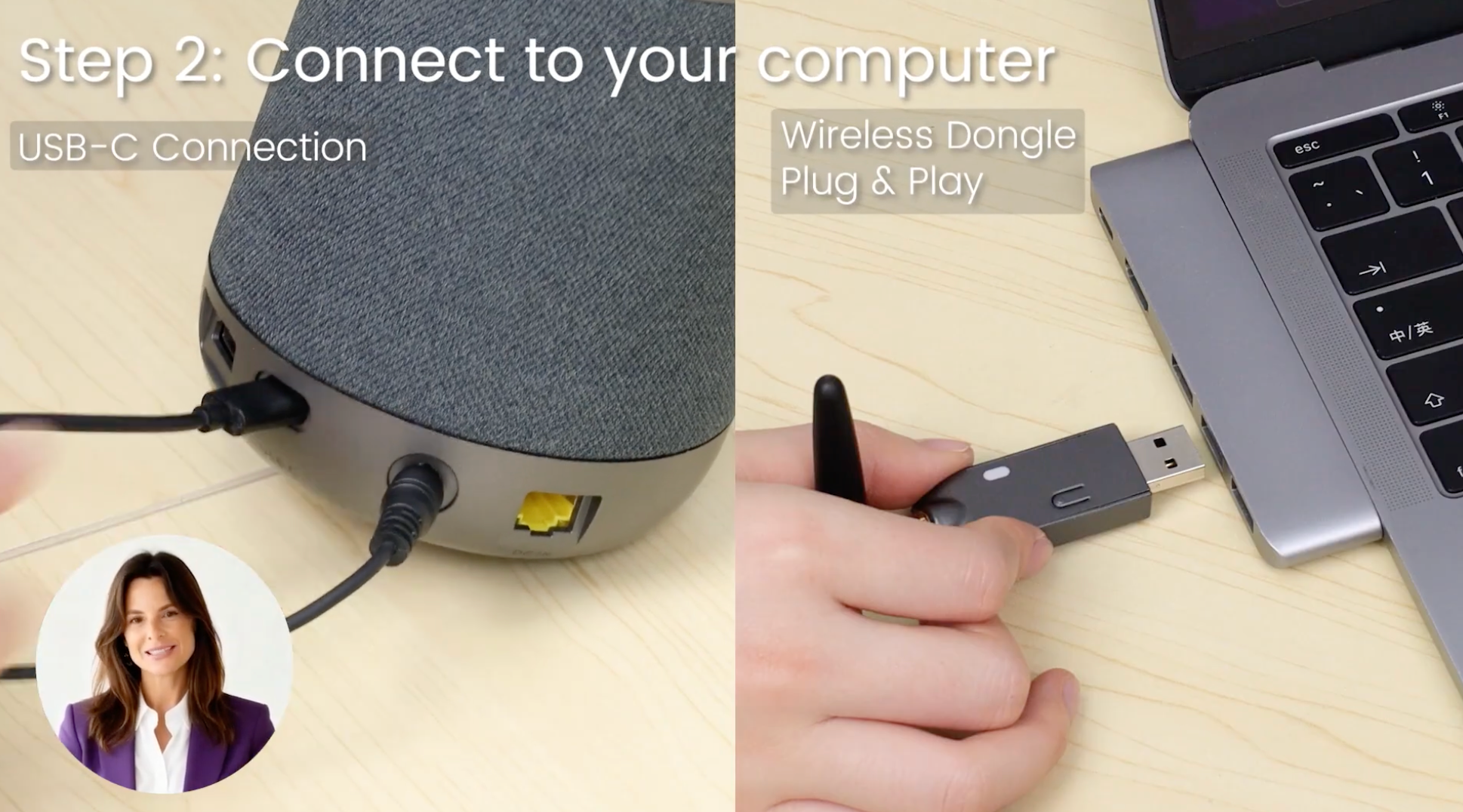
Choose one of these connection methods:
Option A: Direct USB connection
Connect the Nearity conference camera directly to your computer with a USB cable.
Option B: NA20 wireless connection
Insert the paired NA20 Wireless Dongle into your computer. The camera must remain connected to power while you use the wireless connection.
Device name: With a direct USB connection, select the Nearity product name, such as Nearity 360 Alien. With an NA20 connection, select Wireless transceiver NA20. The exact capitalization may vary by operating system or meeting platform.
Step 3: Select the Nearity Camera in Your Meeting Platform
Use the same Nearity device for the camera, microphone, and speaker. This keeps both video and room audio on the conference camera.
Zoom
- Open the Zoom desktop app and start or join a meeting.
- Click the arrow next to Mute, then open Audio Settings.
- Select the Nearity device as both the Speaker and Microphone.
- Click the arrow next to Start Video, then select the Nearity device under Select a Camera. You can also open Video Settings to check the preview.
Microsoft Teams
- In Teams, select Settings and more > Settings > Devices.
- Under Audio settings, select the Nearity device as the Speaker and Microphone.
- Under Video settings, select the Nearity device as the Camera.
- Check the video preview. If available, select Make a test call to test the microphone and speaker.
Google Meet
- Open Google Meet and select a meeting.
- Before joining, or during the meeting, select More options > Settings.
- Under Audio, select the Nearity device as the Microphone and Speakers.
- Under Video, select the Nearity device as the Camera.
- If prompted, allow the browser to use the camera and microphone.
Webex
- Open the meeting preview screen before joining.
- Open Audio options, choose Computer audio, and select the Nearity device as the Speaker and Microphone.
- Open Video options and select the Nearity device as the Camera.
- Use the available test controls to check the speaker, microphone, and camera preview.
Other meeting platforms
Open the platform's Settings, Devices, or Audio and video menu. Select the same Nearity device as the camera, microphone, and speaker, then check the preview before joining.
Step 4: Test Before the Meeting
- Confirm that everyone in the room appears in the camera preview.
- Speak and check that the microphone level responds.
- Play a test sound and confirm that audio comes from the Nearity device.
- Join the meeting and ask a remote participant to confirm that the room can be seen and heard clearly.
Tips: If the platform remembers an old laptop camera, microphone, or speaker, open its device settings and select the Nearity device again.
If You Still Need Help
If the steps above do not resolve the issue, please contact NearHub Support at support@nearhub.us.
How did we do?
How to Use the 5 Quick Access Buttons on Nearity Conference Camera

