How to Improve Image Quality on Nearity 360 Alien - 360 Conference Camera Series
Applies to Nearity 360 Alien. Picture settings can be adjusted through NearSync or the camera’s on-screen display (OSD) using the remote control. Check your video connection and meeting platform’s ca…
Check your video connection and meeting platform’s capabilities, then adjust the picture to improve how participants appear on screen.
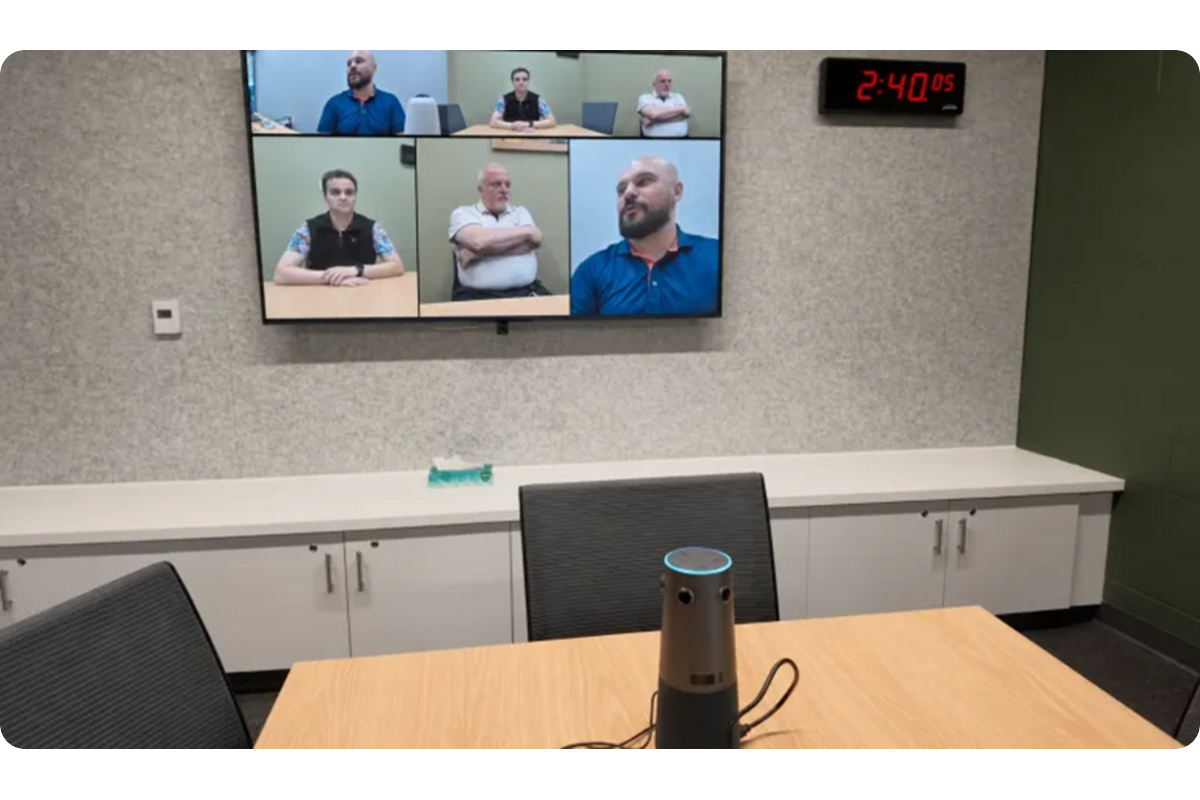
1. Check your USB video connection and capture format of Nearity 360 Alien
Use a direct USB connection when you need the camera’s 4K video output.
Connection | Maximum video output | Purpose |
|---|---|---|
Direct USB | 3840 × 2160 | Connect the camera to a computer for 4K video output. |
NA20 wireless dongle | 1080p | Connect to the computer wirelessly to reduce USB cable clutter. |
HDMI output | 1080p | Send the camera’s video to a connected display. |
The camera’s maximum capture resolution also depends on the video format:
Capture format | Maximum resolution and frame rate |
|---|---|
YUV | 480p at 30fps |
MJPEG | 4K at 30fps |
H.264 | 4K at 30fps |
These specifications describe the camera’s supported formats. They do not guarantee that every meeting application will capture or send video at the camera’s maximum resolution.
2. Check your zoom/teams/google meeting platform’s video capabilities
Check the platform’s supported video quality before treating a lower meeting resolution as a camera problem.
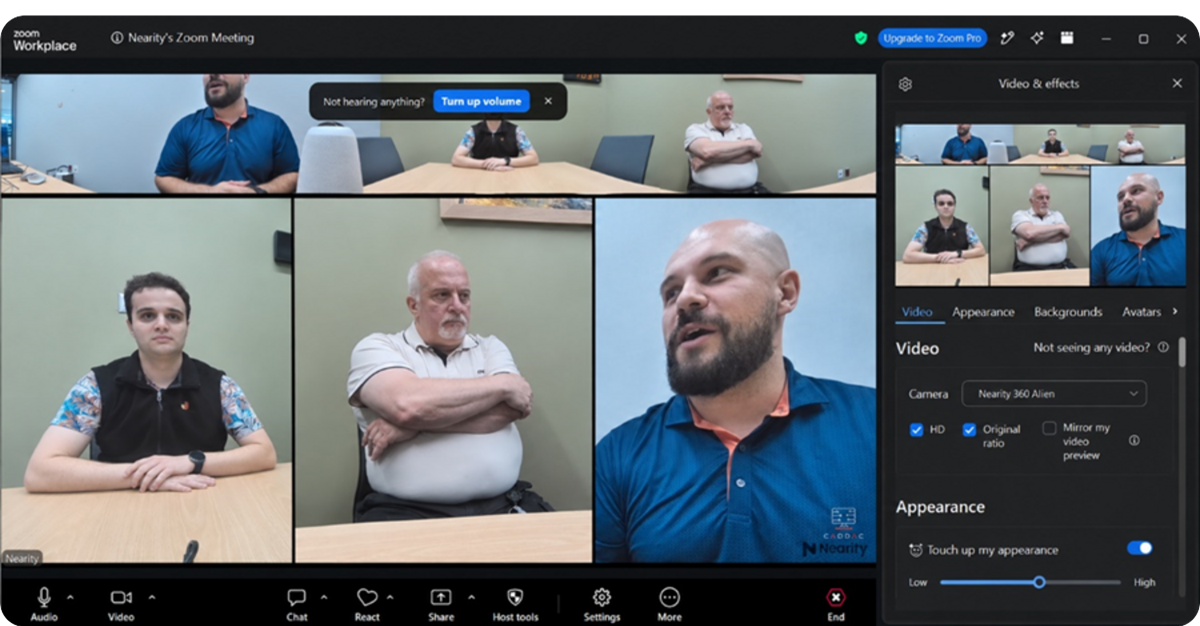
A 4K camera output does not guarantee a 4K picture in every meeting. The meeting software also determines the video resolution sent to other participants, based on its supported video capabilities and operating requirements.
Platform | Official video supported guidance |
|---|---|
Microsoft Teams | Microsoft documents outgoing video resolution as variable according to the content and device capabilities, with a typical range up to 1920 × 1080. See Monitor call and meeting quality in Microsoft Teams. |
Zoom | Zoom’s HD video supports 720p or 1080p, depending on the plan and bandwidth requirements. See Enhancing your video in Zoom. |
Google Meet | Sending 1080p video depends on account eligibility, camera capability, processing power, and browser support. See Improve your video & audio experience. |
3. Adjust the picture for your conference room
Open the picture controls through NearSync or the remote control. Both methods provide the same adjustable picture parameters.
Option A: Use NearSync
Nearity NearSync provides manual controls for adjusting the camera picture.
Before you begin: Install NearSync on the computer and prepare the camera’s power adapter and USB cable.
- Connect the camera to power.
- Connect the camera directly to the computer using the USB cable.
- Open NearSync.
Connection confirmed: The camera appears in the device list with its model name and firmware version. Connecting only the paired NA20 does not give NearSync access to the camera’s settings.
- Select 360 Alien.
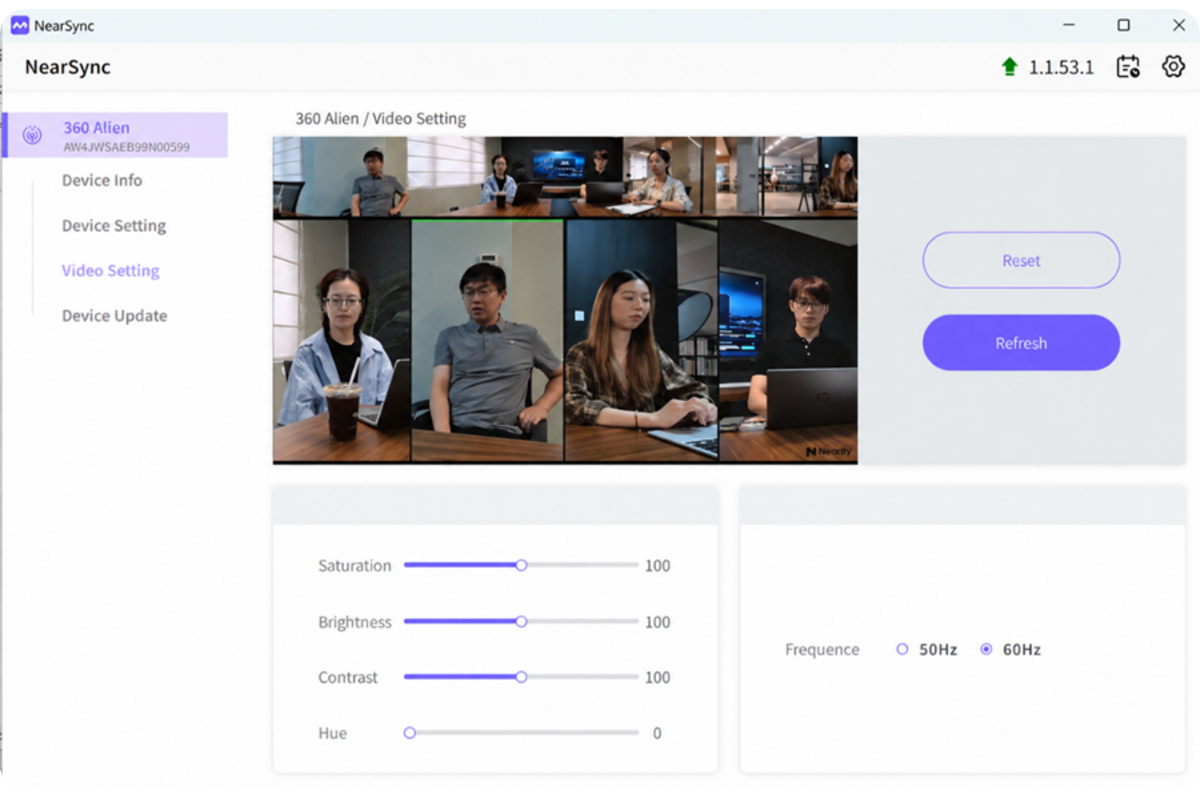
- Open Video Setting.
Controls available:
Option B: Use the remote control
Nearity 360 Alien’s OSD provides access to picture adjustments through the remote control.
- Open the OSD menu using the remote control.
- Select Image Setting.
- Select the parameter you want to adjust.
Understand the picture controls
Parameter | Meaning | How to adjust it |
|---|---|---|
Brightness | Controls how light or dark the picture appears. | Increase it when faces look dark. |
Contrast | Controls the difference between light and dark areas. | Increase it when the picture looks flat; decrease it when shadows look harsh. |
Saturation | Controls the intensity of colors. | Increase it when colors look dull; decrease it when colors look too vivid. |
Hue | Adjusts the picture’s color tone. | Adjust it when the image has an unwanted color tint. |
Anti-flicker frequency | Sets the frequency used to address flicker from room lighting. In NearSync, it is labelled Frequence. | Match it to the local electrical supply: 50Hz or 60Hz. |
Apply the adjustments
- Check faces in the camera preview from a normal meeting position.
- Close blinds behind participants if a bright window makes their faces dark.
- Adjust one parameter at a time.
- Check the picture again from the far end of the table.
In NearSync, select Refresh to reload the camera’s current values. Select Reset if you want to restore the picture sliders to their defaults.
FAQs
Why am I not getting 4K video in Teams, Zoom, or Google Meet?
The meeting platform’s video capabilities also determine the resolution sent to other participants. Check the official platform guidance above; a lower meeting resolution alone does not mean the camera is faulty.
Can I change the picture without installing NearSync?
Yes. Use the remote control to open the OSD and select Image Setting. It provides the same picture adjustment parameters.
Why does the speaker’s close-up look different from the wider view?
Discussion Mode and Presentation Mode can apply digital zoom, which affects the close-up image. Compare both views under the same lighting before changing the picture settings.
What should I change if the video flickers under the room lights?
Set the anti-flicker frequency to match the local electrical supply. In NearSync, use Frequence under Video Setting.
What if the picture looks worse after I change the settings?
Select Reset in NearSync’s Video Setting to restore the picture sliders to their defaults.
If you run into any issues, submit a support ticket and the support team will follow up.
How did we do?
How to Use Miracast to Wirelessly Cast to NearHub Board (Windows System)