Table of Contents
How to invite team members on NearHub Canvas?
NearHub Canvas is a dynamic platform that allows teams to collaborate, brainstorm, and work together in real-time. It’s an excellent tool that can be used to organize events, conduct meetings, and pl…
Table of Contents
NearHub Canvas is a dynamic platform that allows teams to collaborate, brainstorm, and work together in real-time. It’s an excellent tool that can be used to organize events, conduct meetings, and plan projects.
One of the essential features of NearHub Canvas is the ability to invite team members to join the canvas. This feature makes it easy to collaborate with colleagues, customers, and vendors. In this blog post, we’ll walk through the steps on how to invite team members to NearHub Canvas.
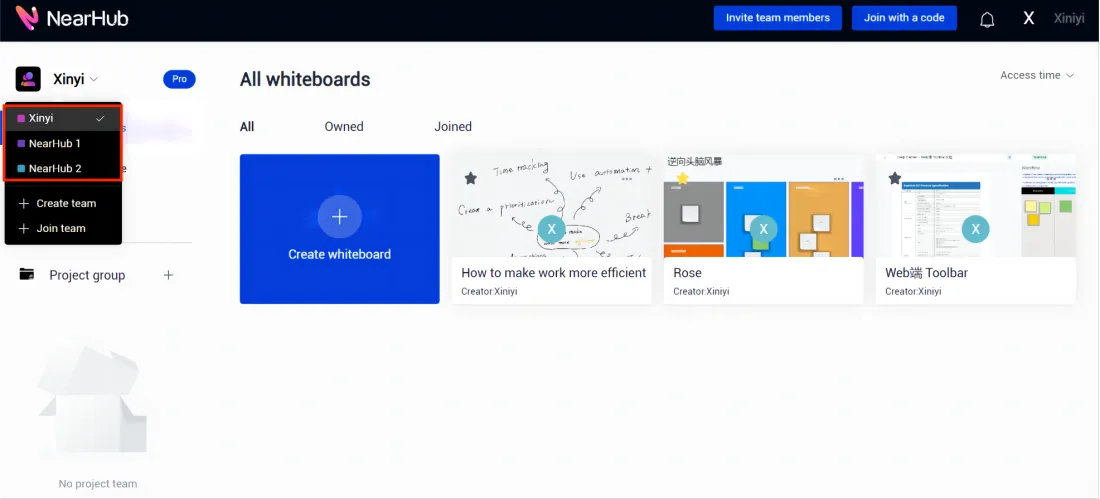
Step 1: Select the Team
First, you need to select the team you want to invite people to join.
Step 2: Enter the Invite Team Members Page
Then you can invite team members to join your Team.
There are Two entrances for inviting team members.
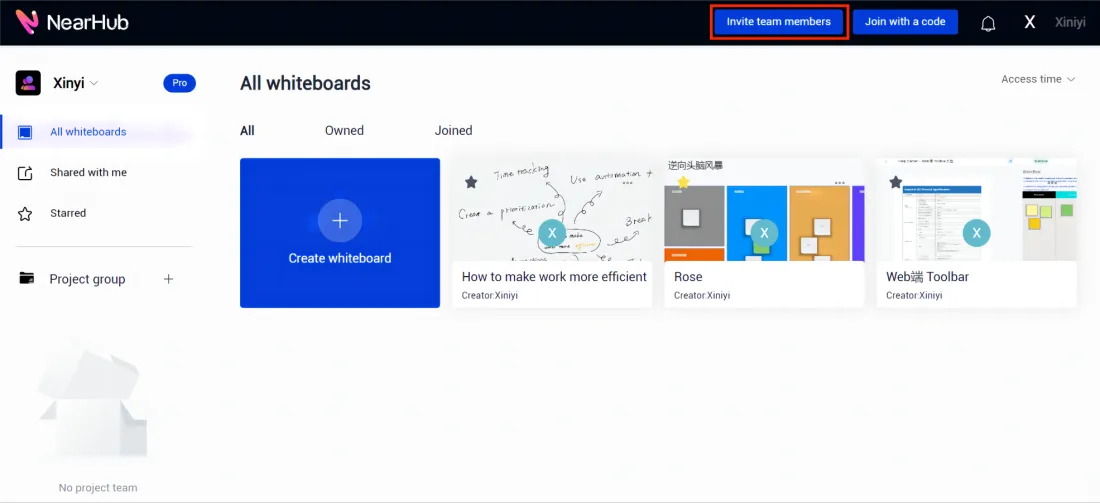
- Top right of home page
You can directly click the blue button“Invite team members”.
- Settings
You can click on the nickname in the upper right corner of the home page and select "Settings".
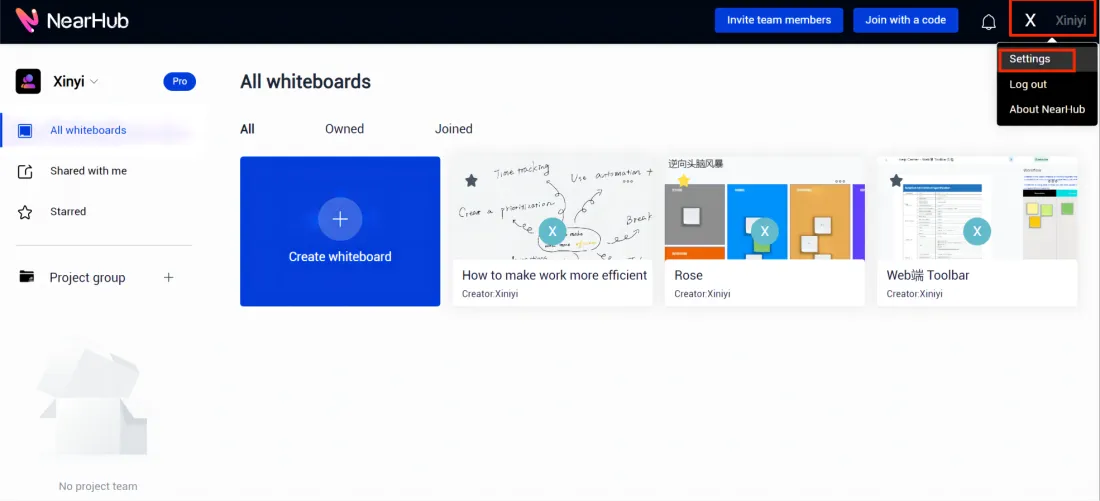
Then select "Team members" under "Team profile" and click on "Invite members".

Step 3: Invite Team Members
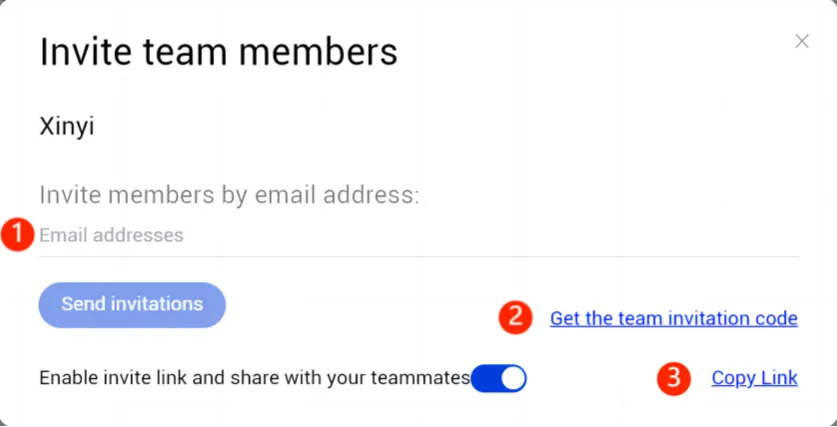
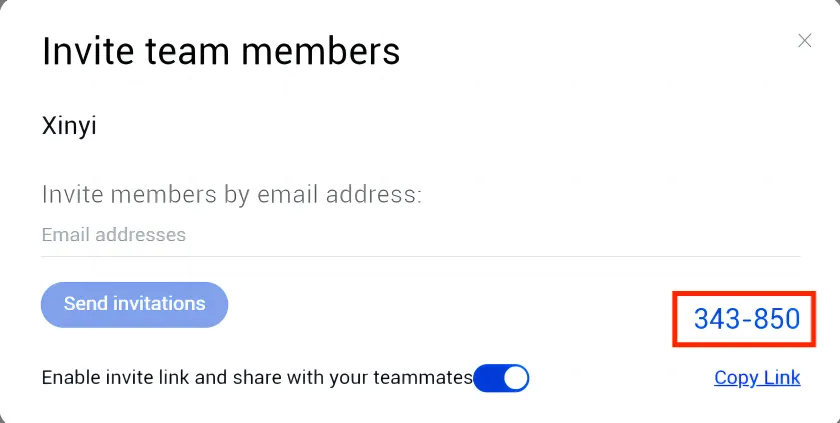
You have Three ways to invite members to the team.
- Invite members by email address.
- Invite members by the Six-digitteam invitation code.
- Invite members by the invite link.
Step 4: Join Team
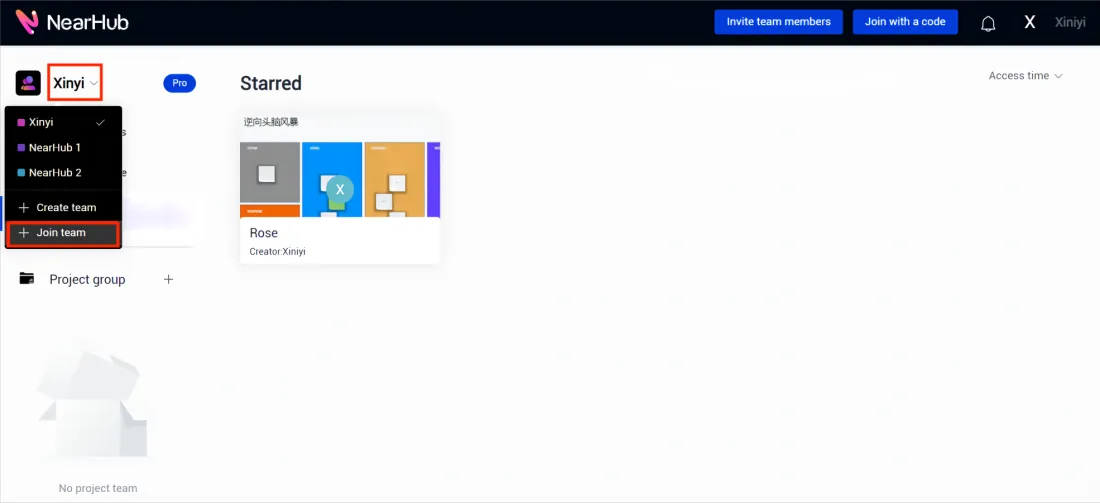
Members who received the invitation code can click on "Join team" under the team name at the top left of the homepage.
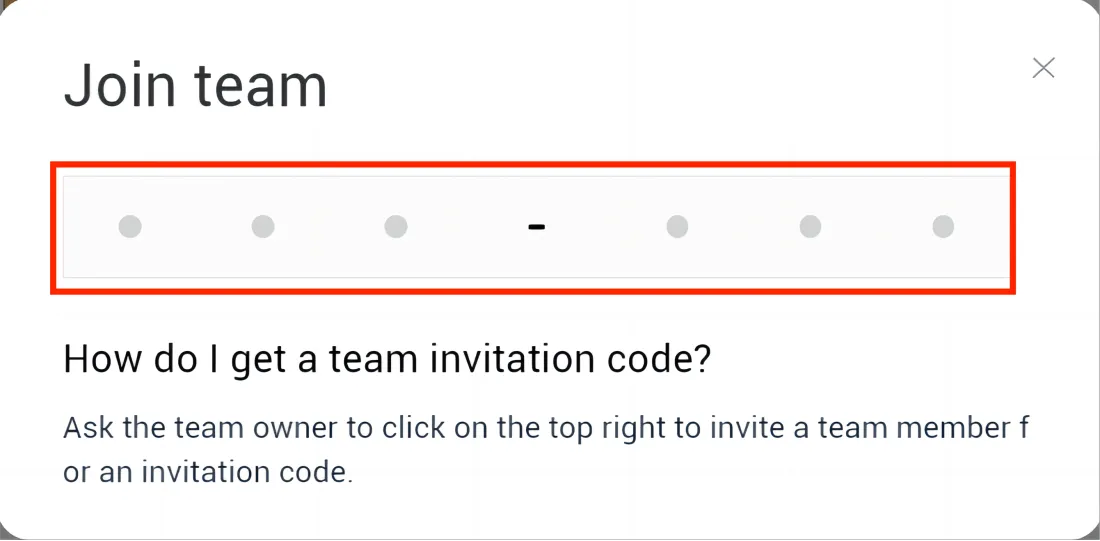
Enter the six-digit invitation code to join the team.
How did we do?
How to share Canvas on NearHub board?
Tips for navigating and using NearHub Canvas

