How to share Canvas on NearHub board?
In the workplace, you may need to share your canvas with your partners who work remotely. Here are some tips on how to share canvas on the NearHub Board. Note : Users can share canvas from their whit…
In the workplace, you may need to share your canvas with your partners who work remotely. Here are some tips on how to share canvas on the NearHub Board.
Note: Users can share canvas from their whiteboards or computers. If you want to share canvas from your computer, please visit https://app.nearhub.us/login and sign in your account on the Web.
Share a Canvas
- Open the Canvas you want to share.
- In the upper-right corner, select the Invite button.
- Choose one of the following sharing methods:
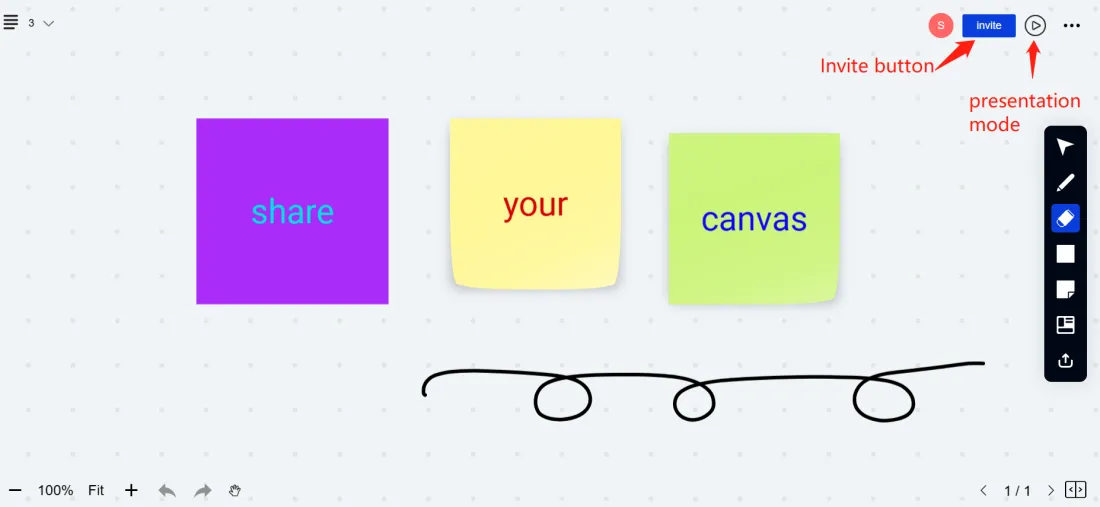
Click the invite button and then you can see 4 sharing options appearing on the screen.
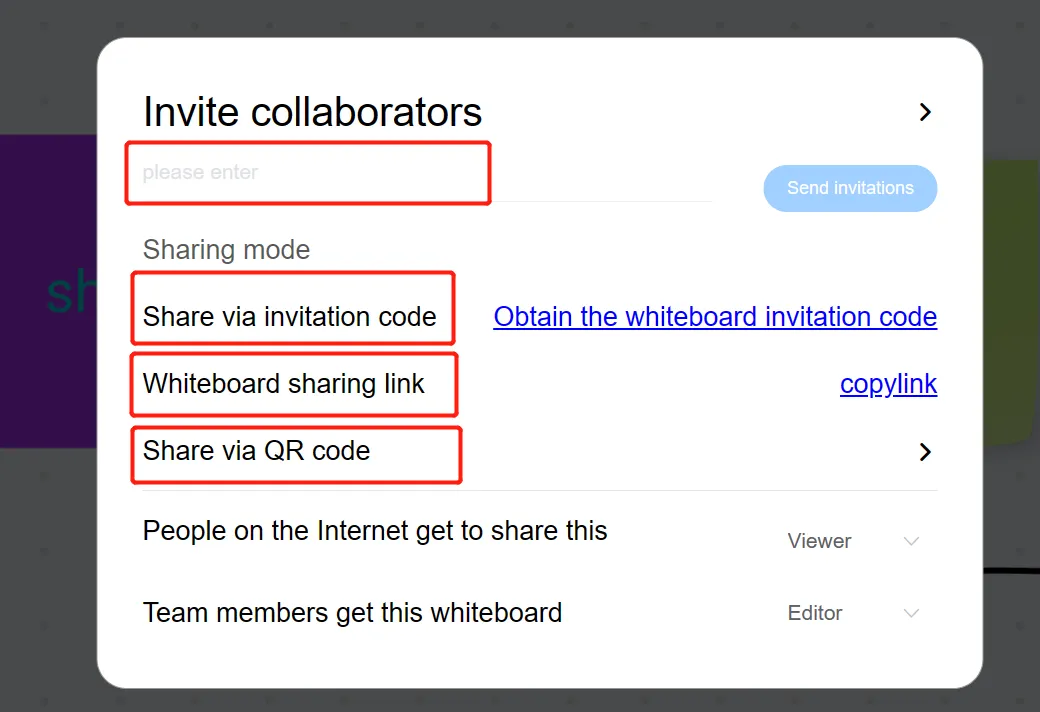
1. Invite by Email
Enter your collaborators' email addresses to invite them directly to the Canvas.
2. Share a Canvas Code
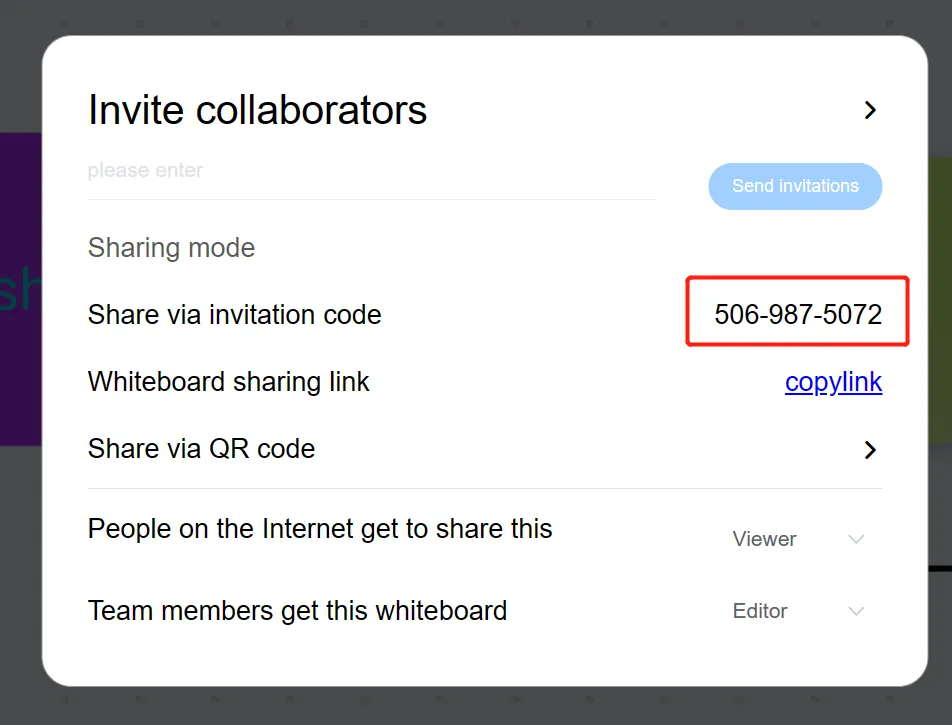
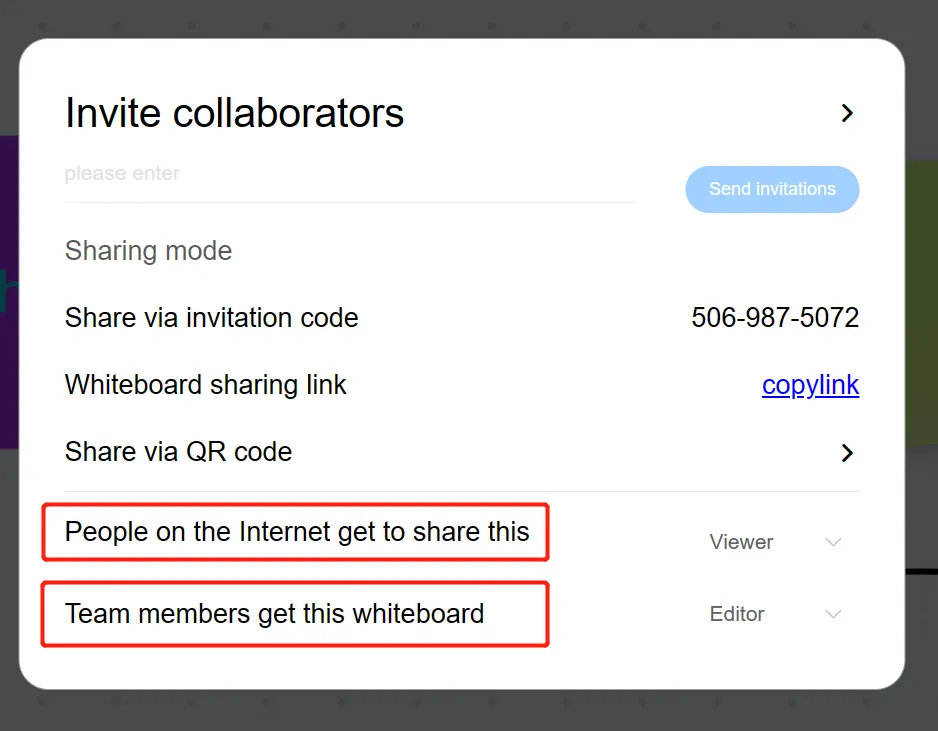
Select Obtain the whiteboard invatation code to get a canvas code, as you can see the number in the next image, and then your teammates can join the whiteboard by entering the same code on their devices.
3. Share a Public Link
Select Whiteboard sharing link to generate a shareable link.
You can send the link through apps such as Microsoft Teams, Whatsapp, or Skype, allowing others to access the Canvas directly.
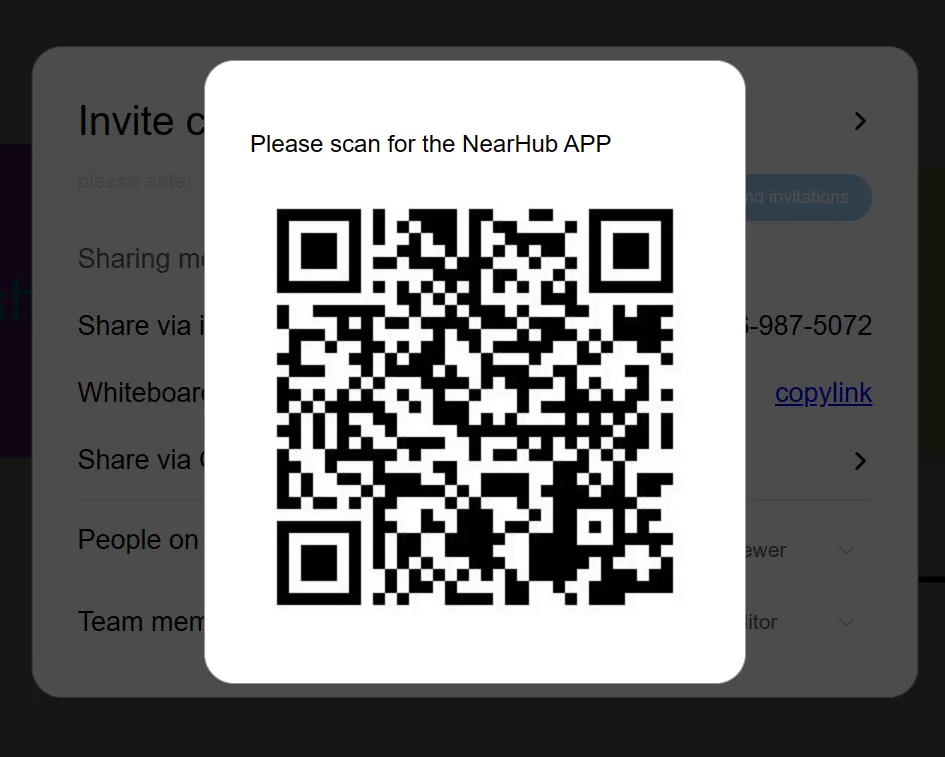
4. Share a QR Code
Select Share via QR Code to display a QR code that teammates can scan with their tablets or mobile phones to join the Canvas.
This is a great option for meetings in a really large space, so that everyone can scan the code easily.
Tip: Set your permission
NearHub Board enables you to choose different permission for all other users on the Internet and for team members. You can allow them to view, to edit, or forbid them from viewing it by choosing “No access”.
How did we do?
Quick Guide of Team Management on NearHub Canvas
How to invite team members on NearHub Canvas?

