How to Update Firmware in NearSync
Applies to Nearity A20S , Nearity 360 Alien , Nearity 120 Max , and Nearity NA20 Wireless Dongle. Firmware updates fix known issues and add features. NearSync notifies you when an update is available…
Firmware updates fix known issues and add features. NearSync notifies you when an update is available for a connected device. Keeping every device on the latest firmware is also required for features like A20S daisy-chaining to work correctly.
Before You Begin
Make sure you have:
- Your device connected to NearSync (USB cable for cameras and A20S; the dongle itself for NA20 — see How to Connect Your Device to NearSync)
- The device connected to its power adapter (if applicable)
- A stable internet connection on the computer
Update the Firmware
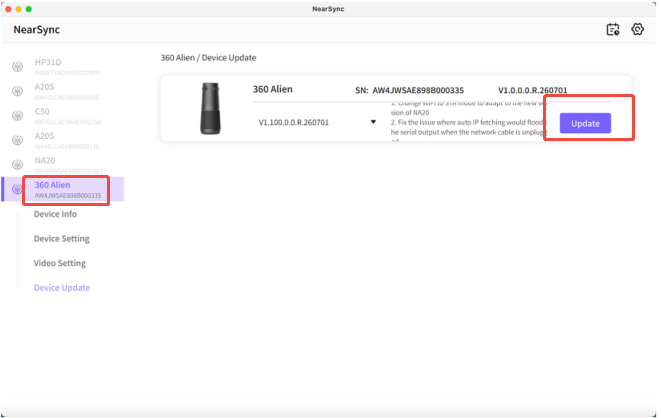
- Open NearSync and select your device.
- Select Device Update.
- If an update is available, select Update and install the latest version.
- Keep the device conne
- cted — and powered — until the update completes.
- When prompted, confirm the new firmware version appears on the device information page.
Confirm the Update
The update is complete when NearSync shows the new firmware version and no further update is offered.
Daisy-Chained A20S Units: Update Each One Individually
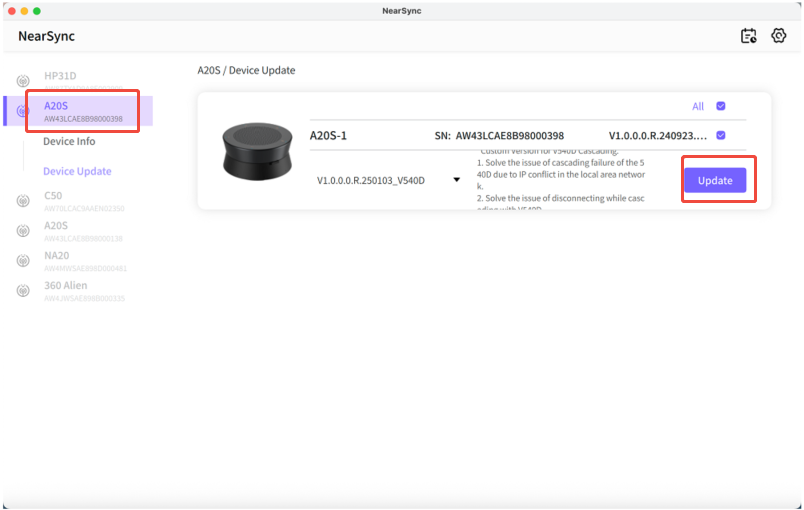
Daisy-chained A20S units must all run the same firmware version. NearSync updates one unit at a time, so each unit in the chain needs its own update pass:
- Connect the first A20S to your computer via USB and update it following the steps above.
- Disconnect the first A20S.
- Connect the second A20S and repeat the update.
- Repeat for any additional units, then confirm every unit shows the same firmware version.
To reconnect the chain after updating:
- Connect the primary A20S to your computer via USB.
- Connect the primary A20S to its power adapter.
- Connect the second A20S to the primary unit using the daisy-chain cable.
- Wait for both devices to complete the connection.
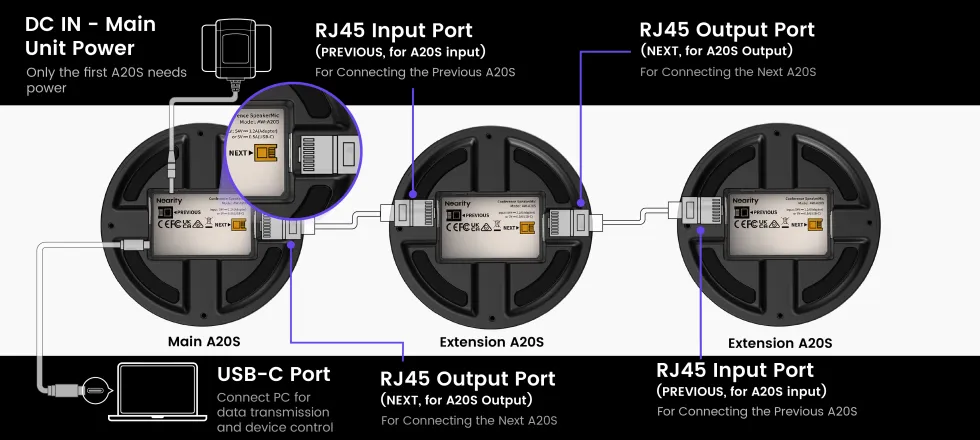
The daisy chain is working correctly when both A20S units display the same LED color and both can be controlled simultaneously.
Frequently Asked Questions
Find answers to common questions about updating your device’s firmware in NearSync.
What should I do if the firmware update does not complete?
Keep the USB cable and power adapter connected, and do not close NearSync while the update runs. If the progress bar stalls, disconnect the device, reconnect it, and start the update again. A stable network connection is required to download the firmware package — check your network before retrying.
Why doesn’t NearSync detect my device after the update?
Some devices restart automatically after a firmware update. Wait about 30 seconds, then unplug and reconnect the USB cable. If NearSync still does not detect the device, restart both the device and NearSync.
What if my device does not turn on after the update?
An interrupted update can leave the device unresponsive. Connect the power adapter and wait 1 minute, then reconnect the device to your computer and open NearSync to check its status. If the device still does not respond, contact NearHub Support at support@nearhub.us.
How do I know the firmware update was successful?
After the update finishes, select your device in the NearSync device list and open the device information page — the firmware version shown should match the latest version listed in NearSync. If the version has not changed, run the update again with the device connected to power.
My daisy-chained A20S units still won’t connect after updating — why?
All daisy-chained units must run the same firmware version — check and update each unit one by one. Also make sure the unit connected to your computer is connected to its power adapter at the same time. If the chain still fails, see A20S Daisy Chain Not Working in the Nearity A20S support category.
If You Still Need Help
If the steps above do not resolve the issue, please contact NearHub Support at support@nearhub.us.
How did we do?
NearSync App Settings & Adjustment Guide
How to Connect Your Device to NearSync

