How to Connect Your Device to NearSync
Connect your Nearity camera, microphone A20S, or wireless dongle NA20 to NearSync over USB — and find your device's SN Code once it appears in the device list.
NearSync detects your Nearity device automatically once it is connected correctly. The connection method depends on your device — follow the matching section below.
Before You Begin
Make sure you have:
- A computer with NearSync installed
- The USB cable that came with your device
- The power adapter for your device (if applicable)
Connect an All-in-One Camera or A20S (USB Cable)
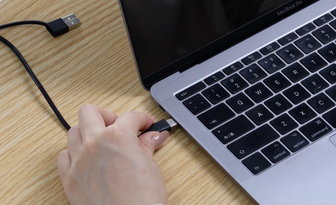
All-in-one devices and the A20S must connect to your computer with a USB cable — NearSync cannot detect them over Bluetooth or wirelessly.
- Connect the device to your computer using the USB cable.
- Connect the device to its power adapter and turn it on.
- Open NearSync.
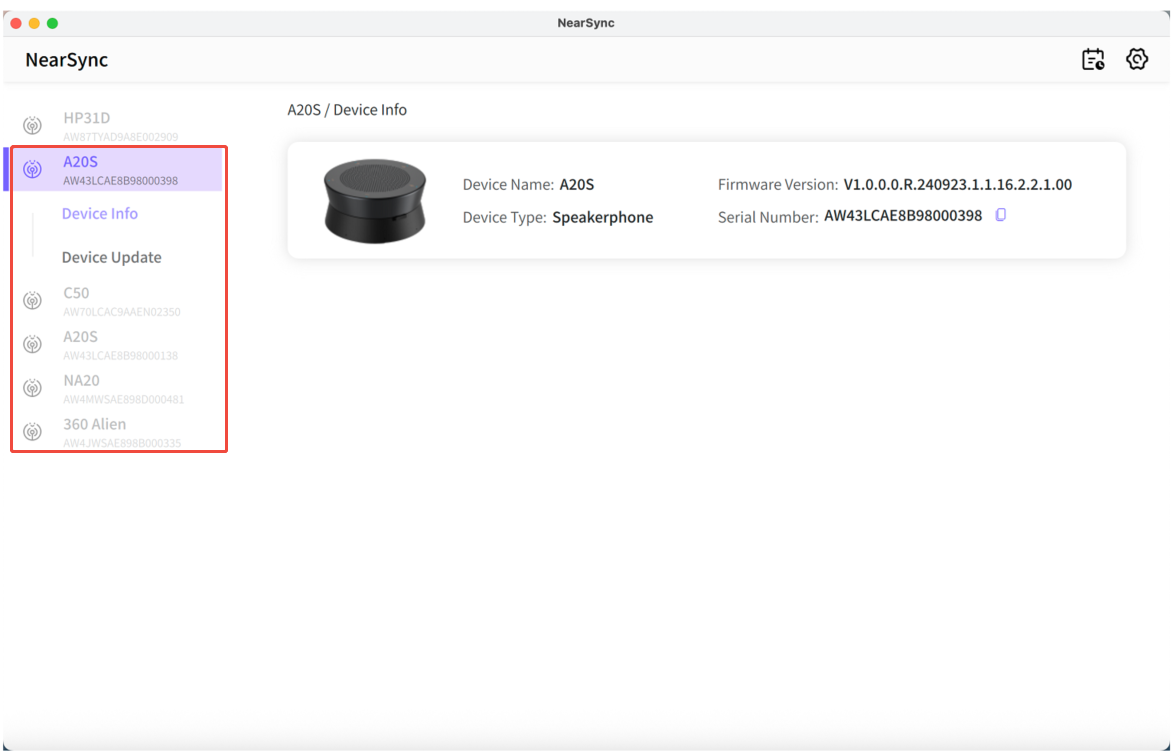
- Wait a few seconds — your device appears in the NearSync device list.
Connect an NA20 Wireless Dongle
The NA20 connects to NearSync differently: you plug the NA20 itself into the computer — not the camera it pairs with.
- Insert the NA20 Wireless Dongle into a USB port on your computer.
- Open NearSync.
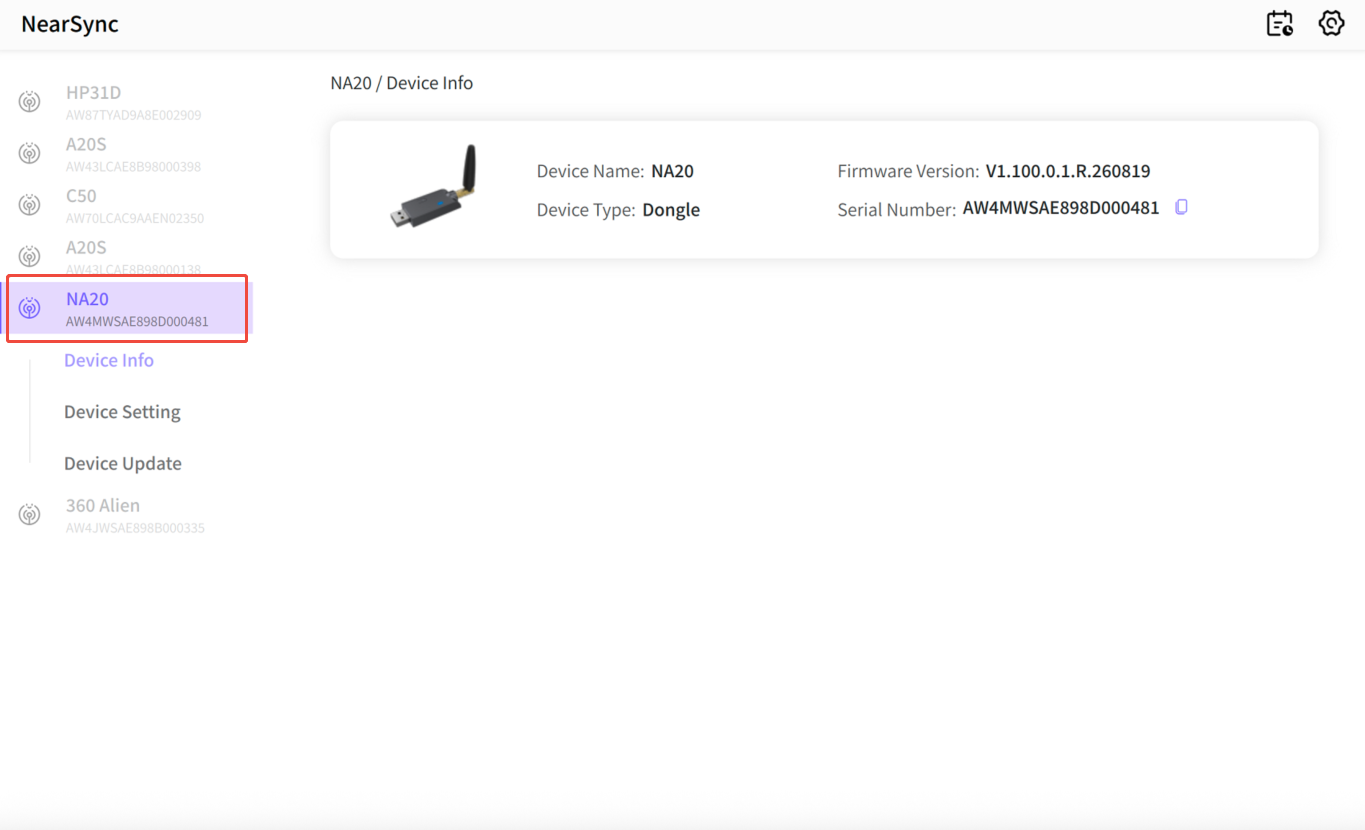
- The NA20 appears in the device list.

Confirm the Connection
Your device is connected correctly when it appears in the NearSync device list with its model name and firmware version.
Frequently Asked Questions
Find answers to common questions about connecting Nearity devices to NearSync.
Why doesn’t NearSync detect my device?
All-in-one cameras and the A20S must connect with a USB cable — NearSync cannot detect them over Bluetooth or Wi-Fi. Check that the cable is fully connected, make sure the device is powered on, and try a different USB port on your computer. Then reopen NearSync and wait a few seconds.
Can I manage Nearity 360 Alien in NearSync through the NA20?
No. Inserting only the paired NA20 lets you update the NA20 itself, but it does not give NearSync access to the camera. To manage Nearity 360 Alien settings or firmware, connect the camera directly to your computer with a USB cable and connect it to power.
How do I connect the NA20 Wireless Dongle to NearSync?
Insert the NA20 itself into a USB port on your computer — you do not need to connect the camera it pairs with. Open NearSync, and the NA20 appears in the device list.
Where can I find my device’s SN Code in NearSync?
Connect your device, select it in the NearSync device list, and open the device information page to find the SN Code field. The SN Code is also printed on the label on the bottom of the device — if the two differ, use the one shown in NearSync when contacting support.
My device appears in NearSync but shows no information. What should I do?
Disconnect and reconnect the USB cable, confirm the device is powered on, and reopen NearSync. If the information still does not load, update NearSync to the latest version and connect the device again. If the issue continues, contact NearHub Support at support@nearhub.us.
If You Still Need Help
If the steps above do not resolve the issue, please contact NearHub Support at support@nearhub.us.
How did we do?
How to Update Firmware in NearSync

