Table of Contents
How to Share Your Apple Device Screen to NearHub Board with AirPlay?
Learn how you can use AirPlay to cast, share, or mirror your screen from an iPhone/iPad/MacBook to the NearHub Board.. Open Cast on NearHub Board. On the NearHub Board home screen, tap Cast. The Cast…
Table of Contents
Learn how you can use AirPlay to cast, share, or mirror your screen from an iPhone/iPad/MacBook to the NearHub Board.
Open Cast on NearHub Board
On the NearHub Board home screen, tap Cast.
The Cast page displays the board's current Wi-Fi network name. Confirm your Apple device is on the same network before continuing.
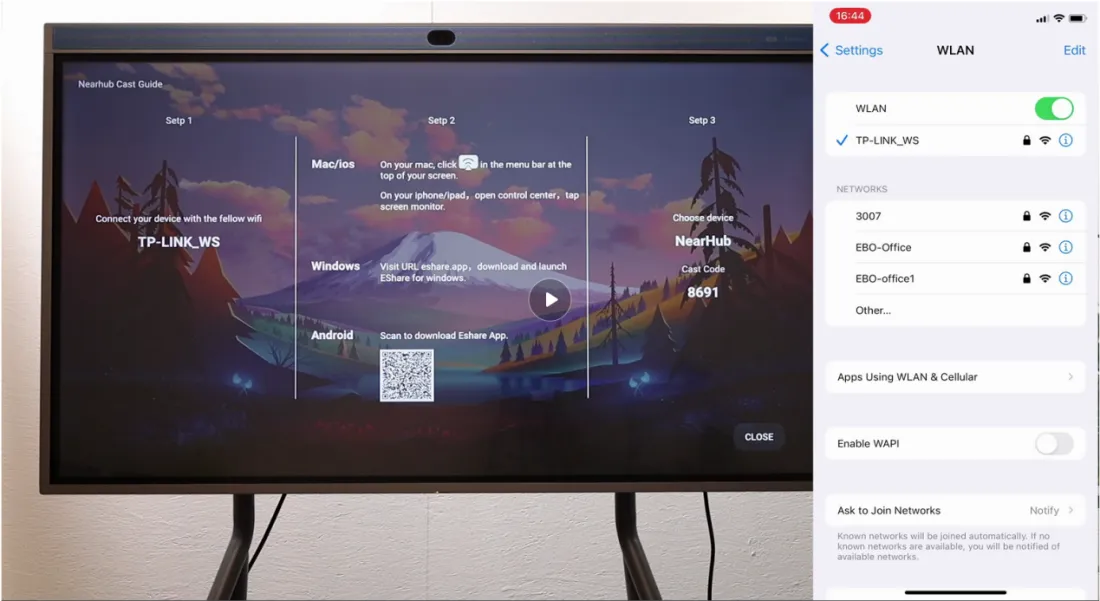
From an iPhone or iPad
- On your iPhone or iPad, swipe down from the top-right corner to open Control Center.
- Tap Screen Mirroring.
- Select NearHub from the list.
- If prompted, enter the AirPlay code displayed on the NearHub Board.
From Mac
- On your Mac, click the Control Center icon in the menu bar (top-right corner).
- Click Screen Mirroring.
- Select NearHub from the list.
- If prompted, enter the AirPlay code displayed on the NearHub Board.
Stopping a Cast Session
- From the NearHub Board: In the casting window, tap the leftmost button, then tap OK.
- From your Apple device: Open Control Center → tap Screen Mirroring → tap Stop Mirroring.
If You Still Need Help
If the steps above do not resolve the issue, please contact NearHub Support at support@nearhub.us.

How did we do?
How to Use Webcast on NearHub Board

