Table of Contents
How to Use Webcast on NearHub Board
This guide applies to the NearHub Board S Pro Series and NearHub Board Max Series. Step 1: Open NearHub Cast and Connect to Wi-Fi. On your NearHub Board, open NearHub Cast. Then make sure your laptop…
Table of Contents
This guide applies to the NearHub Board S Pro Series and NearHub Board Max Series.
Step 1: Open NearHub Cast and Connect to Wi-Fi
On your NearHub Board, open NearHub Cast. Then make sure your laptop or other device is connected to the same Wi-Fi network as the NearHub Board.
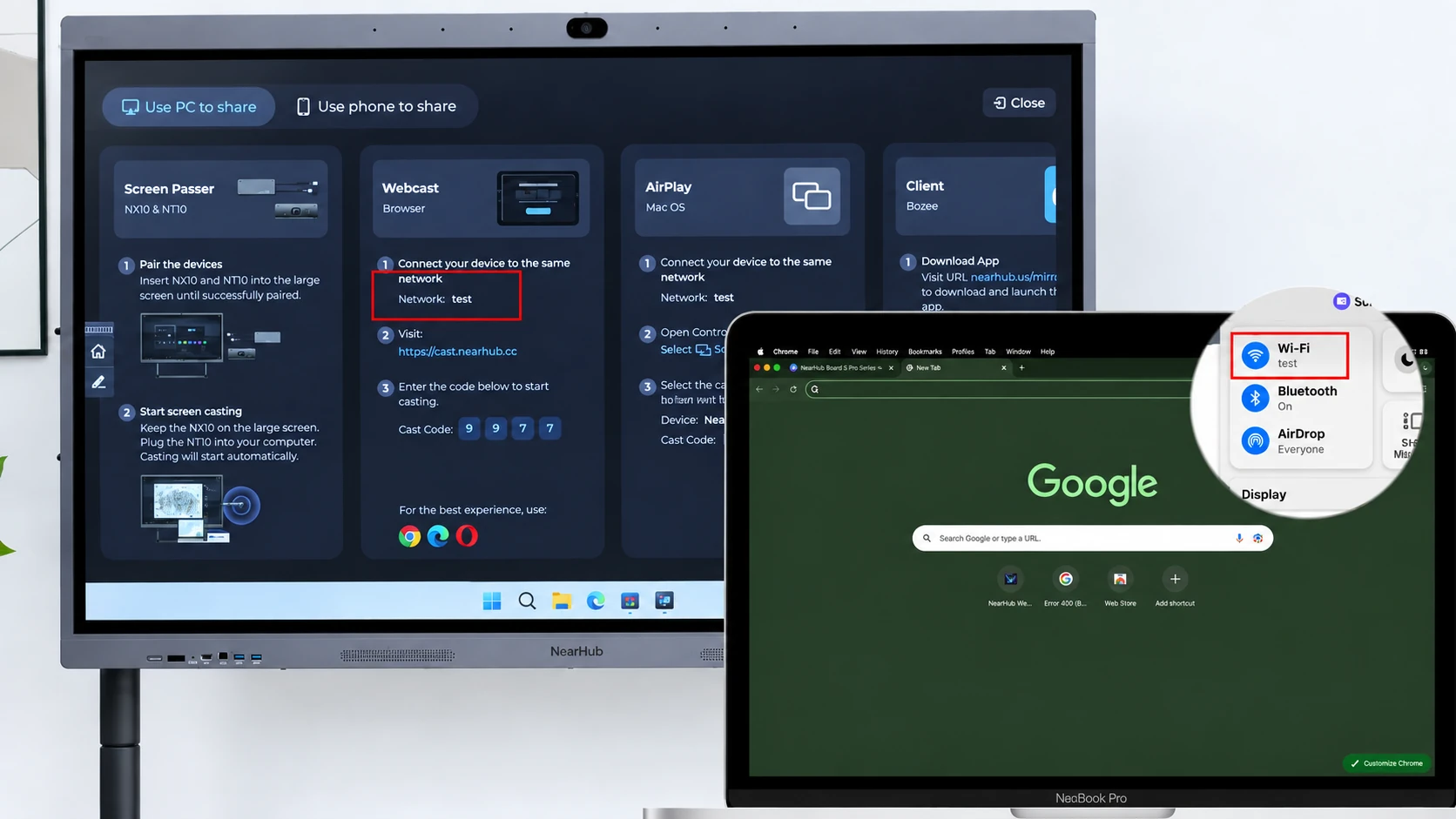
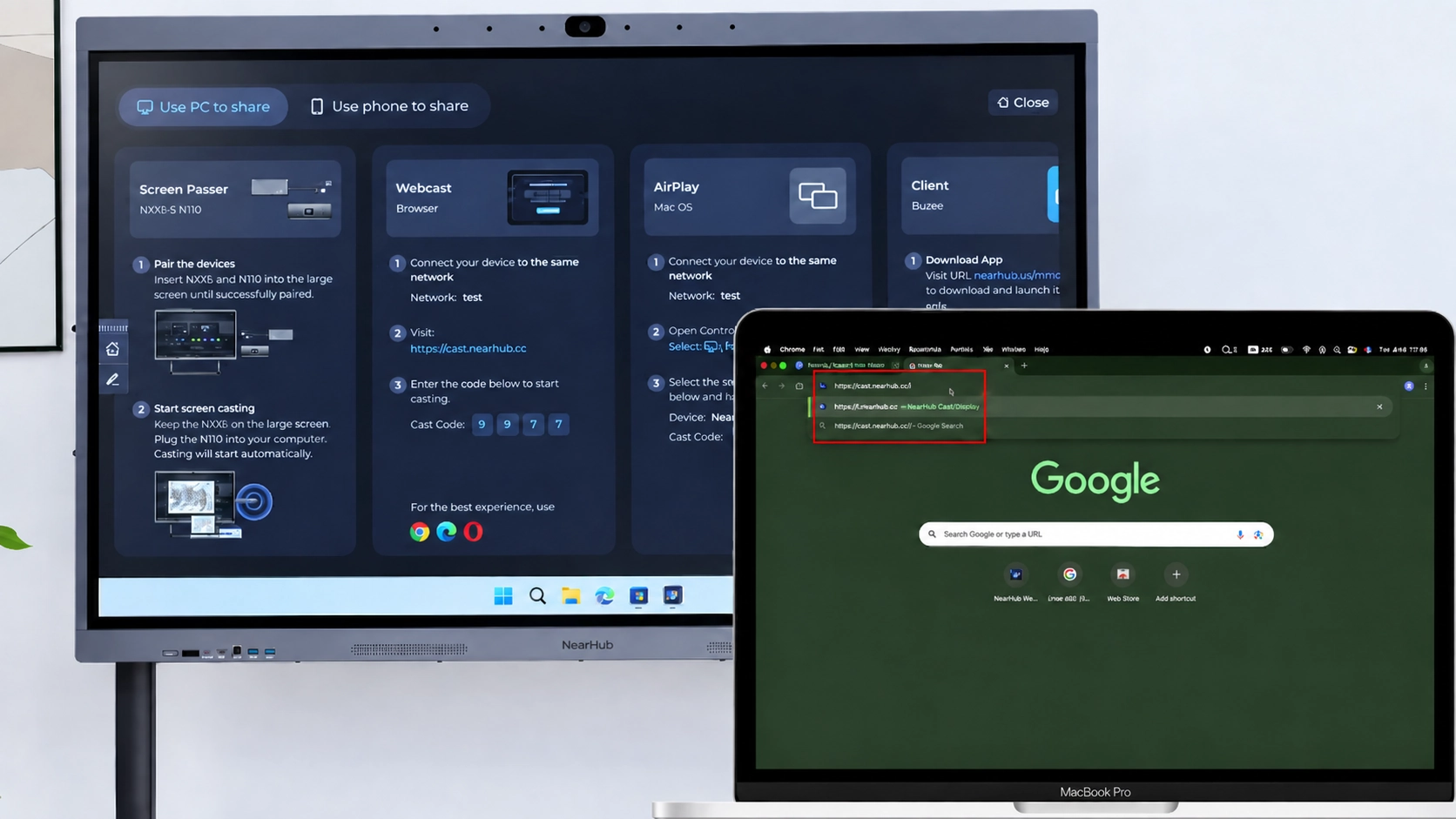
Step 2: Open Webcast
On your laptop, open a browser and go to:
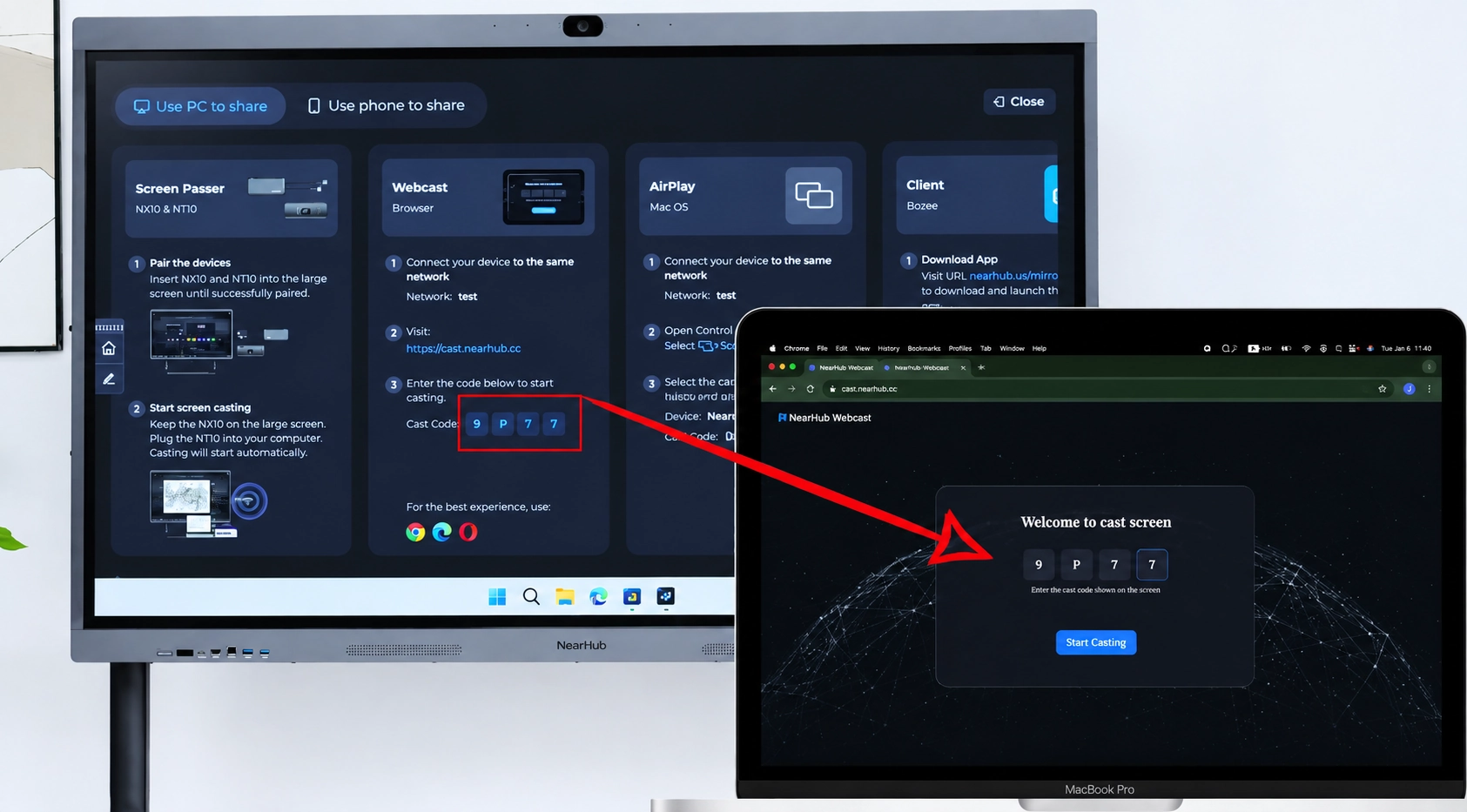
Step 3: Enter the Casting Code
Enter the 4-digit casting code displayed on the NearHub Board.
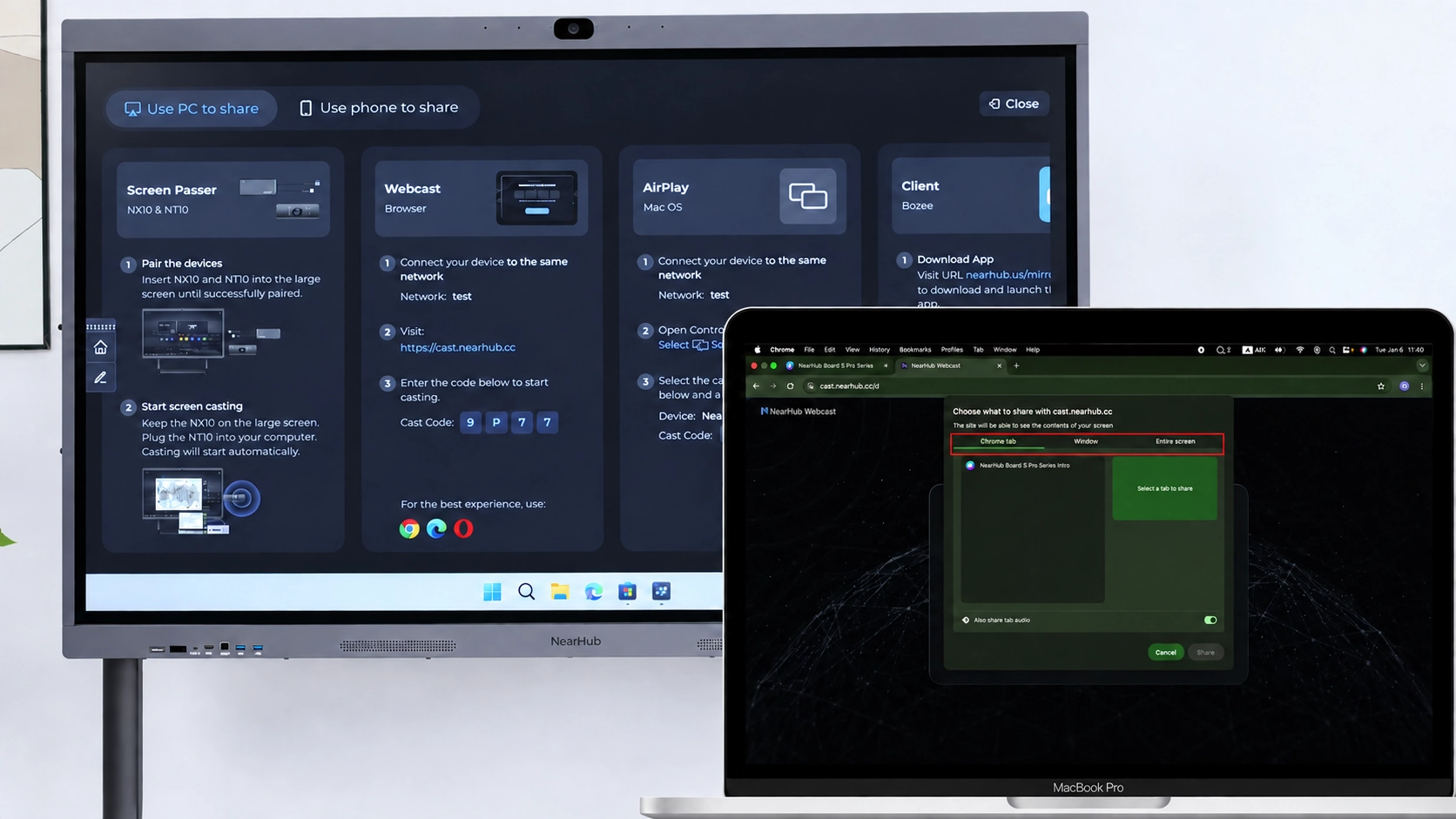
Step 4: Choose What to Share
Select the content you want to share:
- Entire screen
- Application window
- Browser tab
Then click Share.
Step 5: Start Presenting
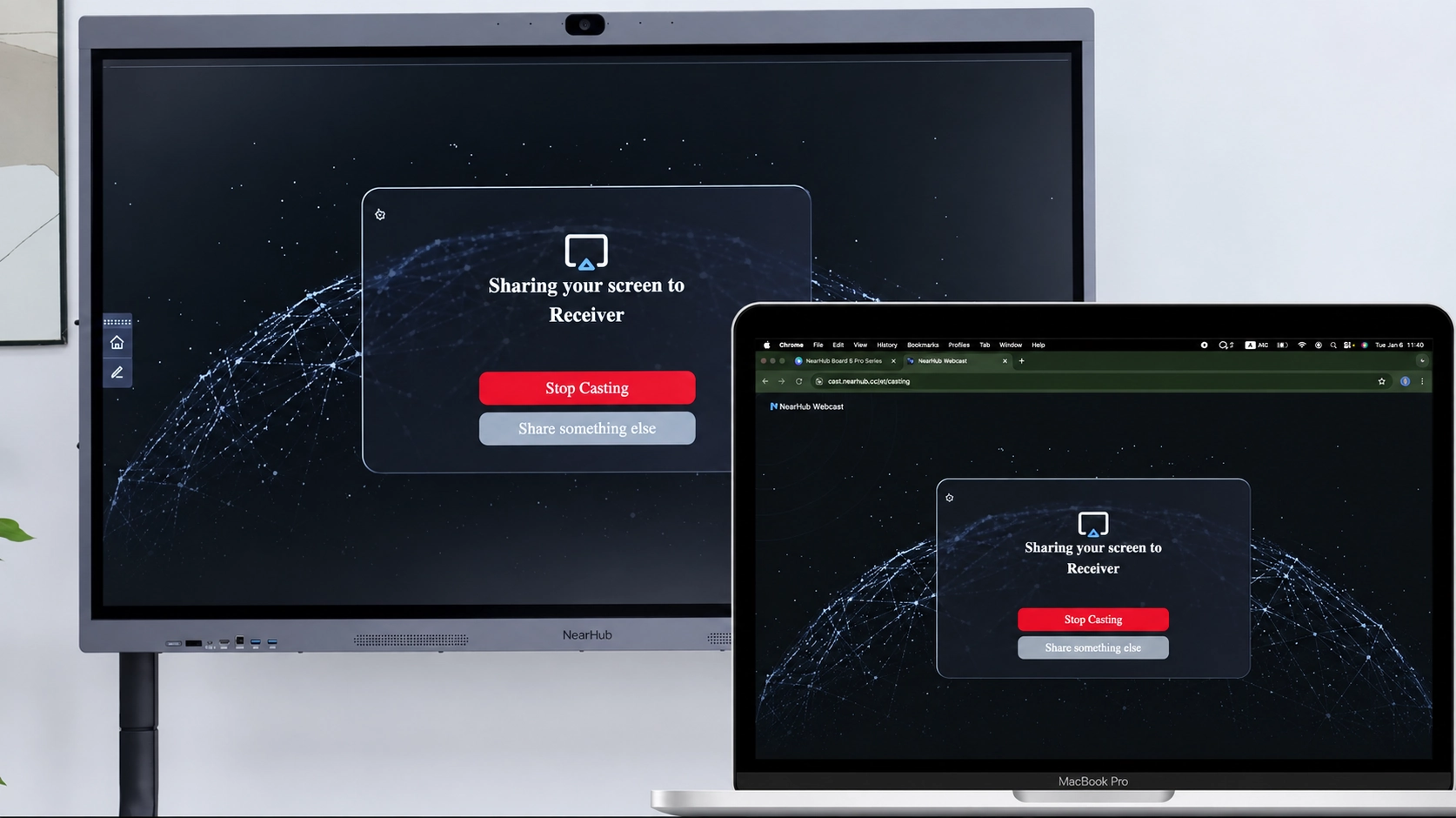
Your screen will now appear on the NearHub Board.
Step 6: Stop Sharing
When you are finished, click Stop Sharing in your browser to end the Webcast session.
If You Still Need Help
If the steps above do not resolve the issue, please contact NearHub Support at support@nearhub.us.
How did we do?

