Table of Contents
How to Use App Cast on NearHub Board
Step 1: Open Cast. On your NearHub Board, open Cast from the launcher. Locate the Client section. Step 2: Connect to the Same Network. Make sure your NearHub Board and your computer are connected to…
Table of Contents
Step 1: Open Cast
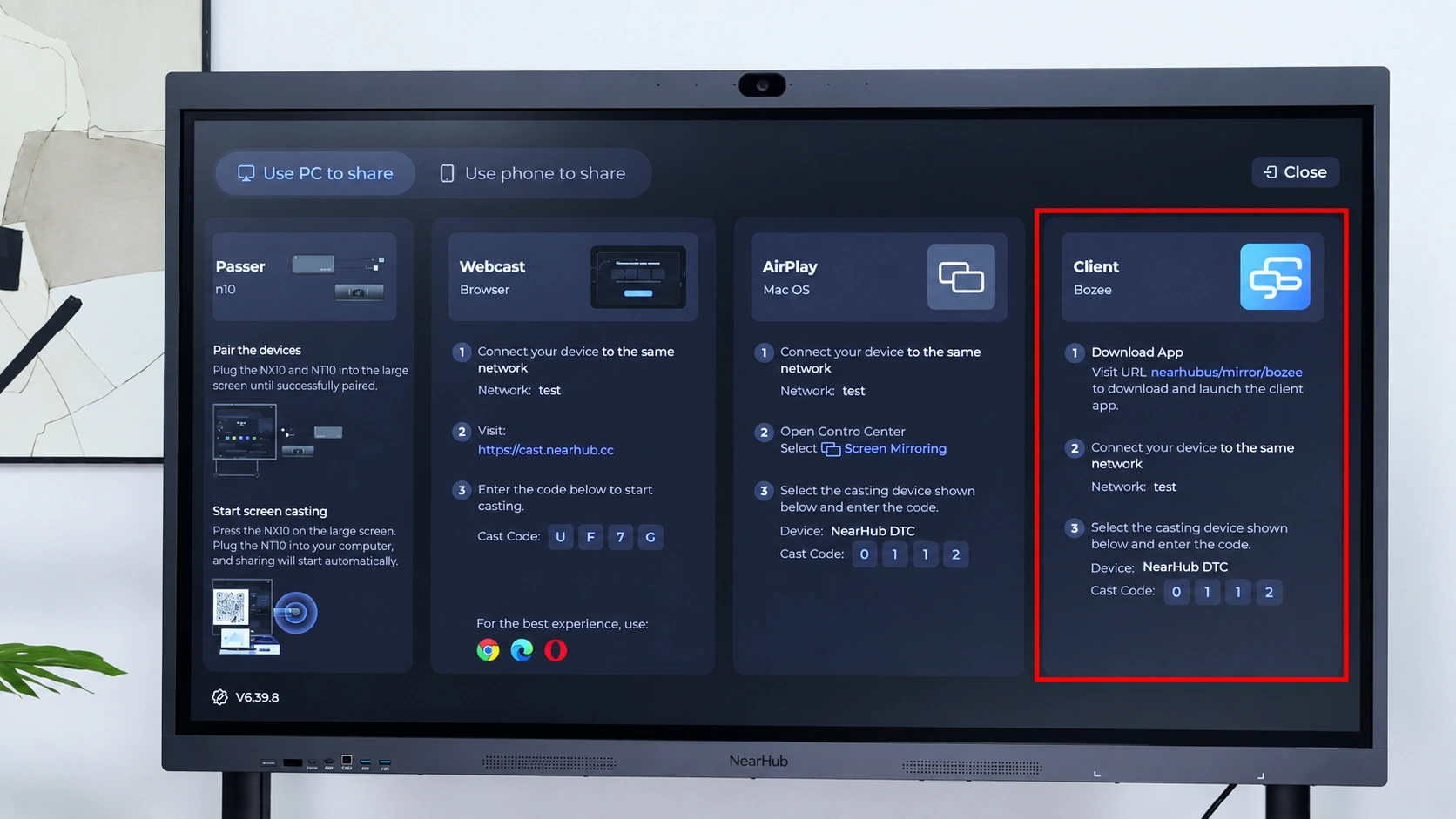
On your NearHub Board, open Cast from the launcher.
Locate the Client section.
Step 2: Connect to the Same Network
Make sure your NearHub Board and your computer are connected to the same network.
Step 3: Download and Open the Casting App
Enter https://www.nearhub.us/mirror/bozee in your browser to download and install the NearHub screen casting app on your computer.
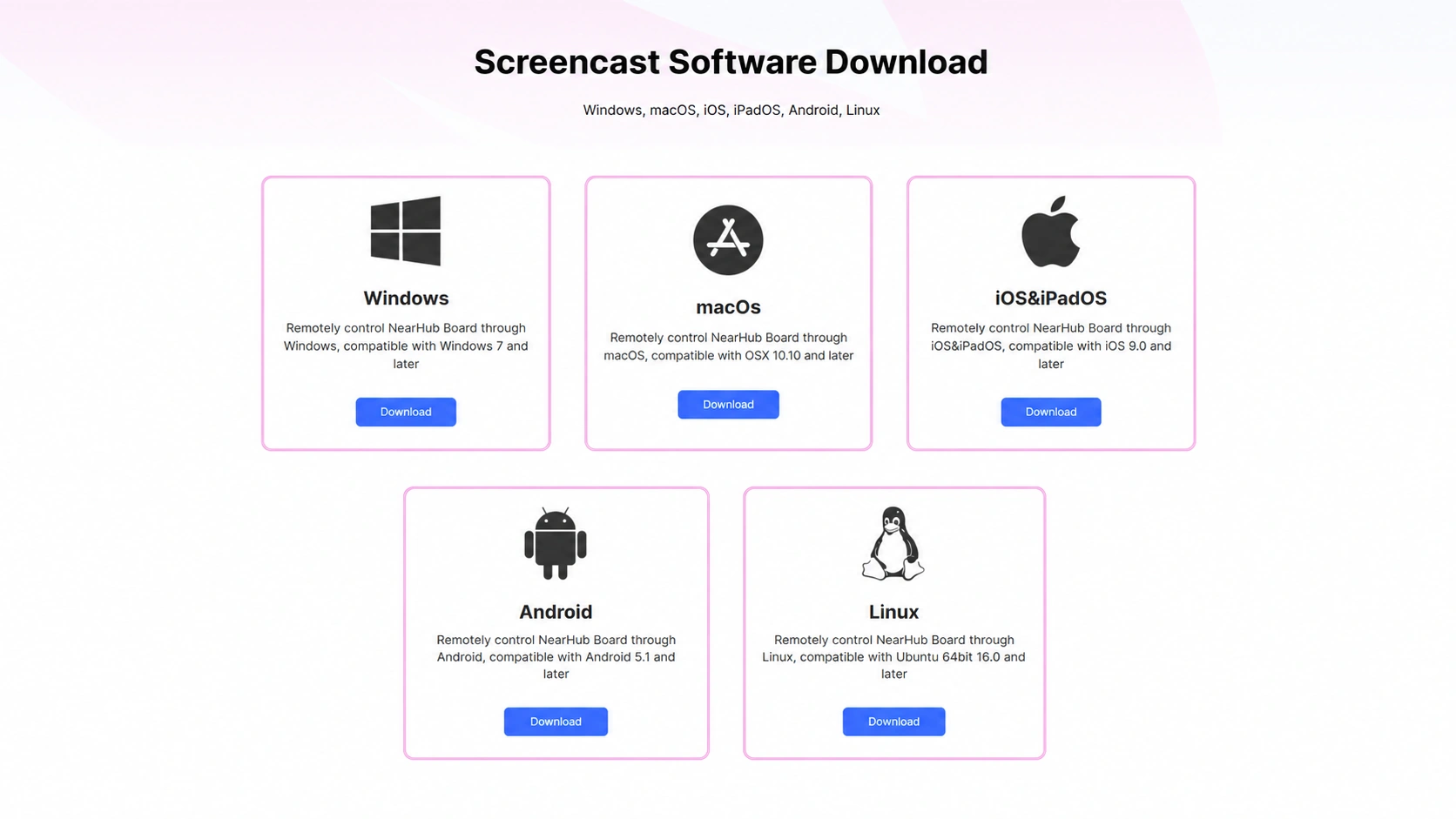
Then launch the app.
Step 4: Select Your NearHub Board
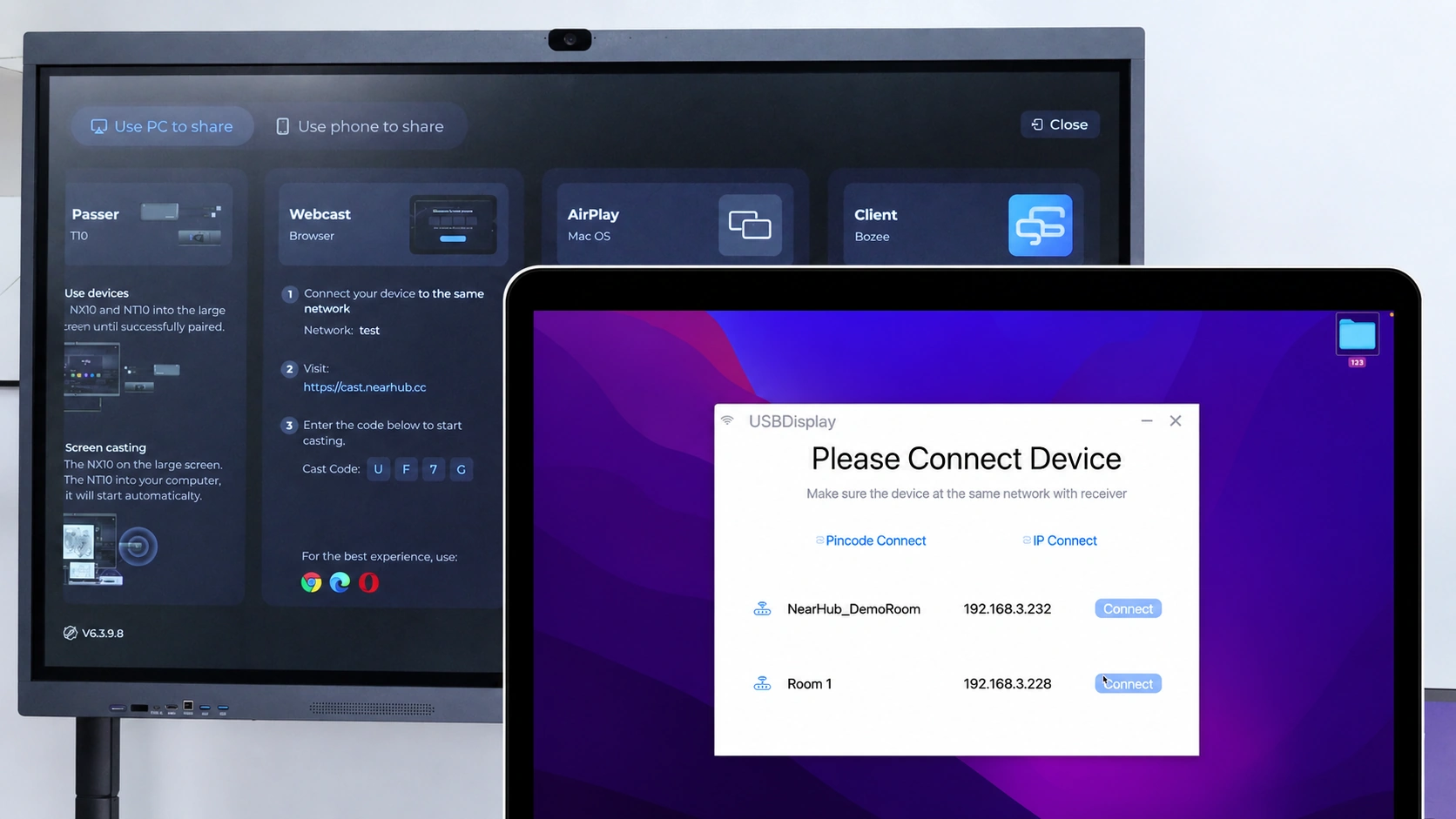
The app will automatically search for available NearHub Boards on the same network.
Select the board you want to use and click Connect.
Step 5: Enter the Casting Code
If prompted, enter the casting code shown on the NearHub Board.
Step 6: Start Casting
Click Cast or Share Screen in the app.
Your computer screen will then appear on the NearHub Board.
If You Still Need Help
If the steps above do not resolve the issue, please contact NearHub Support at support@nearhub.us.
How did we do?
How to Share Your Apple Device Screen to NearHub Board with AirPlay?

