Table of Contents
How to Use Screen Casting by USB Display on NearHub Board?
Step 1: Enable USB Display Mode. On the NearHub Board, navigate to: Settings → NearHub Cast → Screen Casting Platform → NearHub Tail Step 2: Open Cast and Get Connection Info. Tap the Cast icon in th…
Table of Contents
Step 1: Enable USB Display Mode
On the NearHub Board, navigate to:
Settings → NearHub Cast → Screen Casting Platform → NearHub Tail
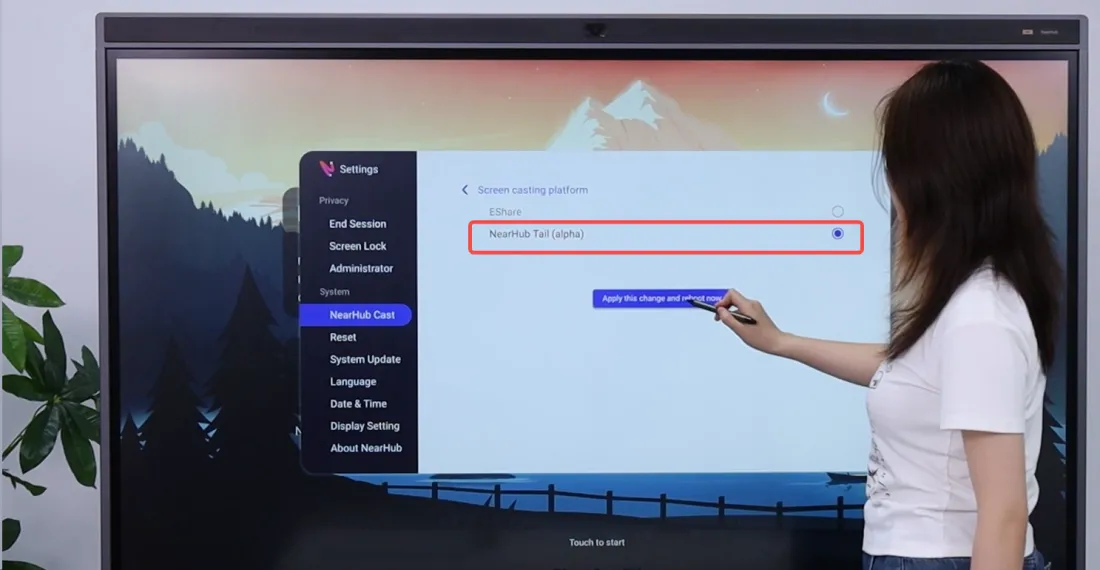
Step 2: Open Cast and Get Connection Info
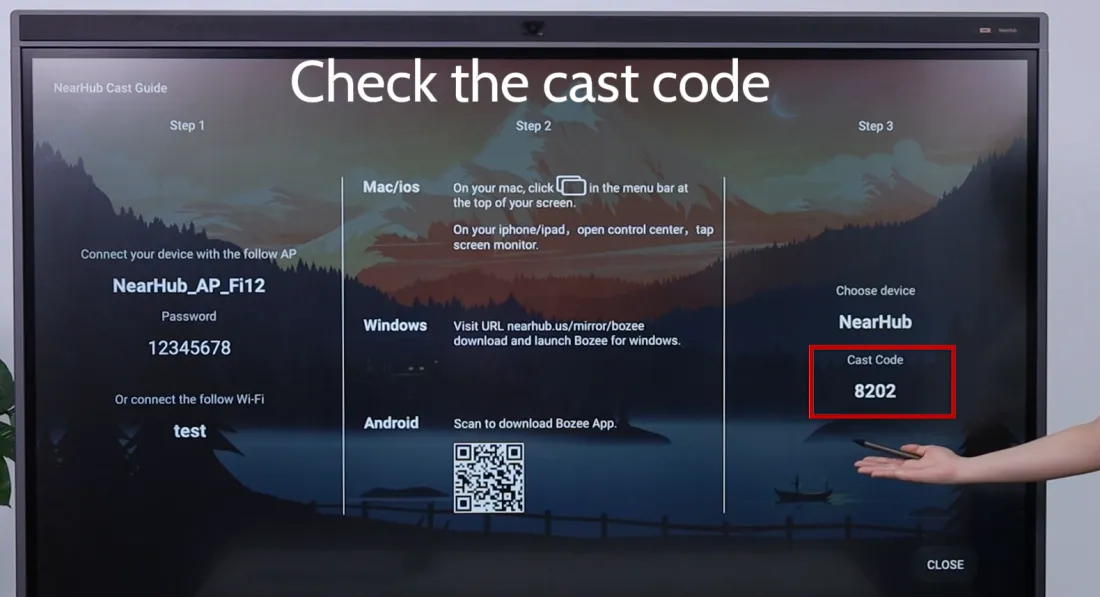
Tap the Cast icon in the launcher. The screen displays:
- The Wi-Fi network the board is currently connected to
- The casting code
Keep this screen open during the next step.
 On your device:
Step 3: Prepare Your Device
Make sure your device is on the same Wi-Fi network as the NearHub Board, then follow the instructions for your device type:
Apple (Mac /ios)
No app installation required. Use AirPlay to mirror your screen directly to the NearHub Board.
Windows
- Visit nearhub.us/mirror/bozee to download and install the USB Display app.
- Open the app.
- Select your NearHub Board from the device list.
- Enter the casting code shown on the board.
Android
- Scan the QR code displayed on the Cast screen to download the USB Display app.
- Open the app.
- Select your NearHub Board from the device list.
- Enter the casting code shown on the board.
Step 4: Start Casting
Tap the cast button in the app. Your device screen will appear on the NearHub Board.
Additional Features
Touchback
While casting, tap the NearHub Board screen to control your connected device directly from the board.
Annotation
While casting, you can annotate on the screen:
- Swipe up from the bottom edge of the screen.
- Tap the pencil icon on the right.
- Use the stylus to write or draw.
- Tap ↓ to save the annotated screenshot to the NearHub app.
How did we do?
How to Sign in and Sign out on NearHub?
How to Install the Stand of NearHub Board S65/ S75/ S86 ?

