A20S Daisy Chain Not Working
If your A20S units won’t daisy chain, follow these steps to match their firmware versions, check the connections, and restore synchronized operation.
If you are using two or more A20S units but cannot daisy-chain them successfully, they may be running different firmware versions. Follow the steps below to update all units to the same version.
Update the Firmware
- Download and install NearSync on your computer.
- Open NearSync and select Device Update.
- Update the A20S to firmware version V1.0.0.0.R.240923.
- Connect one A20S to the computer via USB.
- Disconnect the first A20S.
- Connect the second A20S and repeat the update.
- Confirm that both units are running the same firmware version.
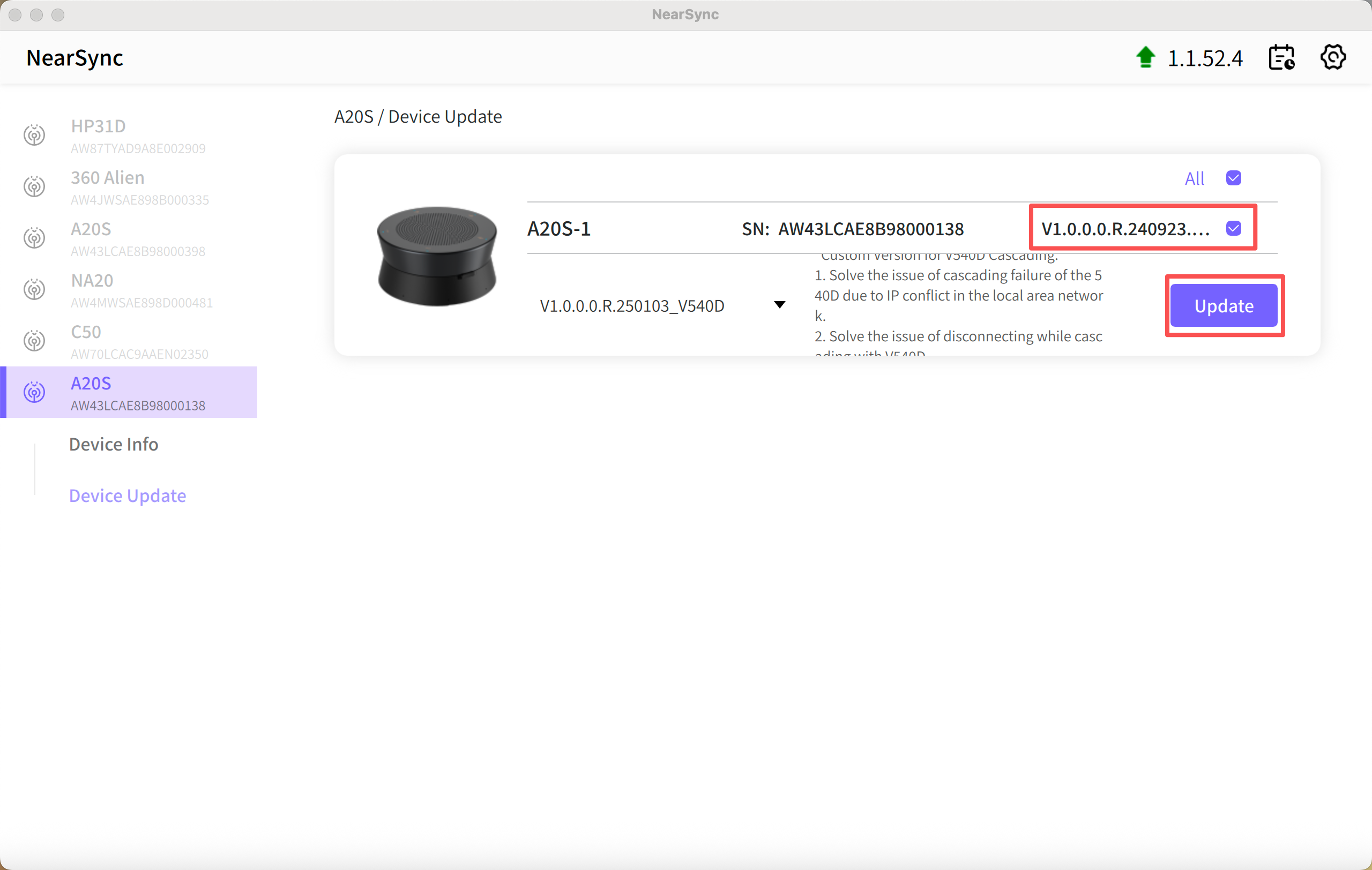
Reconnect the A20S Units
- Connect the primary A20S to your computer via USB.
- Connect the primary A20S to its power adapter.
- Connect the second A20S to the primary unit using the daisy-chain cable.
- Wait for both devices to complete the connection.
Important: When daisy chaining two or more A20S units, the A20S connected to the computer must also be connected to its power adapter.
Confirm the Connection
The daisy chain is working correctly when:
- Both A20S units display the same LED color.
- Both units can be controlled simultaneously.
Troubleshooting
Open the issue that matches what you see during setup.
The two A20S units show different firmware versions
Update the units one at a time in NearSync. Connect the first A20S to your computer via USB, open Device Update, and install the firmware version recommended by Nearity Support. Repeat the same process for the second A20S.
Before reconnecting the daisy chain, confirm in NearSync that both units display exactly the same firmware version.
NearSync does not detect the A20S
Disconnect the A20S and reconnect it directly to the computer with the supplied USB cable. Avoid using a USB hub or docking station, and try another USB port if the device still does not appear.
Close and reopen NearSync after reconnecting the device. During the firmware check or update, connect only one A20S to the computer at a time.
The firmware update does not complete
Keep the A20S connected while the update is in progress, and do not disconnect the USB cable or close NearSync. If the update stops or displays an error, restart NearSync, reconnect the device, and check its current firmware version before trying again.
If the same error returns, do not repeatedly install different firmware versions. Contact Nearity Support and include a screenshot of the error and the firmware version shown in NearSync.
The units still do not connect after the firmware update
Confirm that the primary A20S is connected to the computer via USB and is also connected to its power adapter. Then reconnect the two units using the supplied daisy-chain cable and restart both devices.
If possible, test each A20S individually over USB. This helps determine whether the issue is related to one device, the daisy-chain cable, or the connection between them.
The two A20S units show different LED colors
Different LED colors may indicate that the daisy chain has not synchronized. Check that both units are running the same firmware version, the daisy-chain cable is securely connected, and the primary A20S is receiving external power.
When the connection is successful, both units should display the same LED status and respond together when you use supported controls such as mute or volume.
The problem continues after completing all steps
Contact Nearity Support with screenshots showing the firmware version of each A20S. Please also include your computer’s operating system, NearSync version, device serial numbers, order number, LED status, and a photo of the complete connection setup.
Let the support team know whether each A20S works correctly when connected to the computer individually.
If You Still Need Help
If the steps above do not resolve the issue, please contact NearHub Support at support@nearhub.us.
How did we do?
A20S Microphone Works but Speaker Is Missing on Windows 11

