How to Set Up USB-C&A Connection on Nearity Conference Camera.
Applies to Nearity 360 Alien and Nearity 120 Max. Connect your Nearity meeting device directly to your computer using a USB-C or USB-A connection. No drivers or additional software are required.. Bef…
Connect your Nearity meeting device directly to your computer using a USB-C or USB-A connection. No drivers or additional software are required.
Before You Begin
Make sure you have:
- Your Nearity meeting device
- The supplied power adapter
- A compatible USB cable
- An available USB-C or USB-A port on your computer
For the most reliable connection, connect the device directly to your computer instead of using a USB hub or docking station.
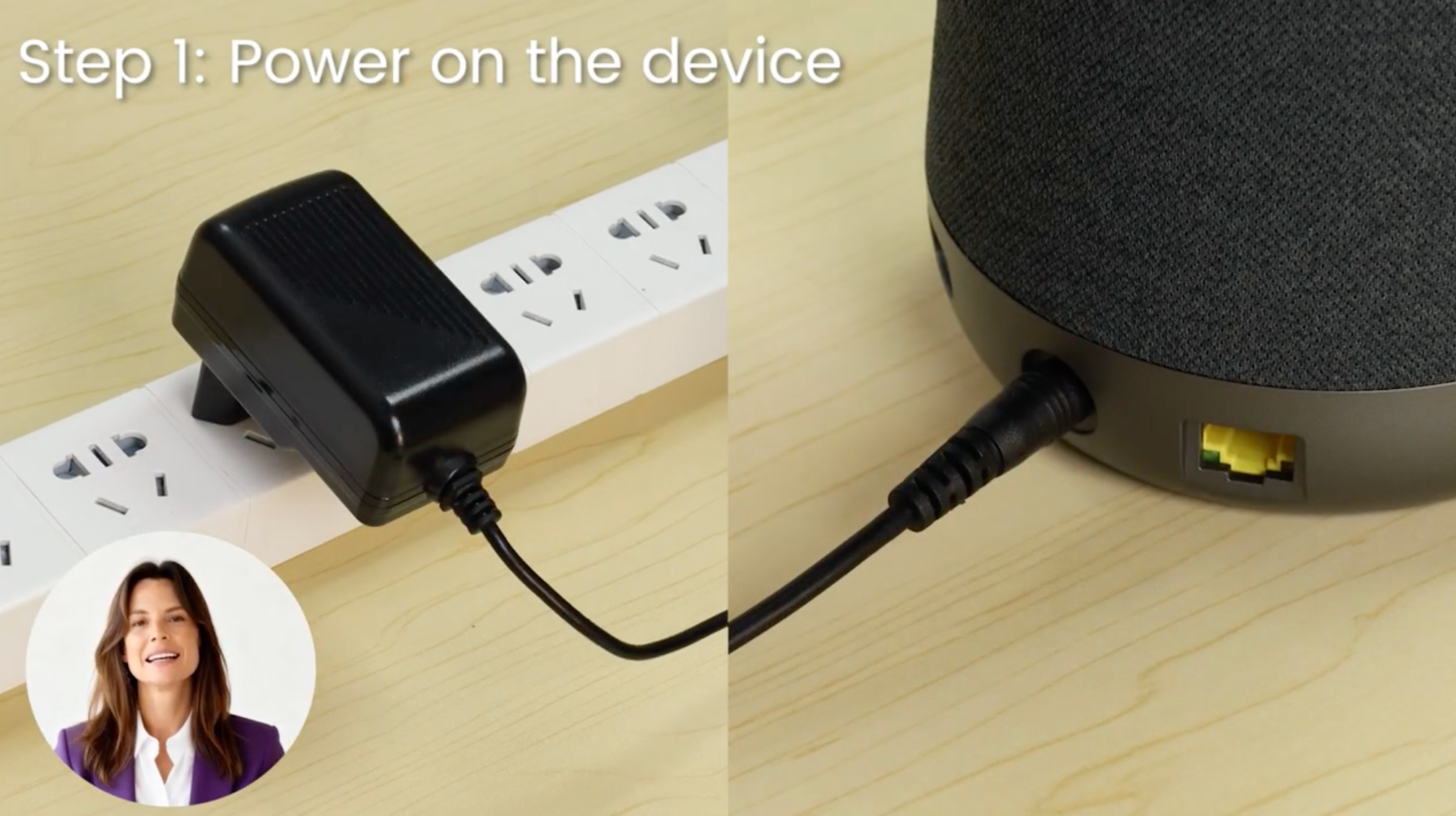
Step 1: Power On the Nearity Device
Connect the power cable to the Nearity meeting device.
Plug the other end into a power outlet. Wait until the device’s status indicator turns on, confirming that the device is powered and ready.
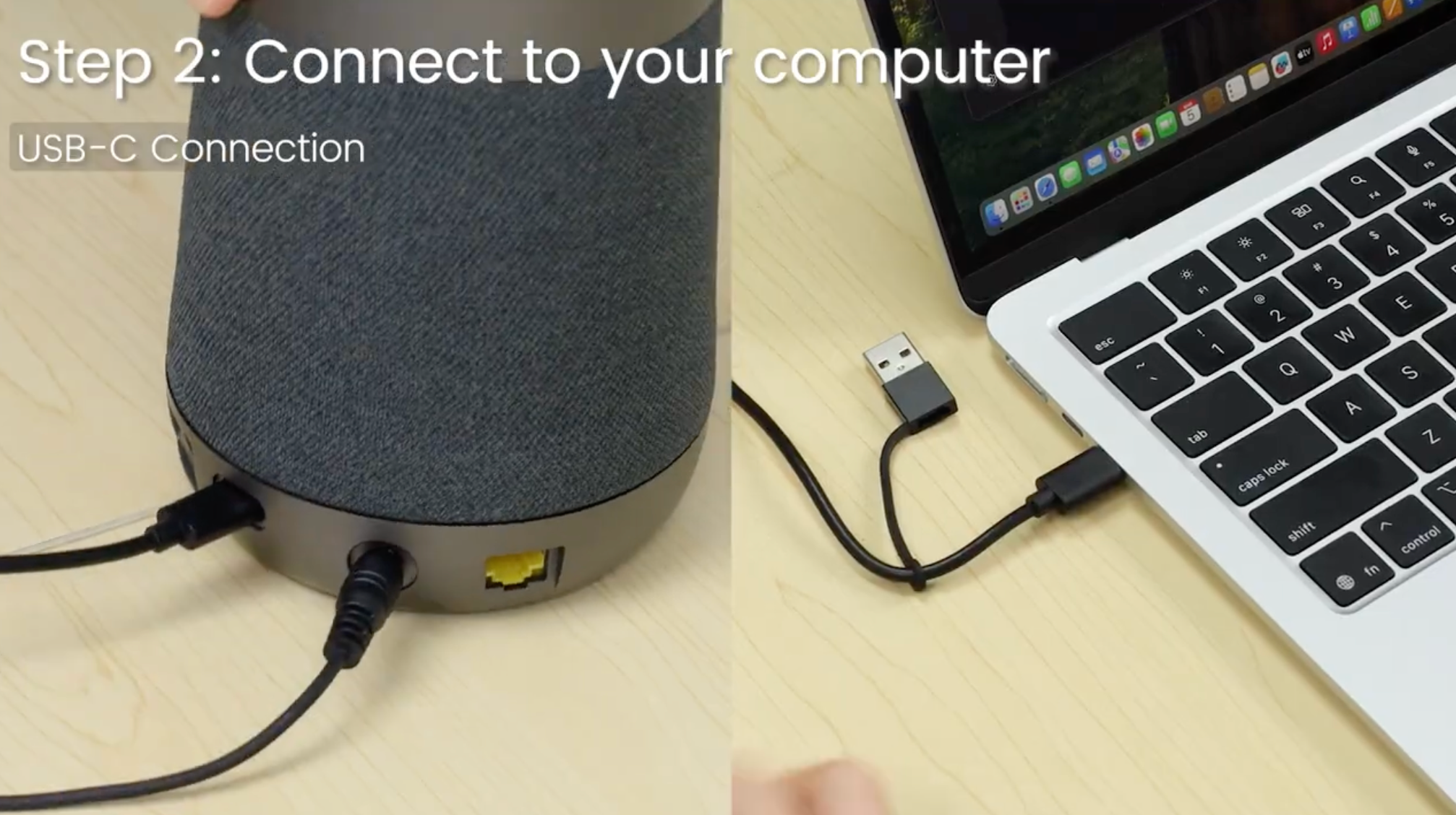
Step 2: Connect the Device to Your Computer
Connect the USB-C end of the cable to the USB port on the Nearity meeting device.
Connect the other end to an available USB-C or USB-A port on your computer.
Wait a few seconds for your computer to recognize the device. No driver installation is required.
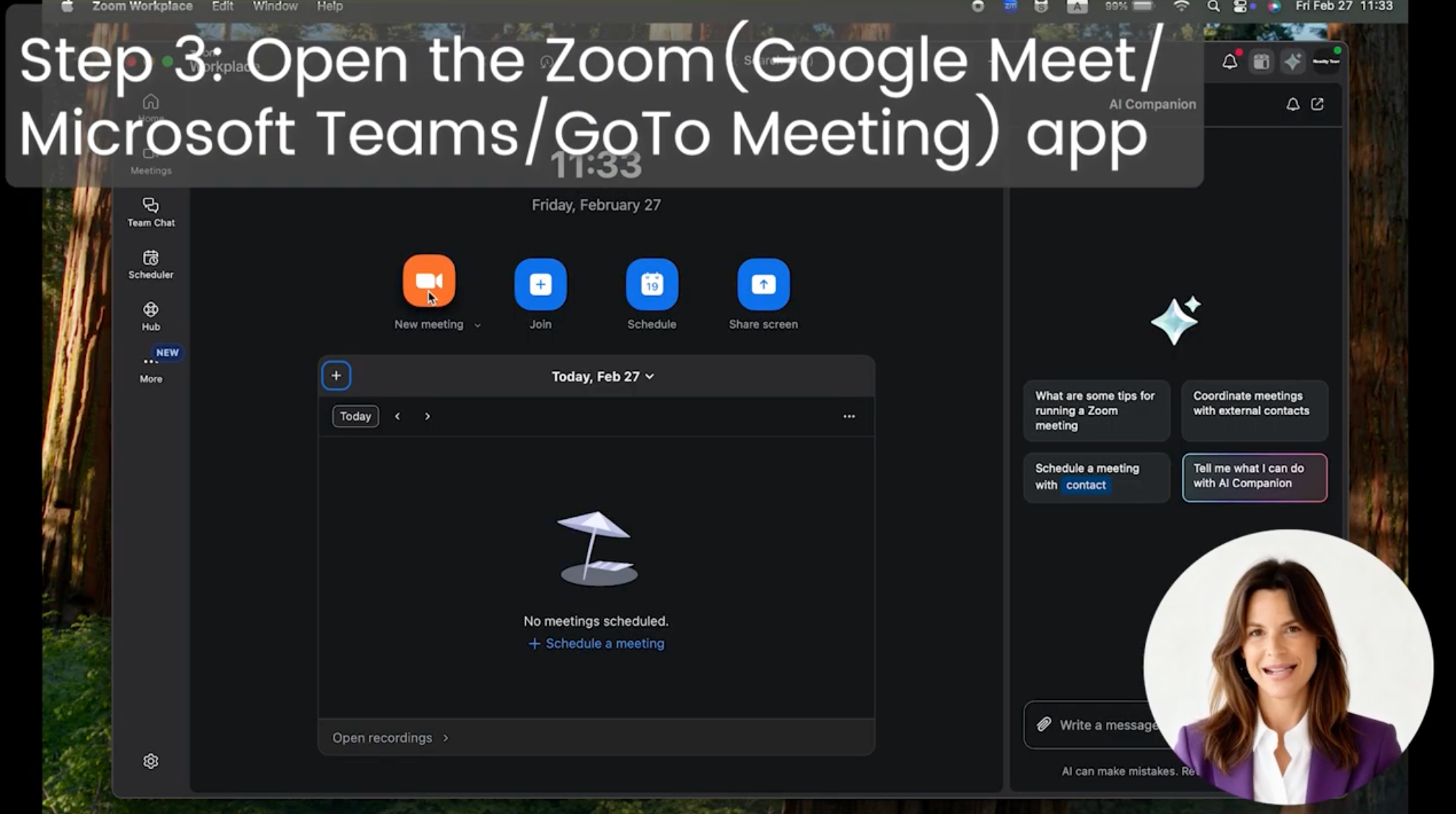
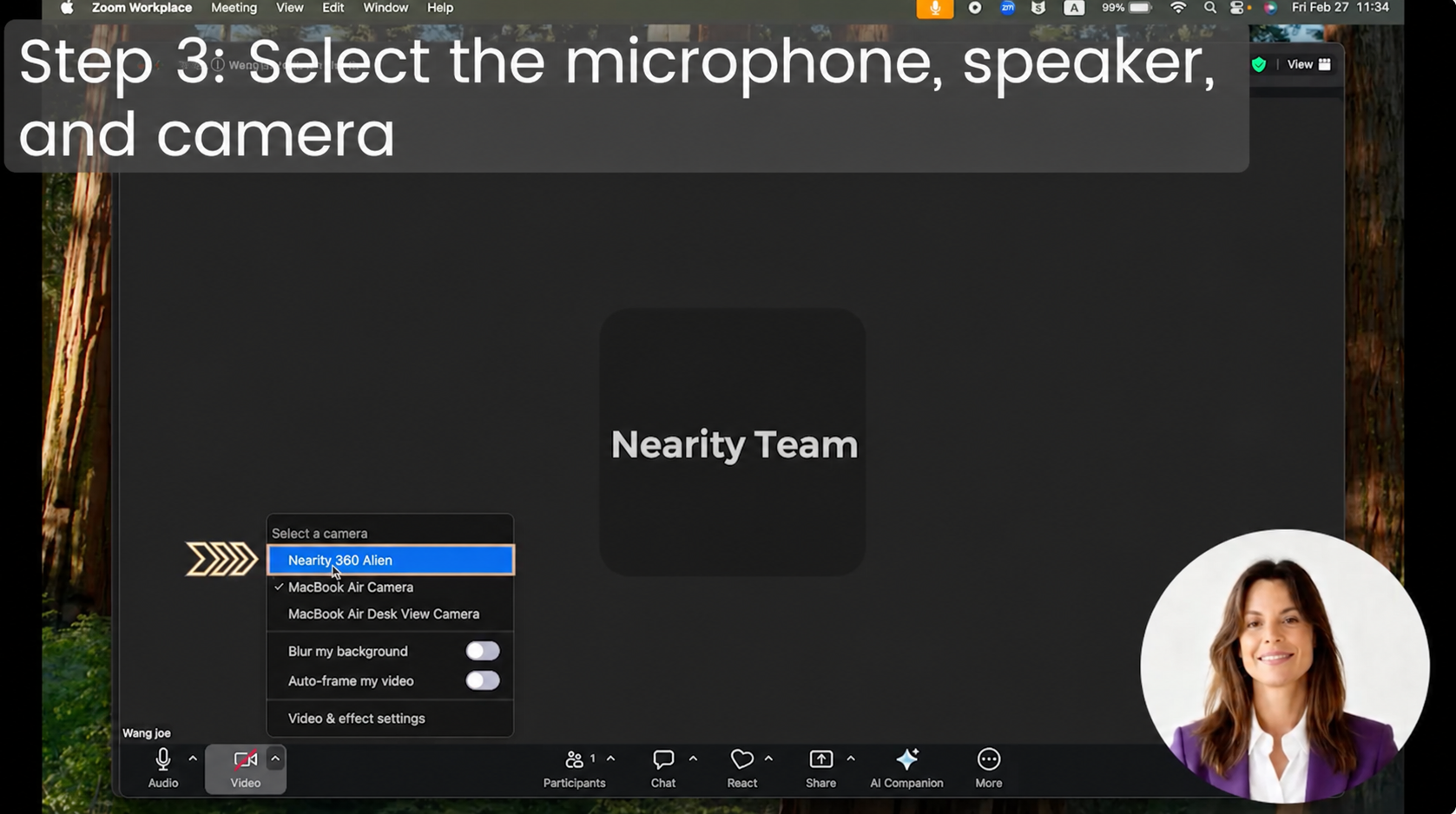
Step 3: Select the Device in Your Meeting Application
Open your preferred meeting application, such as Zoom, Microsoft Teams, or Google Meet.
Configure the camera
Open the video settings and select your Nearity device as the camera:
- Nearity 360 Alien, or
- Nearity 120 Max
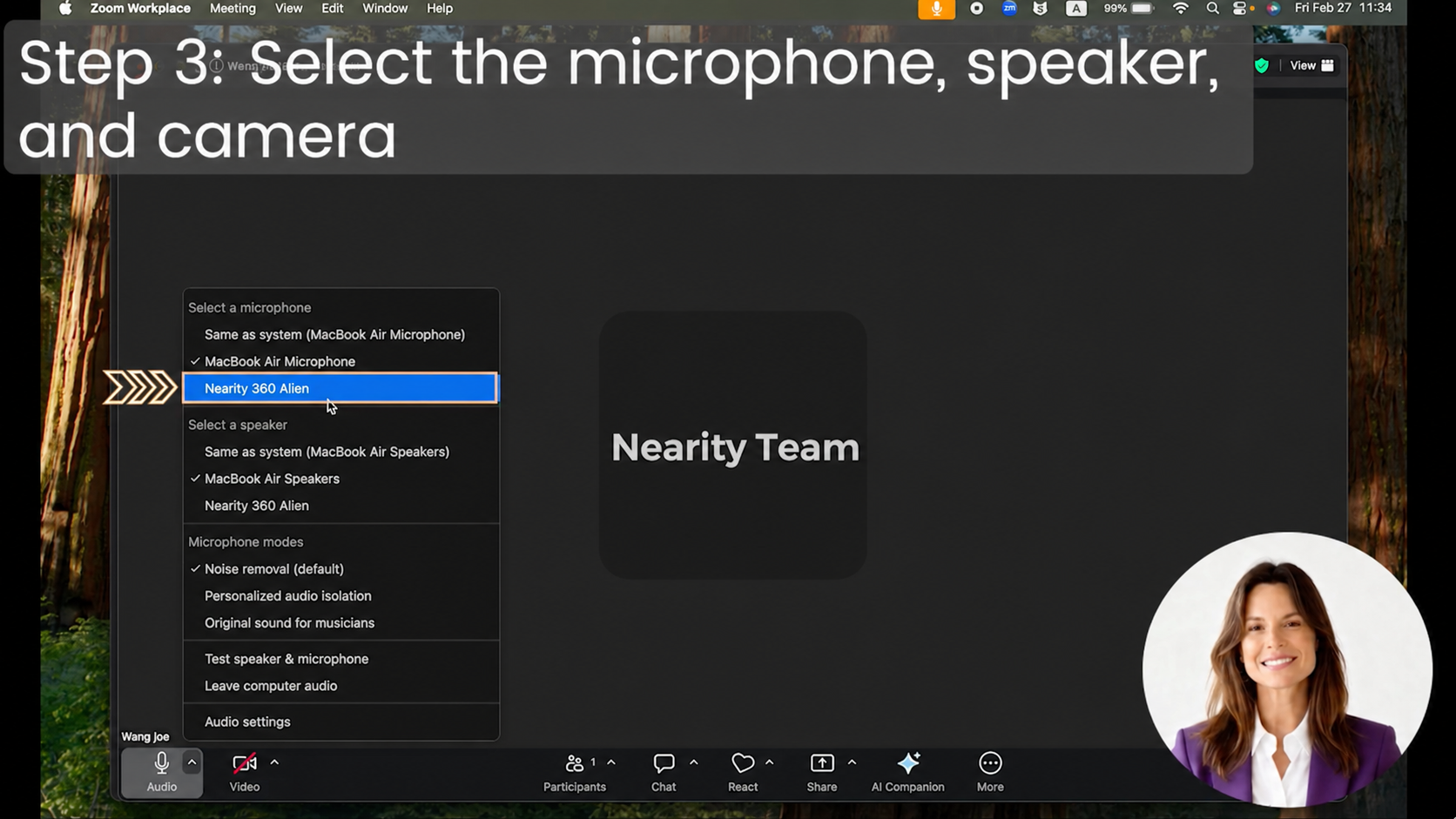
Configure the microphone and speaker
Open the audio settings and select the same Nearity device as both the microphone and speaker.
Make sure the correct device is selected for all three settings:
- Camera
- Microphone
- Speaker
Step 4: Test the Connection
Before joining a meeting:
- Confirm that the camera preview is visible.
- Speak and check that the microphone level responds.
- Play a test sound and confirm that audio comes from the Nearity device.
- Start or join your meeting.
Your Nearity meeting device is now ready to use through the USB connection.
Troubleshooting
Open the issue that matches what you see.
The Nearity device does not turn on
Reconnect the power cable and confirm that it is securely connected to the device and power outlet. If the status indicator remains off, try another power outlet.
The computer does not detect the Nearity device
Disconnect and reconnect the USB cable. Try another USB port and connect the device directly to the computer instead of using a USB hub or docking station.
The camera does not appear in the meeting application
Close and reopen the meeting application after connecting the device. Check the computer’s camera permissions, then select Nearity 360 Alien or Nearity 120 Max in the application’s video settings.
Video works, but audio does not
Open the application’s audio settings and select the Nearity device as both the microphone and speaker. Also confirm that the application has permission to access the microphone.
If You Still Need Help
If the steps above do not resolve the issue, please contact NearHub Support at support@nearhub.us.
How did we do?
How to Connect the NA20 Wireless Dongle to Nearity Conference Camera.

