How to Daisy-Chain Multiple Nearity A20S Speakerphones with PoE
Learn how to daisy-chain up to four Nearity A20S conference speakerphones over PoE — cable and port layout, step-by-step setup for the main and extension units, recommended unit counts by room size, and how to test the chain in Zoom, Teams, and other meeting platforms.
Connect two or more Nearity A20S speakerphones in a daisy chain to cover medium and large meeting rooms. The main unit connects to your computer by USB-C and to power; extension units receive both audio and power over standard Ethernet cables — no extra power adapters needed.
Before You Begin
Make sure that:
- You have one A20S per coverage zone, up to six devices in a single chain.
- You have the power adapter for the main A20S. Only the first (main) unit needs a power connection.
- You have Ethernet cables (CAT5e or better) to link the units.
- Your computer has an available USB port.
- Your meeting application or supported web browser is ready to use.
Understand the Ports
Each A20S has four connection points:
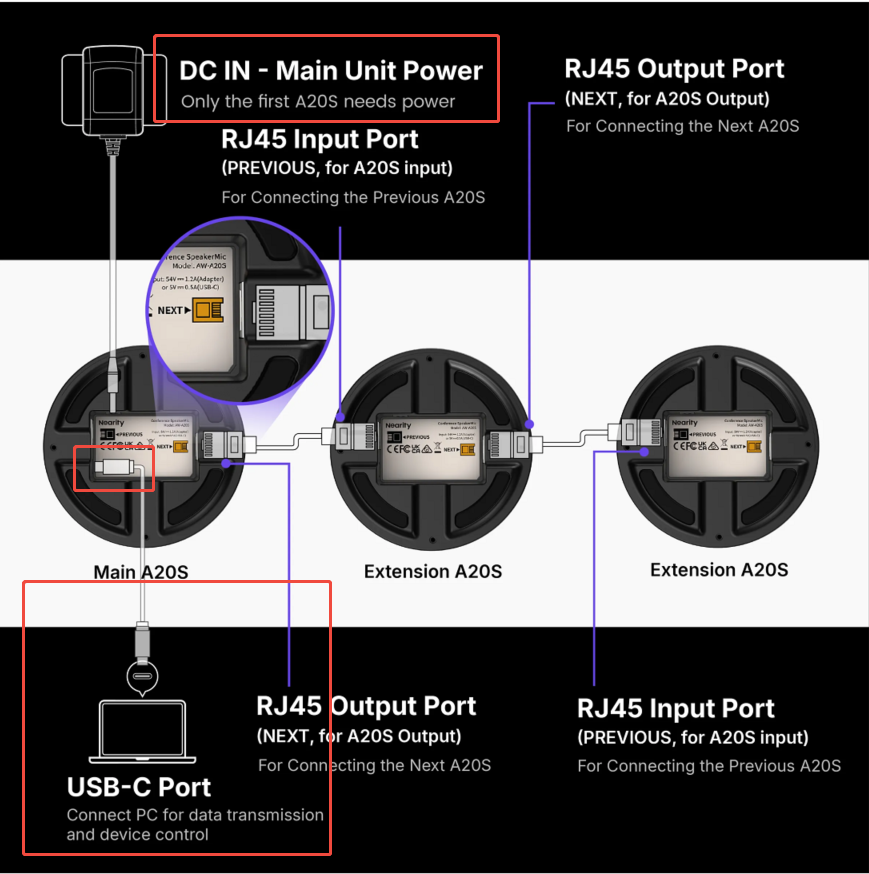
- USB-C Port: Connects the main unit to your computer for data transmission and device control.
- DC IN (Power Port): Powers the main unit. Only the first A20S in the chain needs power — it feeds the extension units over PoE.
- RJ45 Input Port (PREVIOUS): On extension units, connects to the previous A20S in the chain.
- RJ45 Output Port (NEXT): Connects to the next A20S in the chain.
Step 1: Plan the Layout and Position the Units
- Count your coverage zones. Use 1 A20S for a small room (about 161 ft² / 15 m²), 2 units for a medium room (about 323 ft² / 30 m²), and up to 6 units for a large room (about 646 ft² / 60 m²).
- Decide which unit is the main A20S — it should be the one closest to the computer running the meeting.
- Place each unit flat on the table so participants sit evenly around it, and do not cover the microphone holes.
Step 2: Connect the Main A20S
- Connect the power adapter to the DC IN port of the main A20S.
- Connect the main A20S to your computer with the USB-C cable.
- Wait for the device to finish starting. The touch controls light up when the unit is ready.
Step 3: Chain the Extension Units
Run an Ethernet cable from the RJ45 Output port (NEXT) of the main A20S to the RJ45 Input port (PREVIOUS) of the first extension A20S.
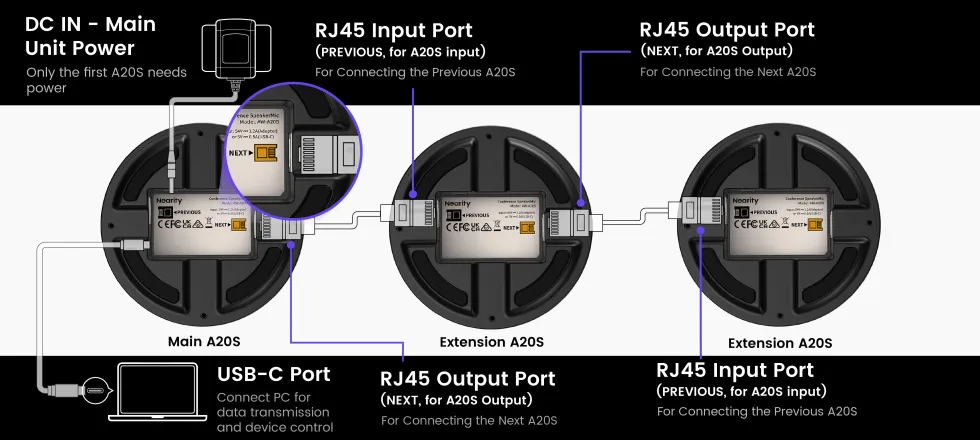
For additional units, run an Ethernet cable from the NEXT port of the current unit to the PREVIOUS port of the next unit. Repeat until all units are connected — up to four A20S devices in total. Extension units power on automatically through the chain; no separate power supply is required.
Step 4: Select the A20S in Your Meeting Platform
The whole chain appears to your computer as a single microphone and speaker.
- Open your meeting platform's Settings, Devices, or Audio menu.
- Select the Nearity A20S as both the Speaker and the Microphone. The exact device name may vary by operating system or platform.
- This works the same way in Zoom, Microsoft Teams, Google Meet, Webex, and most other meeting applications.
Step 5: Test Before the Meeting
- Speak from the seat farthest from the main unit and check that the microphone level responds.
- Play a test sound and confirm that audio plays clearly from every unit in the chain.
- Join a test meeting and ask a remote participant to confirm that voices from all seats are heard clearly and without echo.
Daisy Chain FAQ
Open the question that matches your setup or the issue you see.
How many A20S units can I connect in one daisy chain?
You can daisy-chain up to six A20S units over PoE. Use one unit for a small room (about 161 ft² / 15 m²), two units for a medium room (about 323 ft² / 30 m²), and up to six units for a large room (about 646 ft² / 60 m²).
Does every unit in the chain need a power adapter?
No. Only the first (main) A20S connects to the DC IN power port. It feeds the extension units with both power and audio over the Ethernet cables, so extension units power on automatically through the chain.
Which cables and ports do I use to link the units?
Use standard Ethernet cables (CAT5e or better). Connect the RJ45 Output port (NEXT) of one unit to the RJ45 Input port (PREVIOUS) of the next unit.
The chain does not work if an input and output are swapped. The main A20S also connects to your computer through its USB-C port — only the main unit connects to the computer.
Does the chain appear as several devices in my meeting platform?
No. The whole chain appears to your computer as a single microphone and speaker. In Zoom, Microsoft Teams, Google Meet, Webex, or another platform, simply select the Nearity A20S as both the Speaker and the Microphone.
The two A20S units show different firmware versions or LED colors
Different firmware versions or LED colors may indicate that the daisy chain has not synchronized. Update the units one at a time in NearSync: connect each A20S to your computer directly via USB, open Device Update, and install the recommended firmware version. During the update, connect only one A20S to the computer at a time.
Before reconnecting the daisy chain, confirm in NearSync that both units display exactly the same firmware version, that the daisy-chain cable is securely connected, and that the main A20S is receiving external power. When the connection is successful, all units display the same LED status and respond together when you use supported controls such as mute or volume.
The problem continues after completing all steps
For a full list of daisy-chain issues and fixes, see our dedicated guide: A20S Daisy Chain Not Working.
If the problem persists, contact NearHub Support with screenshots showing the firmware version of each A20S. Please also include your computer's operating system, NearSync version, device serial numbers, order number, LED status, and a photo of the complete connection setup.
If possible, test each A20S individually over USB first. This helps determine whether the issue is related to one device, the daisy-chain cable, or the connection between them.
If You Still Need Help
If the steps above do not resolve the issue, please contact NearHub Support at support@nearhub.us.
How did we do?
How to Connect a Nearity Conference Camera to Zoom, Teams, Google Meet, and Other Meeting Platforms

