Table of Contents
How to download and install Apps on Windows-Based NearHub Board?
Learn three ways to install apps on the NearHub Board S Pro and NearHub Board Max: via the Microsoft Store, downloading from a website, or using a USB drive.
Table of Contents
This article applies to the NearHub Board S Pro and NearHub Board Max.
Method 1: Microsoft Store
The simplest method. Apps from the Microsoft Store are verified and install automatically.
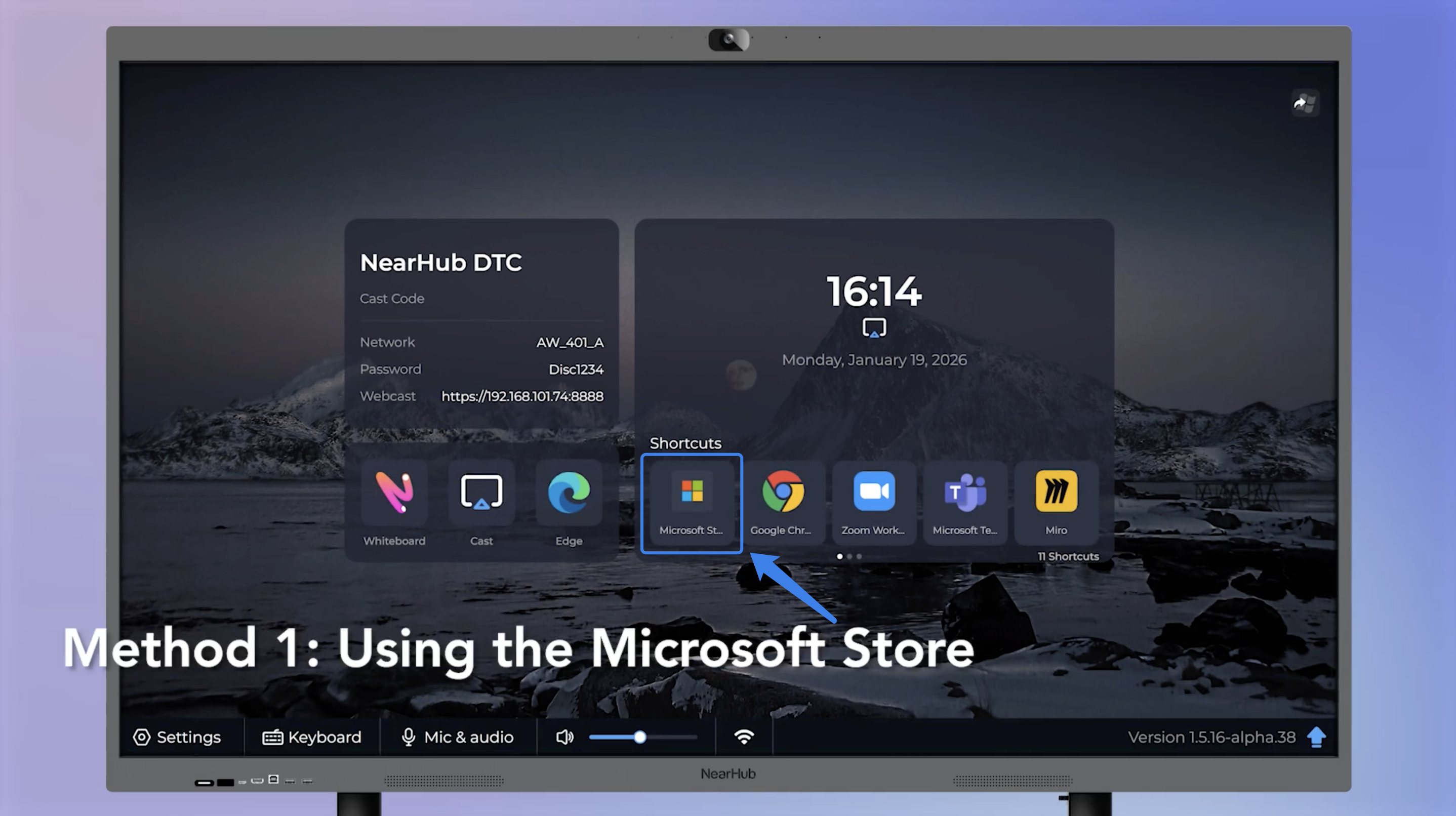
- Open the Microsoft Store from the desktop or taskbar.
- Search for the app by name.
- Click Get or Install.
The app will download and appear on the desktop when ready.
Method 2: Download from the Developer’s Website
Use this method for specialized software not listed in the Microsoft Store, such as teaching tools, engineering applications, or enterprise platforms.
- Open a browser and go to the software’s official website.
- Find and click the Download button.
- Run the downloaded
.exeor.msiinstaller.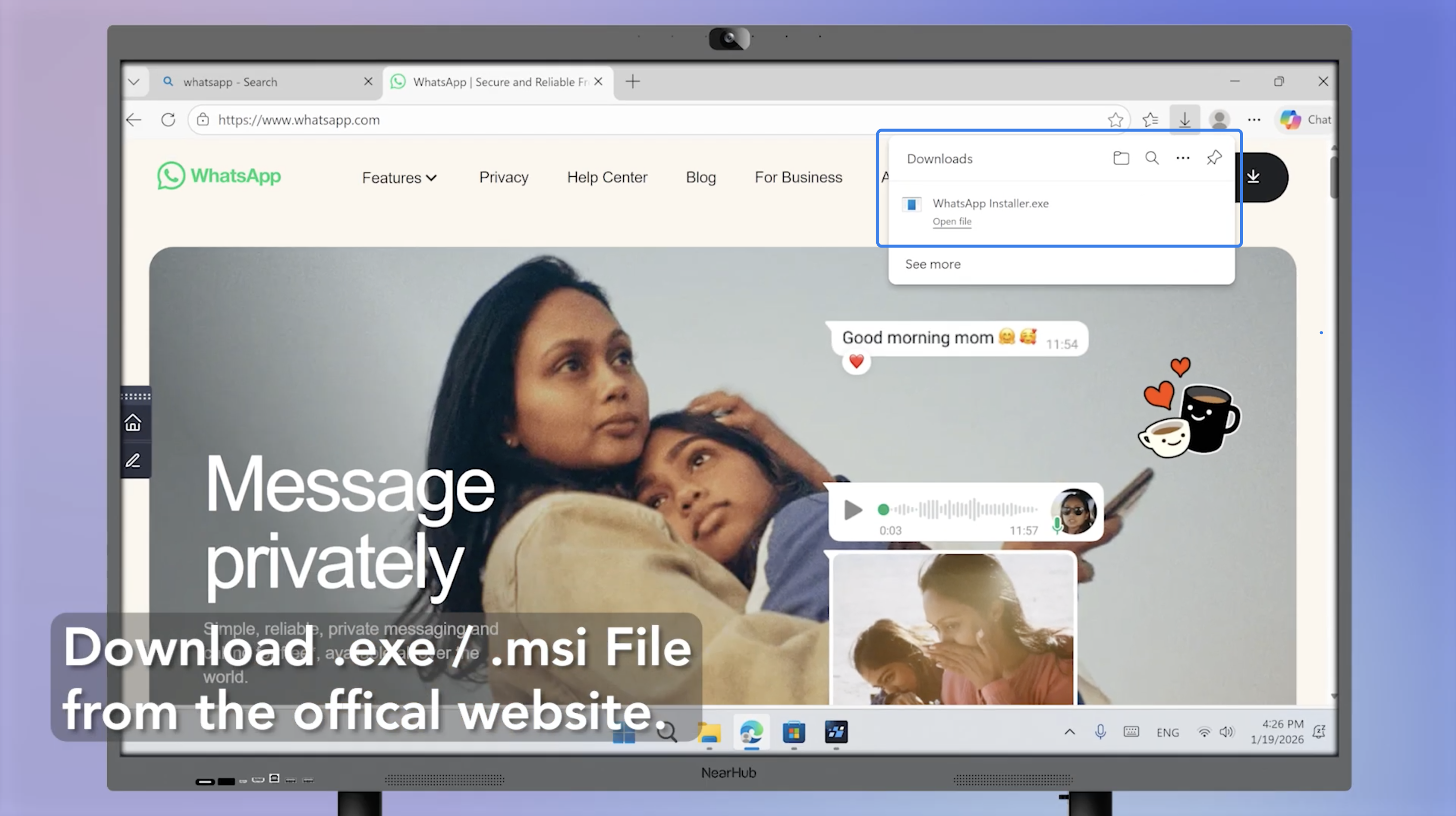
- Follow the on-screen instructions to complete installation.
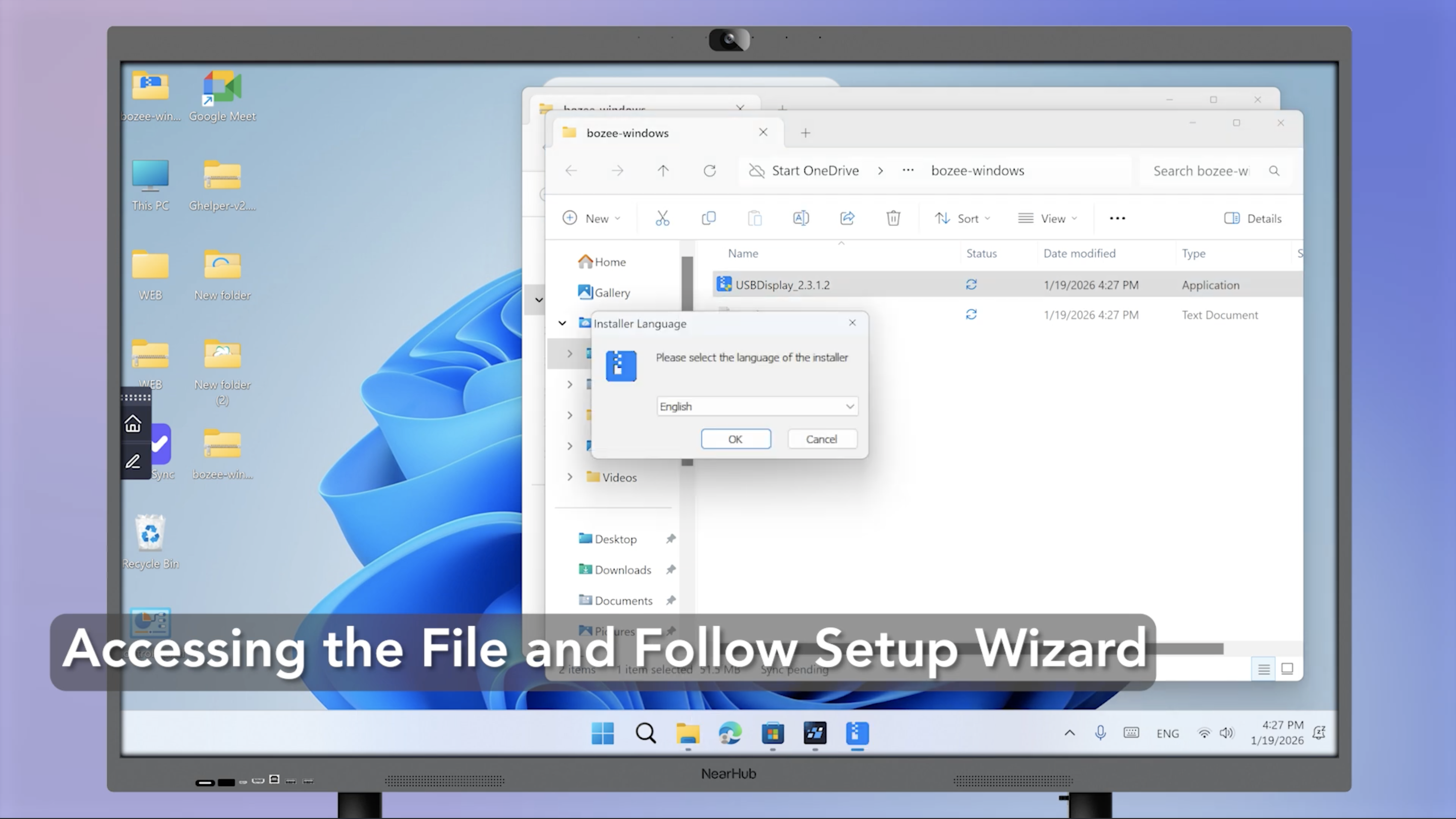
Method 3: Install via USB Drive
Use this method when the board has no internet connection or when the installer file is too large to download conveniently.
- Copy the installer file onto a USB drive from another computer.
- Plug the USB drive into the NearHub Board.
- Copy the installer file to the local desktop.
- Double-click the file and follow the installation wizard.
If You Still Need Help
If the steps above do not resolve the issue, please contact NearHub Support at support@nearhub.us.
How did we do?
How to Use NearHub Tail with a Windows-Based NearHub Board

