NA20 Won’t Pair with Nearity 360 Alien
Update the NA20 and Nearity 360 Alien firmware in NearSync, then pair the devices again by following these simple steps.
If your NA20 Wireless Dongle cannot connect or pair with Nearity 360 Alien, update both devices to the latest firmware in NearSync, then pair them again.
Before You Begin
Make sure you have:
- A computer with NearSync installed
- The NA20 Wireless Dongle
- A USB cable for connecting Nearity 360 Alien to the computer
- The power adapter for Nearity 360 Alien
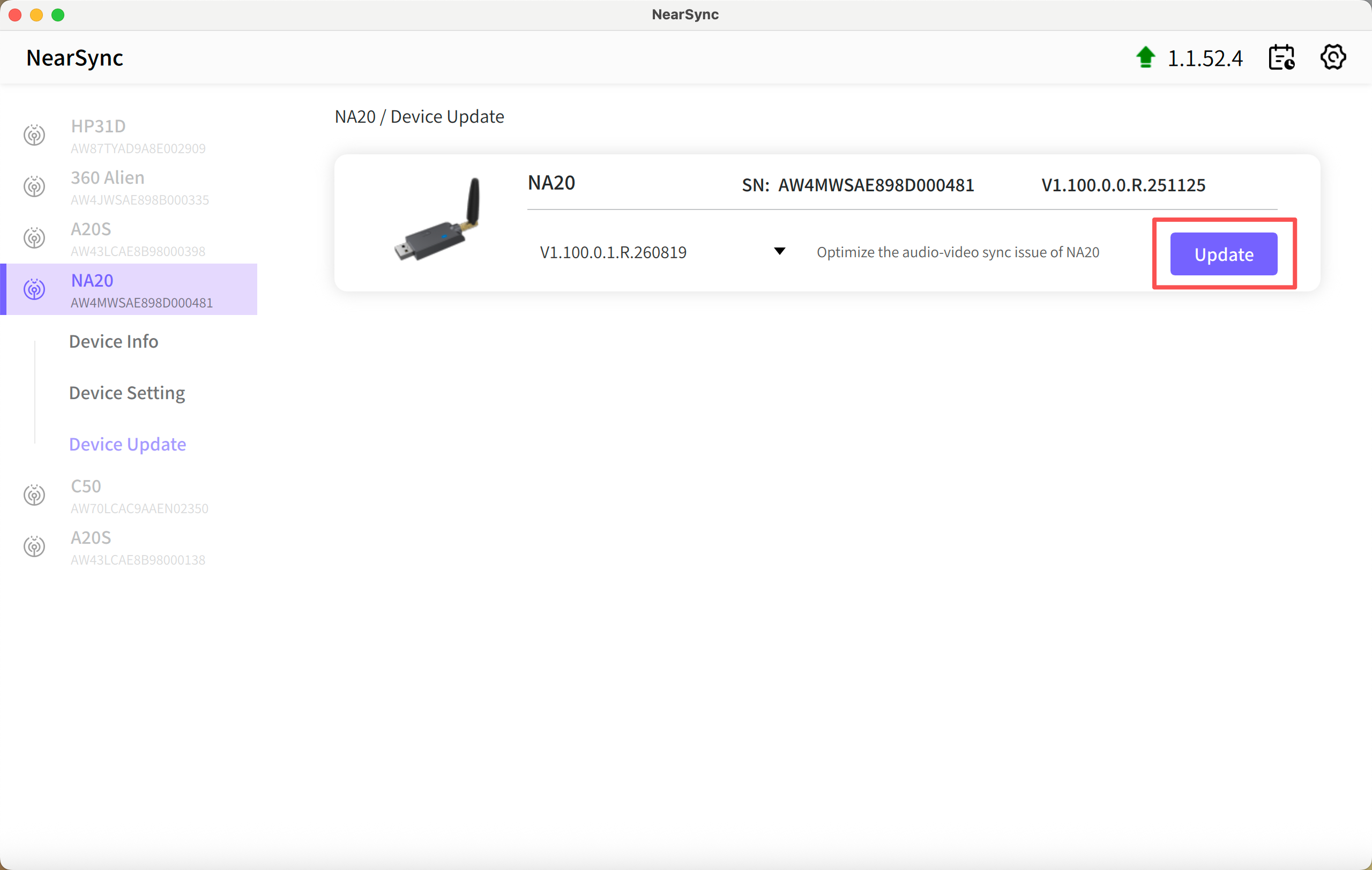
Step 1: Update the NA20 Firmware
- Insert the NA20 Wireless Dongle into your computer.
- Open NearSync.
- Select the NA20 in NearSync.
- Check for a firmware update and install the latest version.
- Keep the NA20 connected until the update is complete.
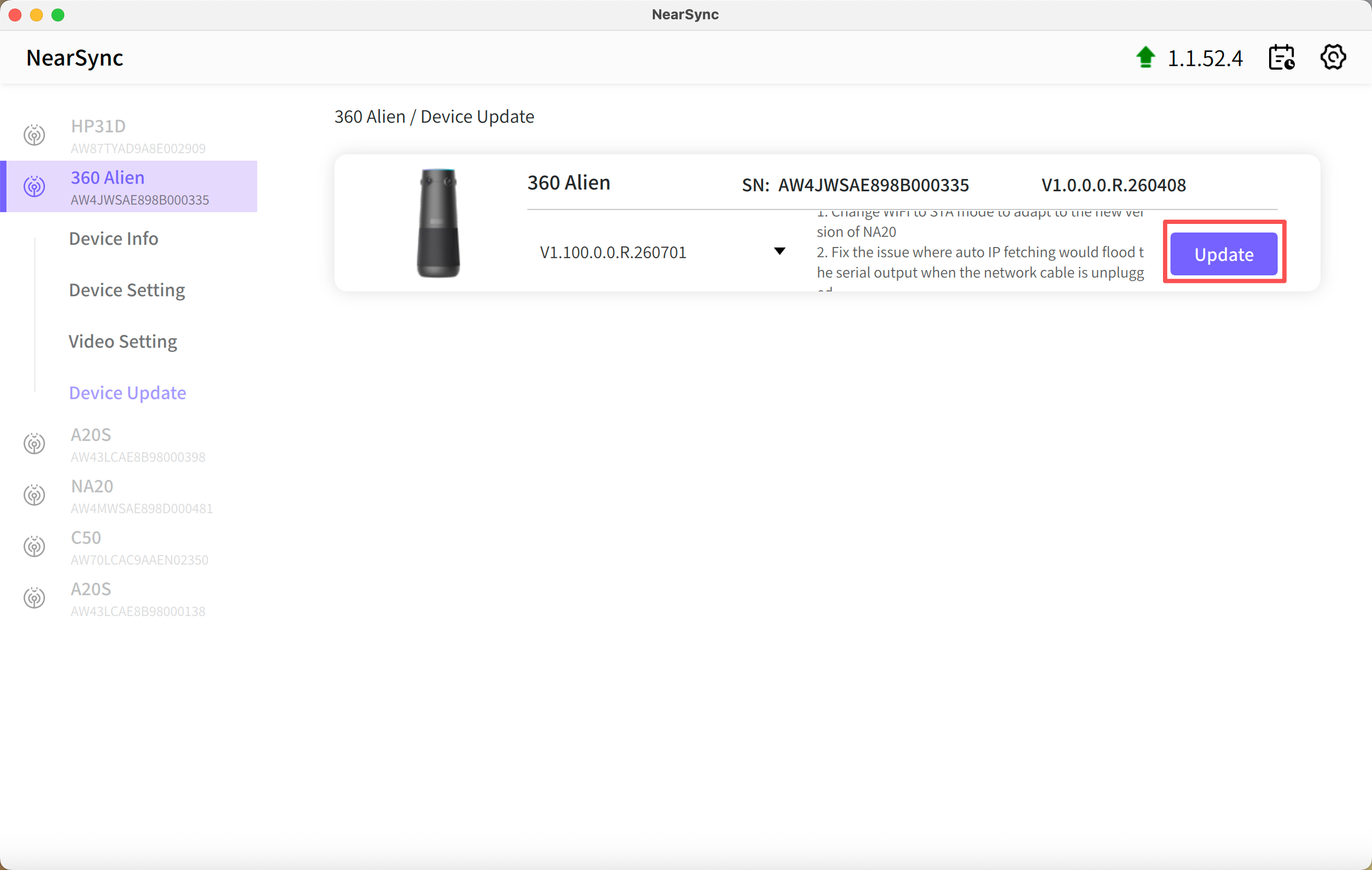
Step 2: Update the Nearity 360 Alien Firmware
- Use a USB cable to connect Nearity 360 Alien directly to your computer.
- Make sure the camera is connected to power.
- Open NearSync and select Nearity 360 Alien.
- Check for a firmware update and install the latest version.
- Keep the USB cable and power connected until the update is complete.
Step 3: Pair the NA20 with Nearity 360 Alien
- Disconnect the USB cable between the computer and Nearity 360 Alien.
- Insert the updated NA20 into the computer.
- Connect Nearity 360 Alien to power and turn it on.
- Wait while the two devices pair. The status lights on both devices will be yellow during pairing.
- When you hear “Connected”, check that both status lights have turned green.
The NA20 is now paired with Nearity 360 Alien and ready to use.
Frequently Asked Questions
Find answers to common questions about pairing the NA20 Wireless Dongle with Nearity 360 Alien.
Why won’t my NA20 pair with Nearity 360 Alien?
The NA20 and Nearity 360 Alien may not pair correctly if either device is using outdated firmware. Connect each device to NearSync and update both devices to the latest firmware before trying again.
How do I update the NA20 firmware?
Insert the NA20 into your computer, open NearSync, select the NA20, and install the latest available firmware. Keep the dongle connected until the update is complete.
How do I update the Nearity 360 Alien firmware?
Connect Nearity 360 Alien directly to your computer with a USB cable and connect the camera to power. Open NearSync, select Nearity 360 Alien, and install the latest available firmware. Do not disconnect the USB cable or power while the update is in progress.
What does a yellow status light mean?
A yellow status light on both the NA20 and Nearity 360 Alien means that the devices are pairing. Keep both devices powered and wait for the pairing process to finish.
How do I know when pairing is complete?
Pairing is complete when you hear the voice prompt “Connected” and the status lights on both the NA20 and Nearity 360 Alien turn green.
What should I do if both devices remain yellow?
Confirm in NearSync that both devices are running the latest firmware. Then unplug and reconnect the NA20, restart Nearity 360 Alien, and try pairing again. If the devices still do not connect, contact NearHub Support at support@nearhub.us.
If You Still Need Help
If the steps above do not resolve the issue, please contact NearHub Support at support@nearhub.us.
How did we do?
Why Does My Nearity 360 Alien Video Look Grainy over HDMI?

