Table of Contents
How to Use Zoom on NearHub Board?
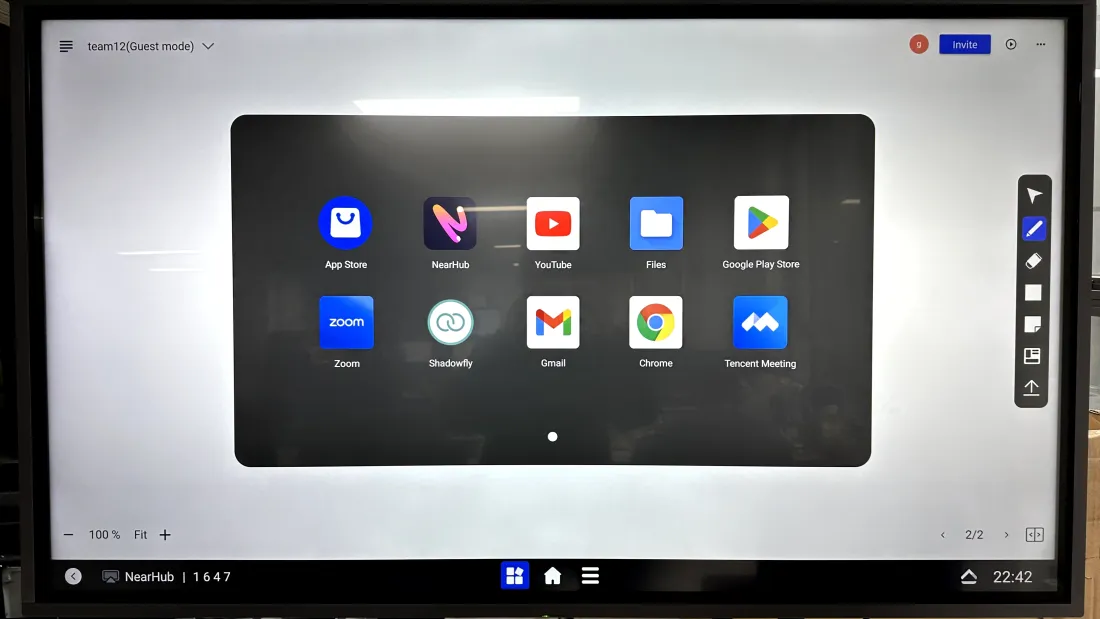
Step 1: Install Zoom. Open the NearHub App Store from the launcher. Find Zoom in the app list and tap Get. Step 2: Set Up Audio. The NearHub Board has a built-in camera and microphone. No external de…
Table of Contents
Step 1: Install Zoom
Open the NearHub App Store from the launcher. Find Zoom in the app list and tap Get.
Step 2: Set Up Audio
The NearHub Board has a built-in camera and microphone. No external devices are required.
For larger rooms, you can connect a Nearity external microphone:
Connection Mode | Compatible Models | Max Cascaded Units |
USB | S55 / S65 / S75 | 5 × Nearity A20S |
POE | S65 / S75 | 3 × Nearity A20S |
Step 3: Join or Host a Meeting
Open Zoom and choose one of the following:
- Join a Meeting — Enter the Meeting ID and passcode. Use this when the meeting is hosted from another device.
- Sign In — Log in to your Zoom account to host the meeting from the NearHub Board.
First launch only: Zoom will request several permissions including microphone access and permission to draw over other apps. Accept all prompts. They will not appear again after the initial setup.
Step 4: Share Your Screen
Once in a meeting, tap the black area of the screen to reveal the bottom menu bar. Tap Share, then select:
- Desktop — shares the entire NearHub Board screen
- Application — shares one specific app running on the board
Zoom minimizes after sharing starts. To return to the Zoom controls, tap the task manager icon at the bottom center of the screen.
Step 5: Configure Camera Settings
Tap Video to enable the camera. Tap the Settings icon in the lower-right corner, then open the Soundbar module:
- Panoramic View — captures the full room
- Auto-framing — adjusts framing to the active speaker
- Video Mirroring — flips the camera image horizontally

How did we do?