How to Screen Cast Without Wi-Fi on NearHub Board S Series (Hotspot Mode)?
When to use this : If there is no Wi-Fi network available in your environment, the NearHub Board can create its own hotspot. Devices connect to that hotspot directly to cast their screen.. Step 1: Di…
When to use this: If there is no Wi-Fi network available in your environment, the NearHub Board can create its own hotspot. Devices connect to that hotspot directly to cast their screen.
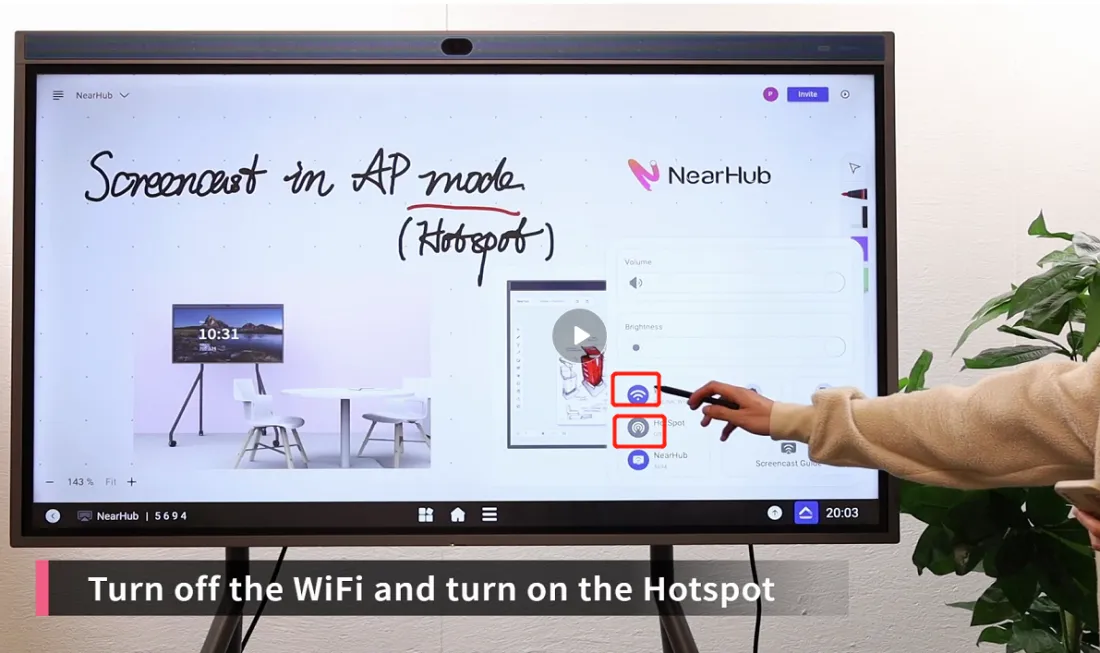
Step 1: Disable Wi-Fi and Enable Hotspot on the NearHub Board
Tap the control panel icon in the lower-right corner of the screen.
- Tap Wi-Fi to turn it off.
- Tap Hotspot to turn it on.
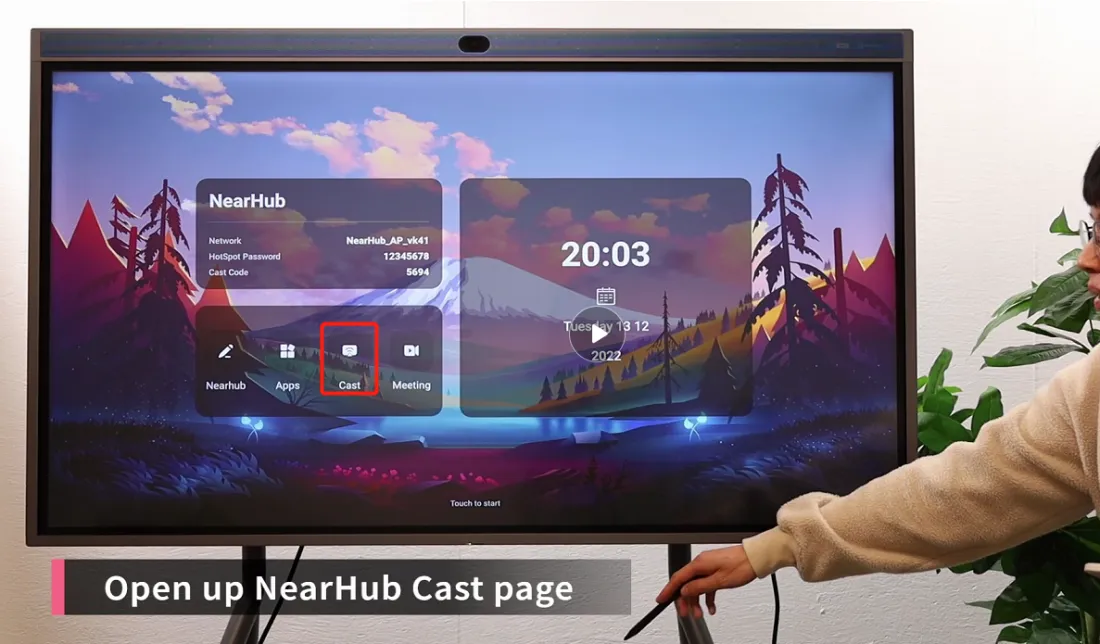
Step 2: Open the Cast Page
Return to the home screen and tap Cast.
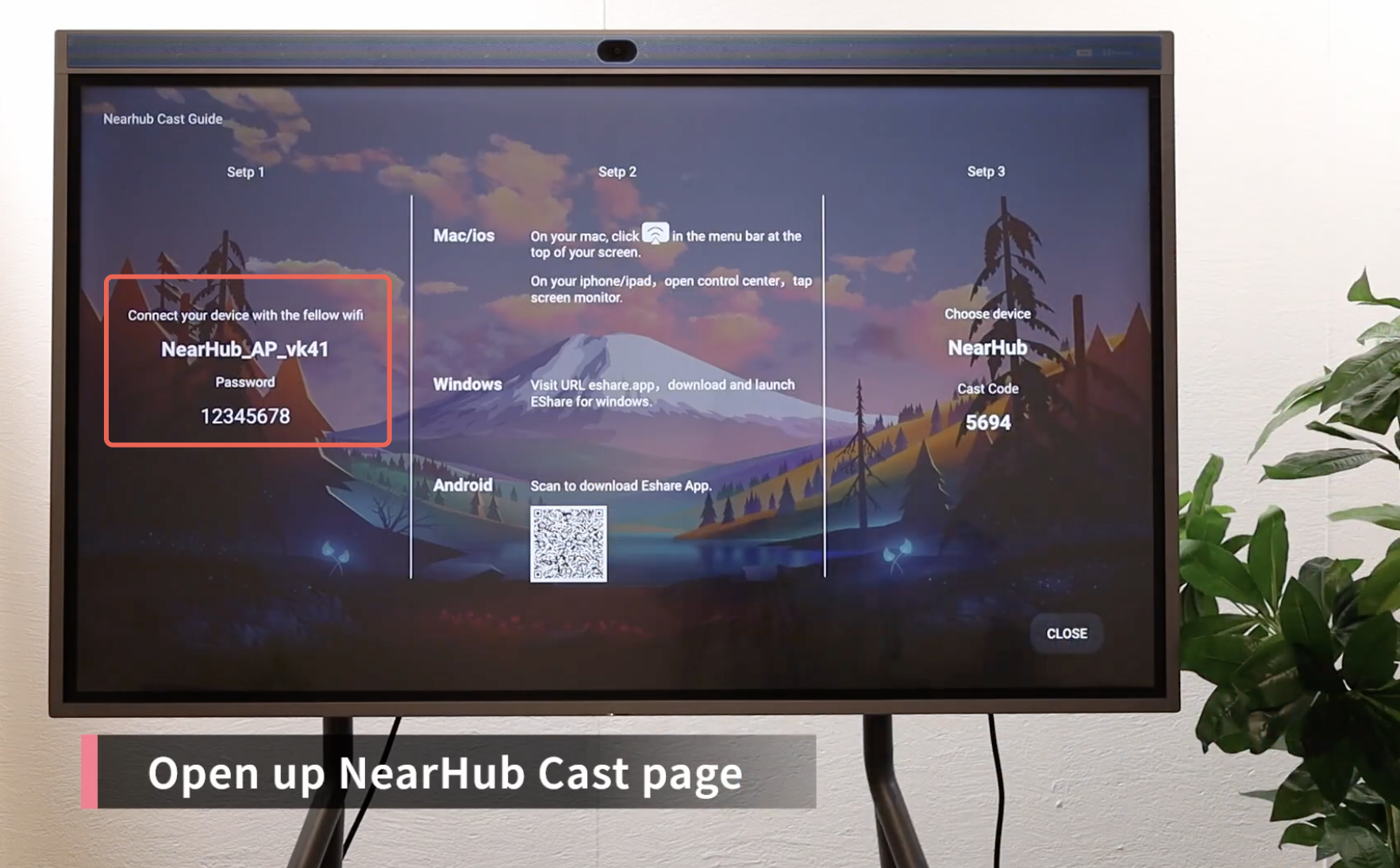
The Cast page displays:
- The hotspot name and password for your device to connect
- The casting code you will need in Step 4
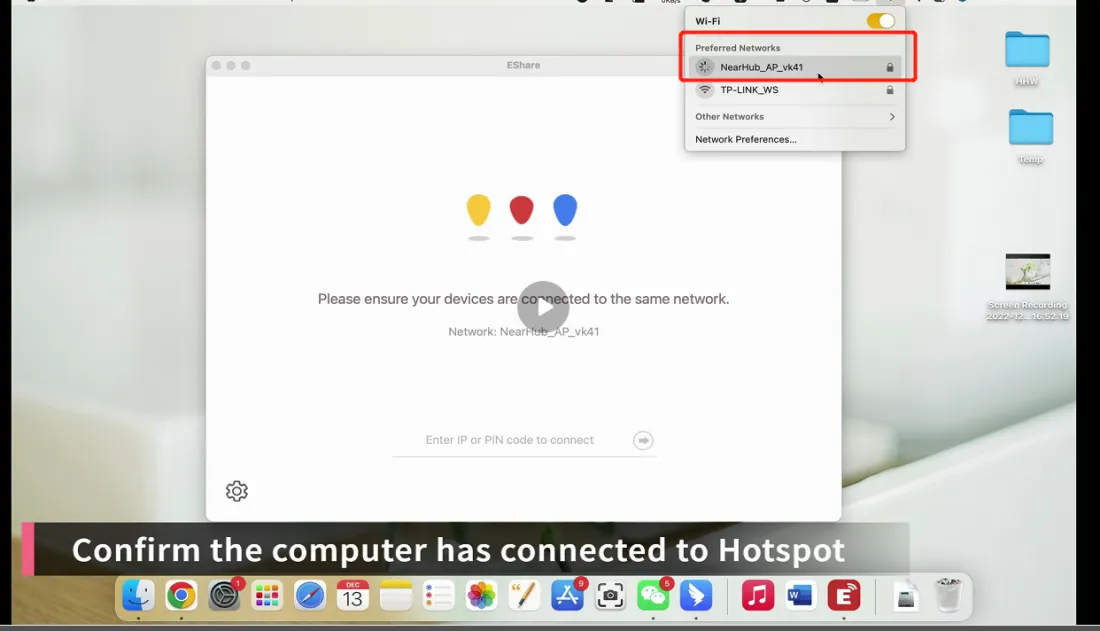
Step 3: Connect Your Device to the NearHub Hotspot
On your computer, open Wi-Fi settings and connect to the hotspot network shown on the Cast page. Enter the password displayed.
Step 4: Cast Your Screen via EShare
If EShare is not installed on your computer, download it from eshare.app.
- Open EShare.
- Enter the casting code shown on the NearHub Cast page.
- Click Share Screen.
Additional Feature: Touchback
While casting, you can touch the NearHub Board screen to control your computer remotely, without using your computer's mouse or keyboard.
How did we do?